Note: The following steps are done to trigger the Duo MFA Setup
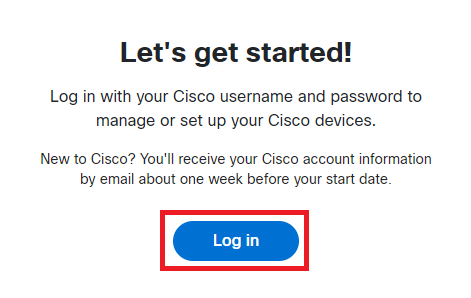
- Open https://devices.cisco.com
- Click
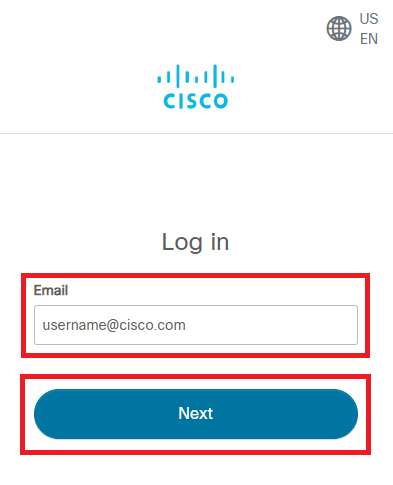
Log in - Enter your Cisco e-mail address and then click
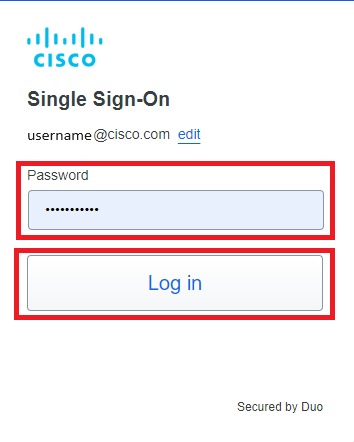
Next - Enter Cisco temporary password and click
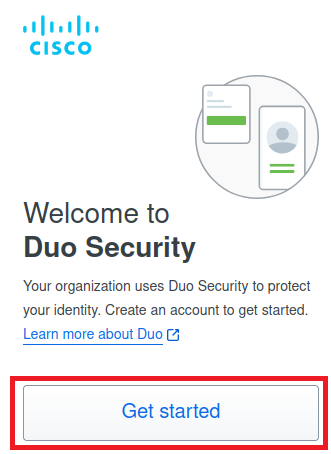
Log in - Click
Next on the following three windows - Click
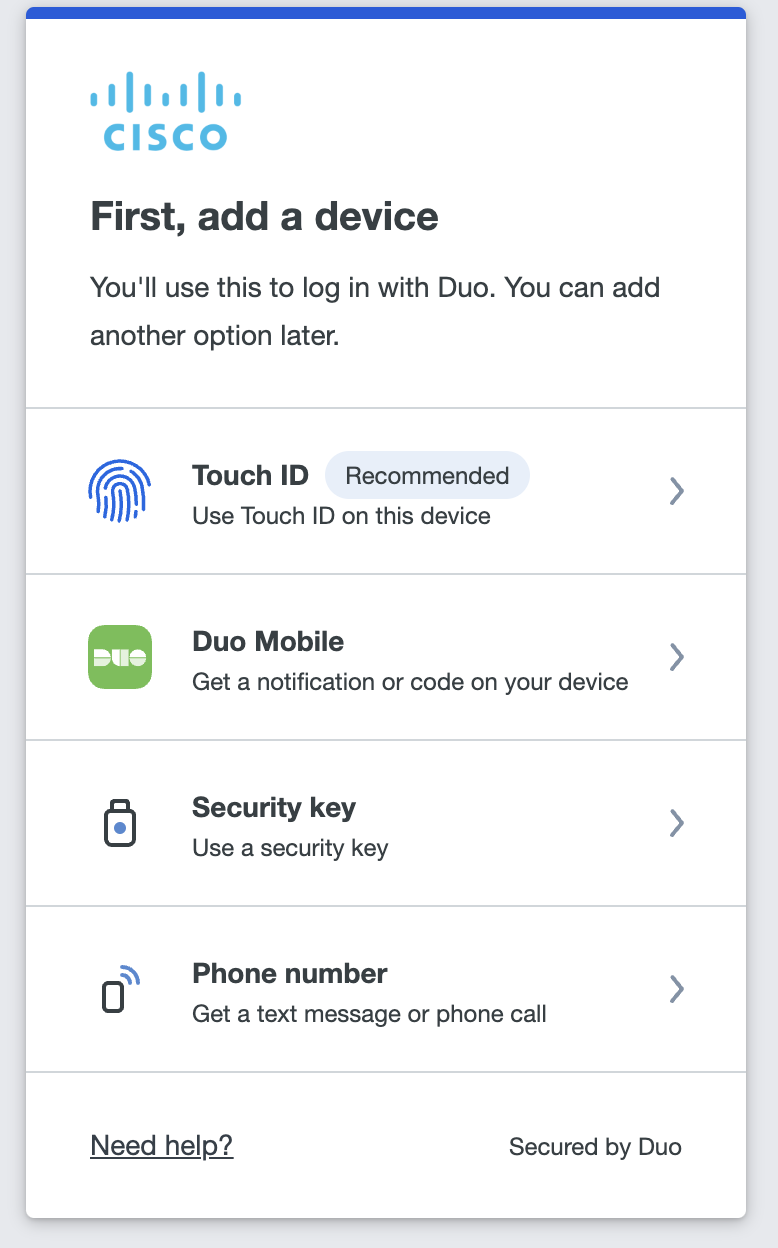
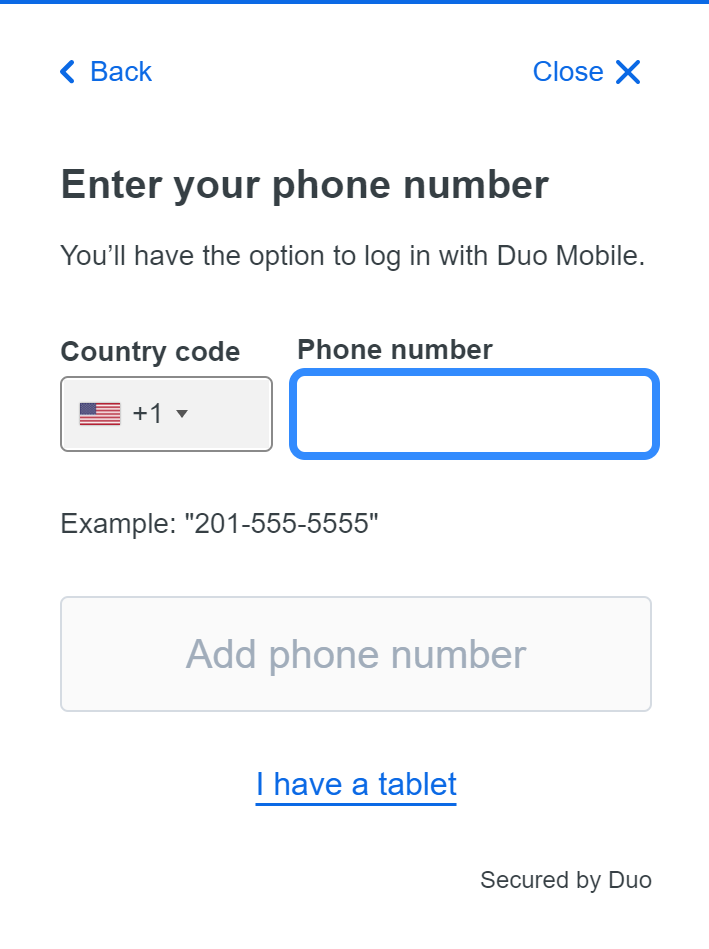
Duo Mobile to register your mobile devicesice Note: If you are unable to use Duo Mobile, click here- Select your country code, enter your Mobile number, click
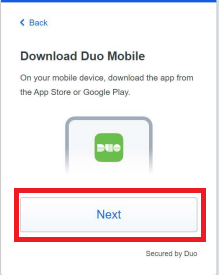
Add phone number , then confirm it on the next prompt - Install the Duo Mobile app on your Mobile devicesice, then click
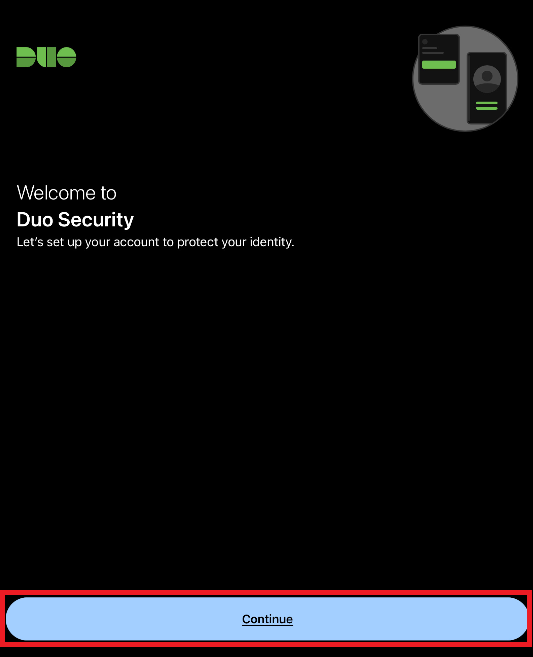
Next - Open the Duo Mobile app on your mobile devicesice and tap
Continue Note: If you already have a Duo Mobile account set up on your devicesice, clickAdd + to add your Cisco account
- Tap
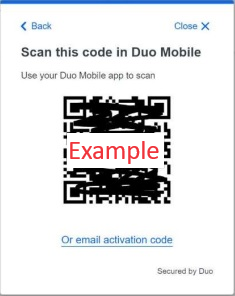
Use a QR code - Scan the code on your computer screen with your mobile devicesice
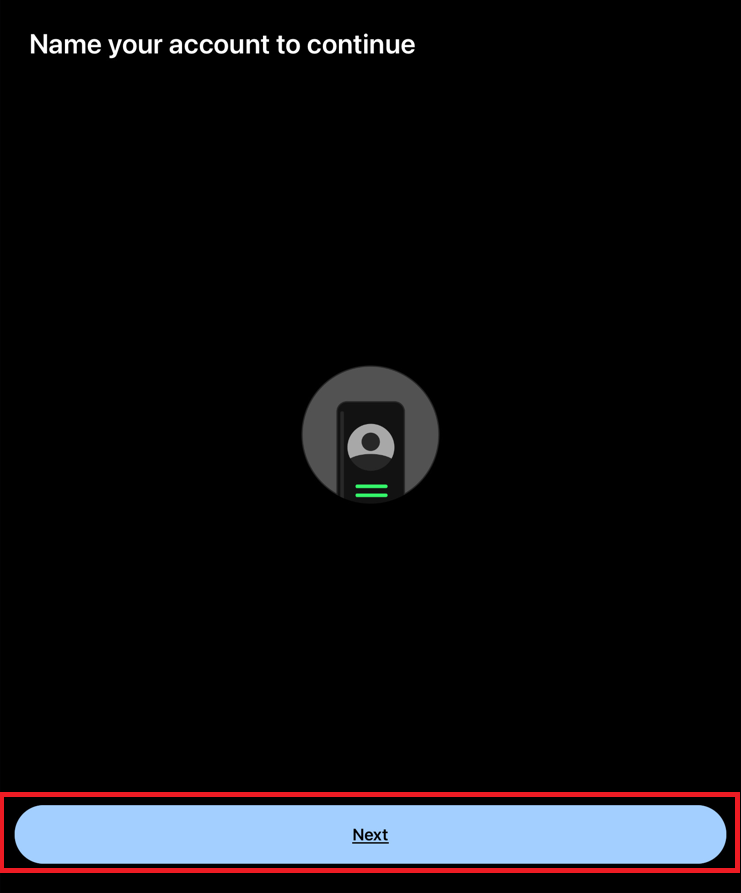
- Tap
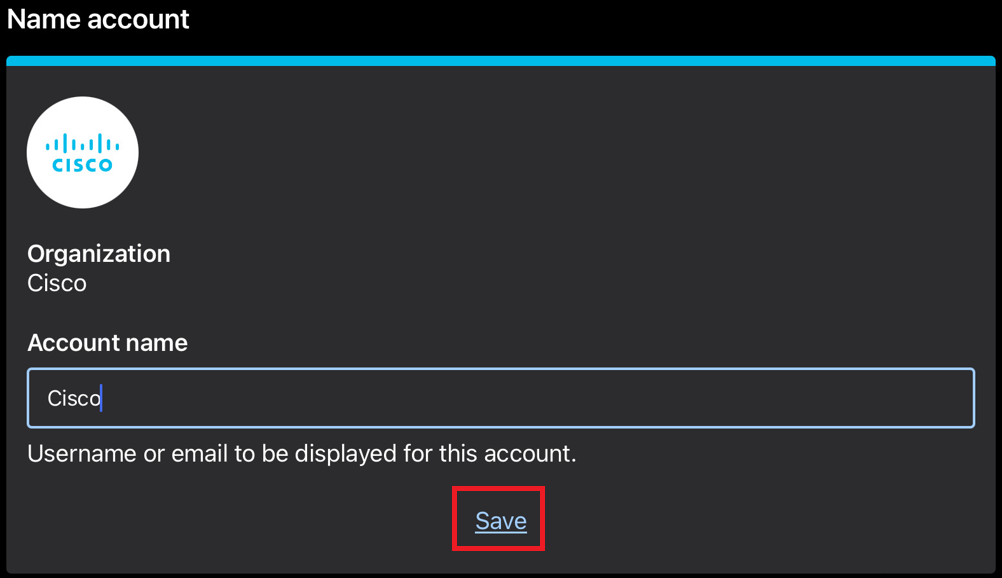
Next - Name the account (default is Cisco) and tap
Save - You can either select
Practice now orSkip . Be sure toAllow Notifications when prompted - When you have finished configuring Duo on your mobile devicesice, go back to the computer's browser and
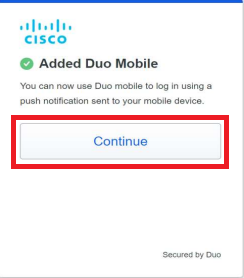
click
Continue . You will see a success screen - Once you have configured Duo MFA,
*DO NOT* click any links on theAdvanced Cisco Experience page. Just close the devices.cisco.com window