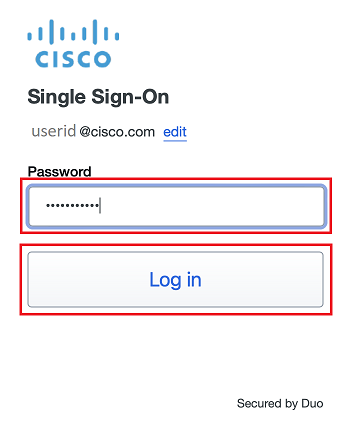
- Enter your Cisco temporary password and click Log In
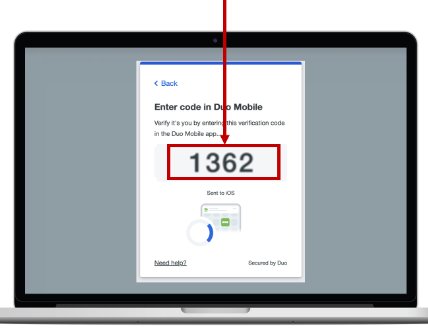
- A Duo Verified Push code will pop up on your Cisco device
- Verify it is you logging into your Duo app. Did you initiate this push?
- Note: you might have to scroll down to see the verification code prompt
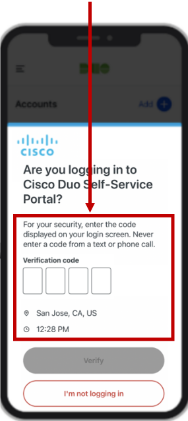
- Enter the verification code when prompted
- Only use the code provided within the Duo login prompt from your Cisco device
- NEVER enter a code provided by a third-party, including:
- The Cisco help desk
- Text message (SMS)
- A phone call or email

 Install Windows App and connect to Cisco Cloud PC
- Click this link to open the App Store, then install Windows App
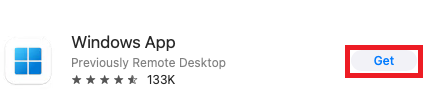
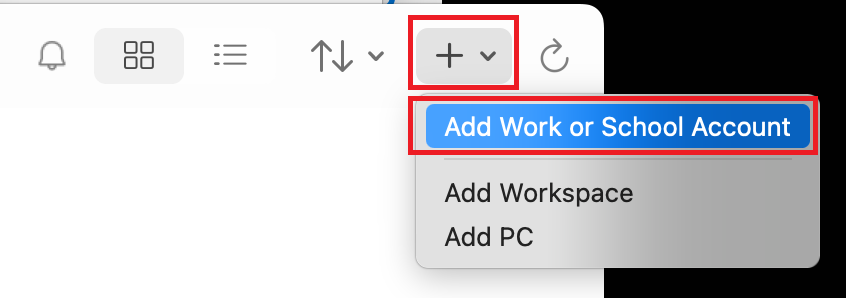
- Launch the Windows App. Click
+ , thenAdd Work or School Account
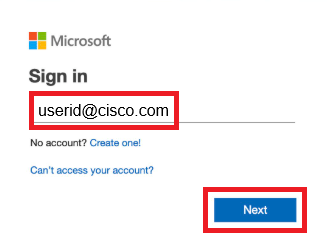
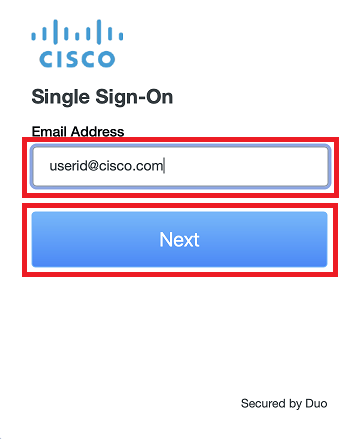
- Enter your Cisco e-mail address, then click
Next
Note: If you are already signed into Microsoft 365 with a non-Cisco account, you will need to click the+ sign to add your Cisco account
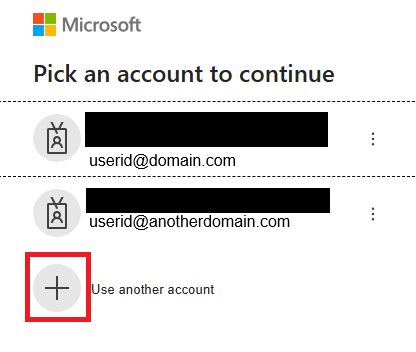
- Enter your Cisco email address, click Next, then follow the rest of the SSO sign-in and Duo authentication steps
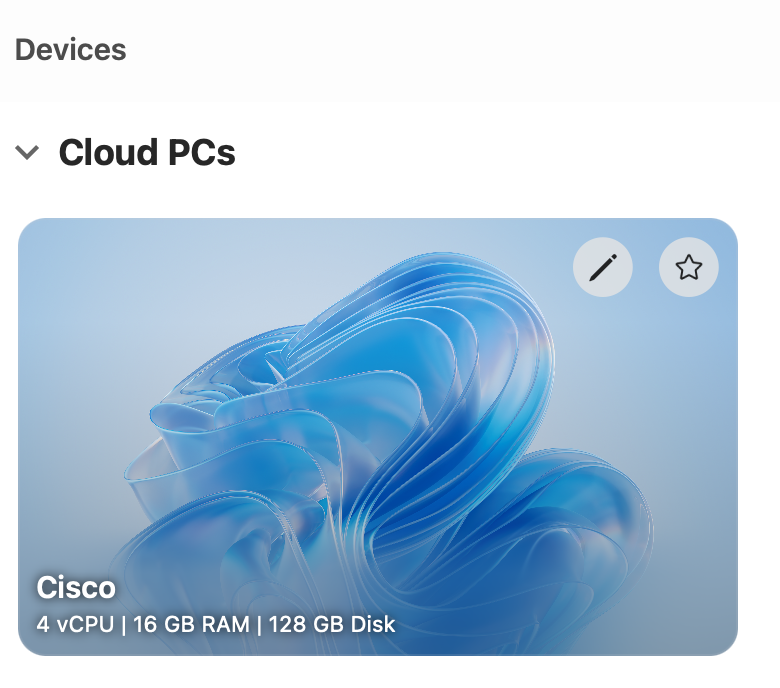
- Double-click your Cisco Cloud PC
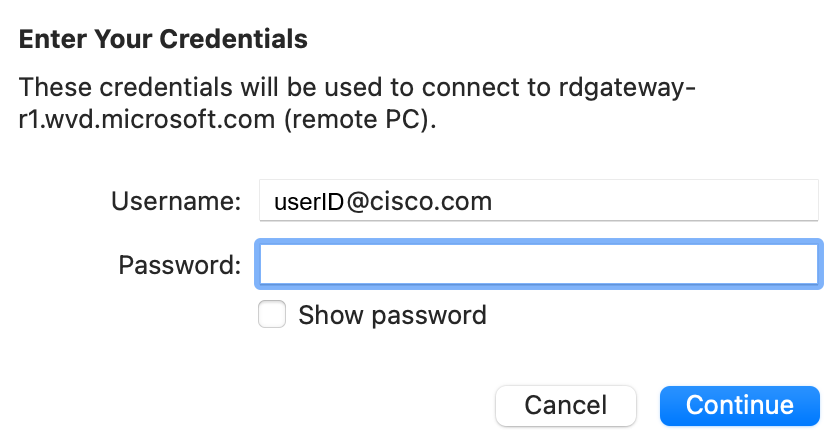
- Enter your temporary password and click
Continue