Install and Log on to Webex
Optional: Installing Webex on your host machine will allow you to communicate and attend meetings without having to open your Cloud PC
If you already have Webex installed, scroll to the end of the page and move on to the next step
- Open https://www.webex.com/downloads.html
- Download the appropriate version of Webex for your operating system
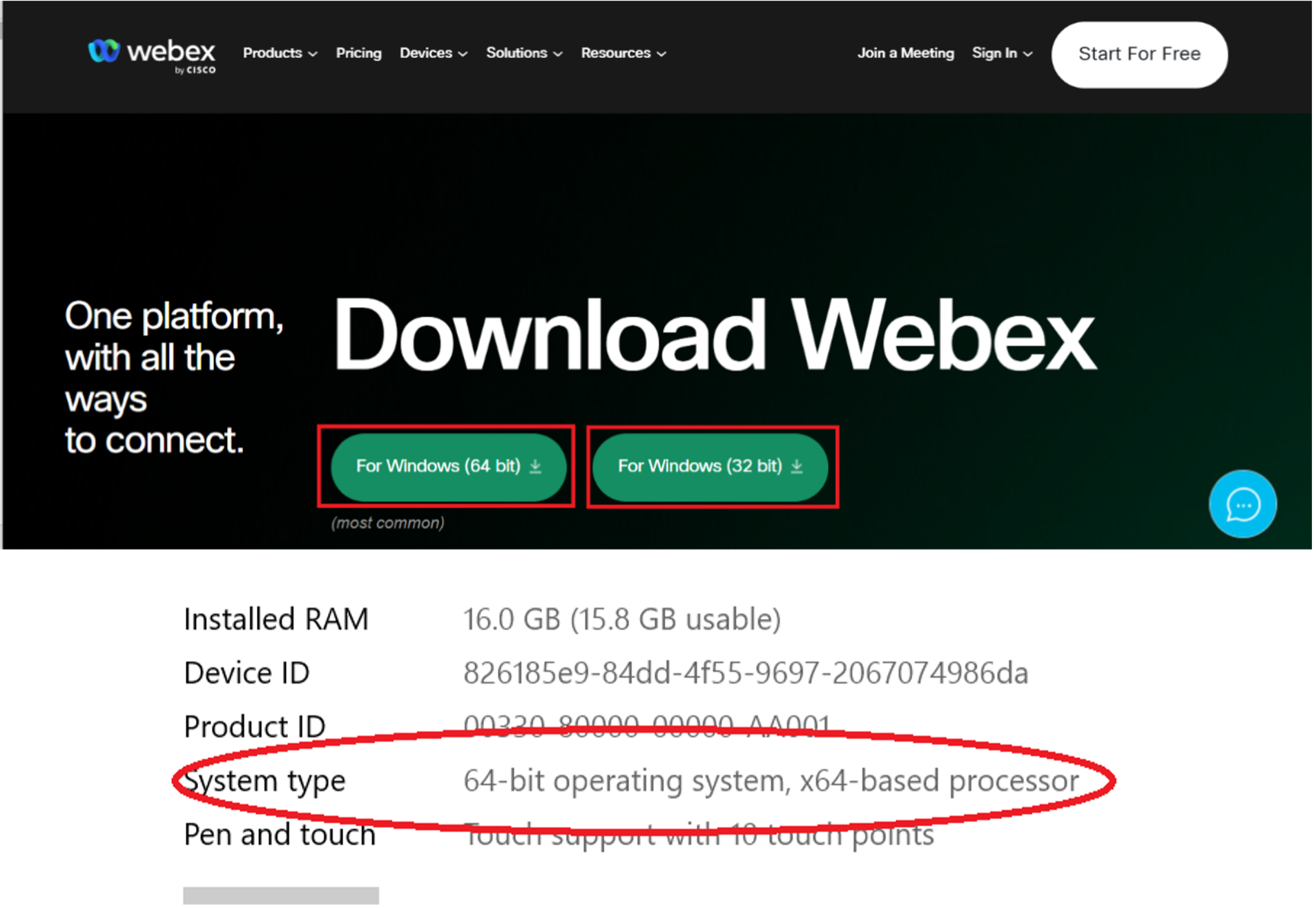
*Note: If you are not sure which version of Windows you have, right-click Start, click System, and find your System type
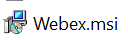
- Locate Webex.msi and double-click it. By default, it will be in your Downloads folder
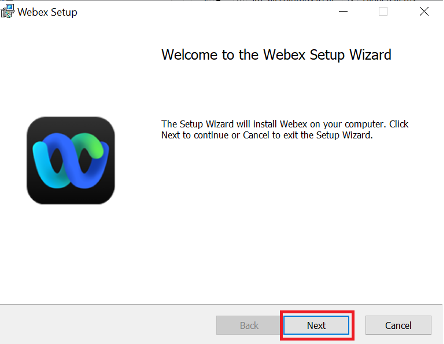
- Click Next to start the installation
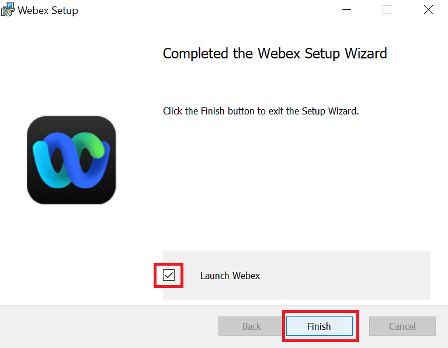
- Leave the Launch Webex box ticked and click Finish
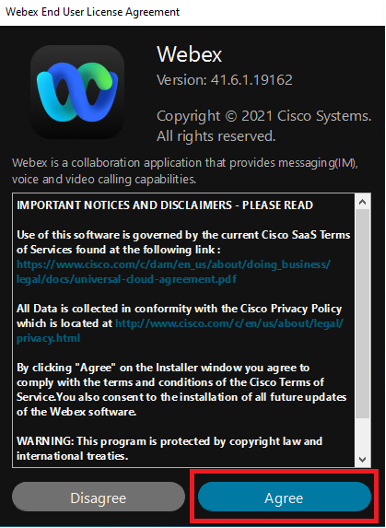
- If prompted, click Agree
- Enter your Cisco email address click Next
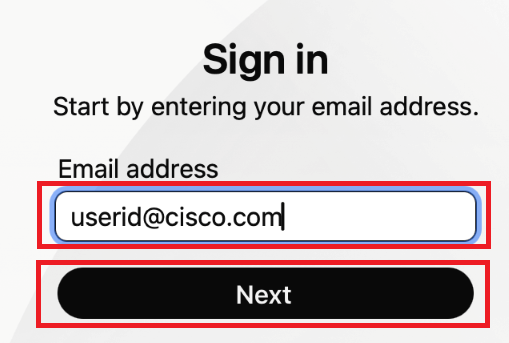
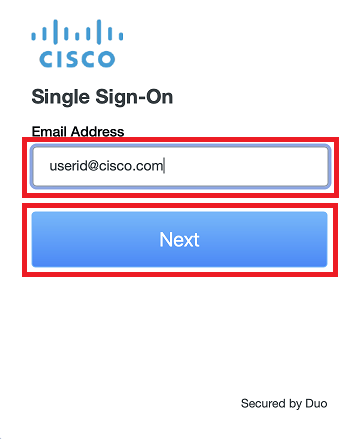
- Enter your Cisco email address click Next
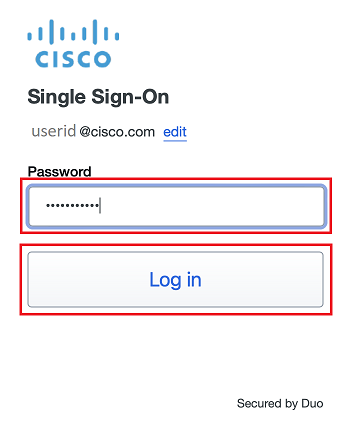
- Enter your Cisco temporary password click Log in
- A Duo Verified Push code will pop up on your Cisco device
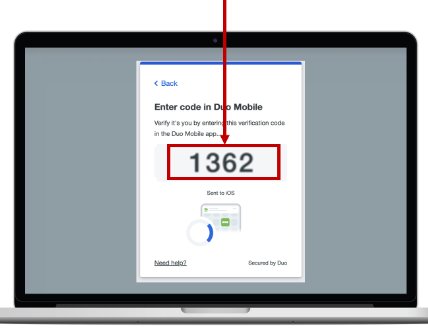
- Verify it is you logging into your Duo app. Did you initiate this push?
- Note: you might have to scroll down to see the verification code prompt
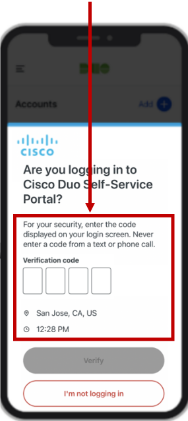
- Enter the verification code when prompted
- Only use the code provided within the Duo login prompt from your Cisco device
- NEVER enter a code provided by a third-party, including:
- The Cisco help desk
- Text message (SMS)
- A phone call or email

If you were already signed into a Webex with a different account, you can sign in with your Cisco account later if you wish. Simply sign out of Webex and then sign in with your Cisco credentials. Do not do it now or you will be disconnected from this session