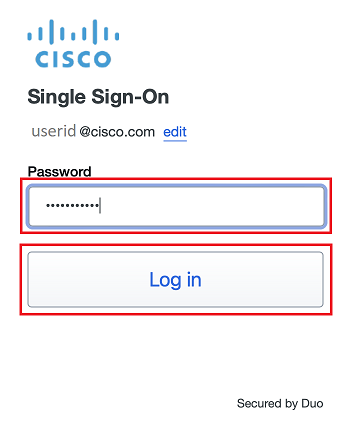
- Enter your Cisco temporary password and click Log In
- A Duo Verified Push code will pop up on your Cisco device
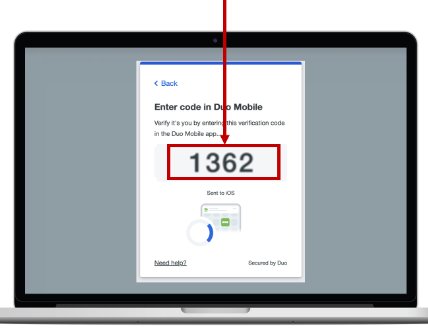
- Verify it is you logging into your Duo app. Did you initiate this push?
- Note: you might have to scroll down to see the verification code prompt
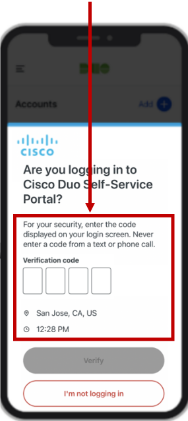
- Enter the verification code when prompted
- Only use the code provided within the Duo login prompt from your Cisco device
- NEVER enter a code provided by a third-party, including:
- The Cisco help desk
- Text message (SMS)
- A phone call or email

Install Windows App and connect to Cisco Cloud PC
- Click this link to open the Windows App download page
- Click
Download
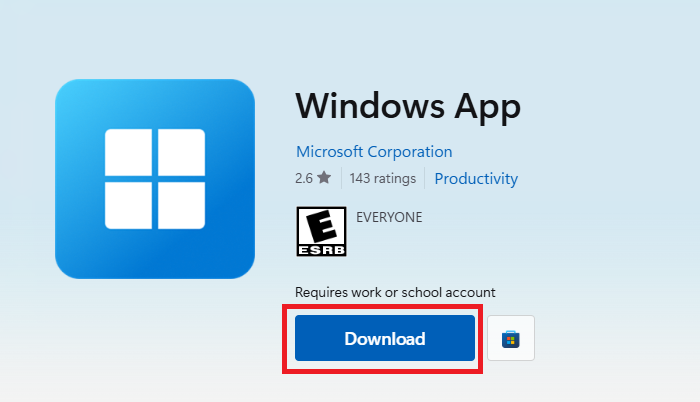
- Locate
Windows App Installer.exe and double-click it. By default, it will be in your Downloads folder

- Click
Sign In
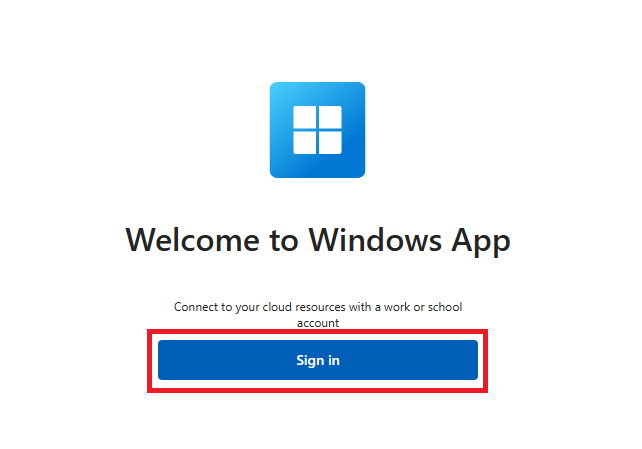
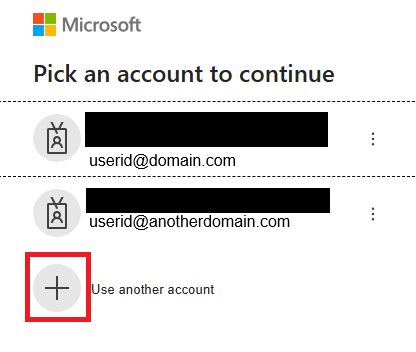
Note: If you are already signed into Microsoft 365 with a non-Cisco account, you will need to click the+ sign to add your Cisco account
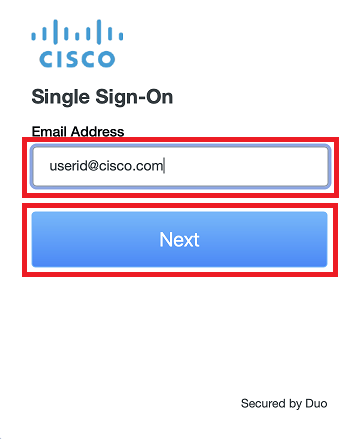
- Enter your Cisco email address, click Next, then follow the rest of the SSO sign-in and Duo authentication steps
- Click
Next on the following three windows - Click
Connect
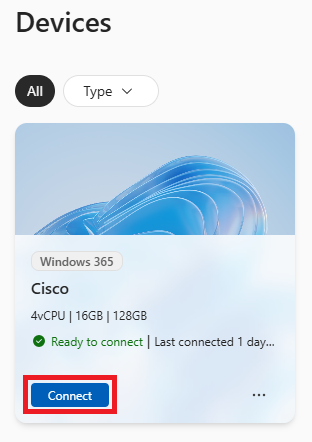
- Sign in with your Cisco credentials
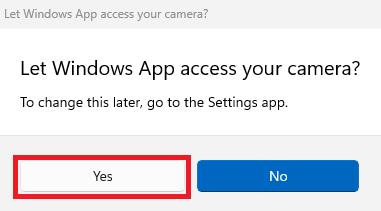
- Choose yes or now to "Let Windows App access your camera."
Yes is recommended. If you chooseNo , then you will be unable to use your camera for Webex meetings in your Cloud PC