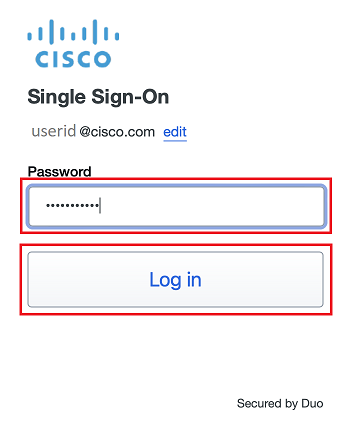
- Enter your Cisco temporary password and click Log In
- A Duo Verified Push code will pop up on your Cisco device
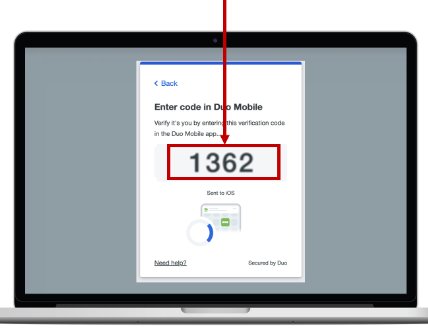
- Verify it is you logging into your Duo app. Did you initiate this push?
- Note: you might have to scroll down to see the verification code prompt
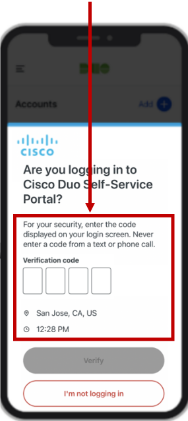
- Enter the verification code when prompted
- Only use the code provided within the Duo login prompt from your Cisco device
- NEVER enter a code provided by a third-party, including:
- The Cisco help desk
- Text message (SMS)
- A phone call or email

Windows Hello
- If you want to set up your system for facial recognition or fingerprint sign-in, click Yes, set up and follow the prompts
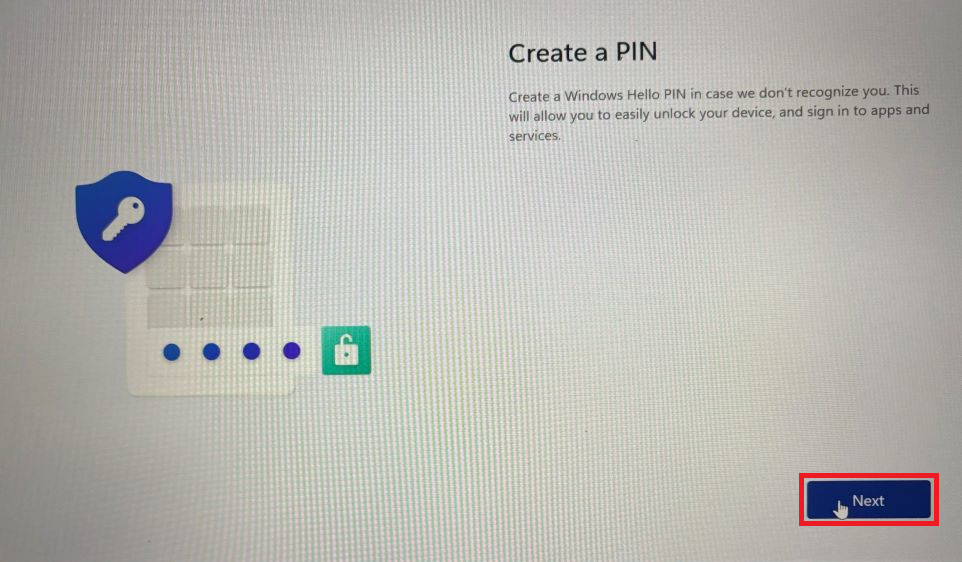
- Note: If you click Skip for now on both of these methods, you will still be required to set up Windows Hello with a PIN
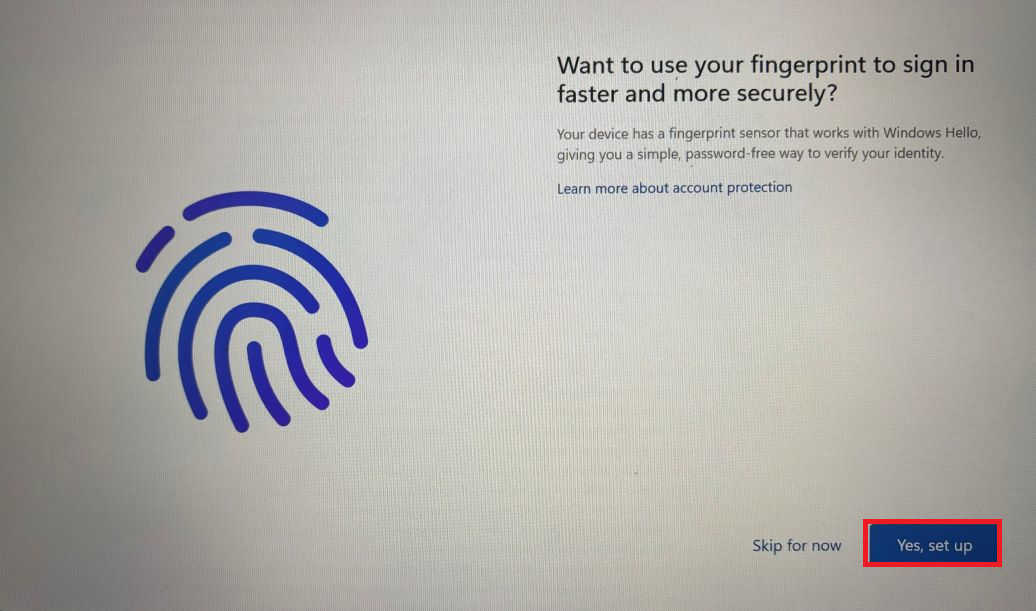
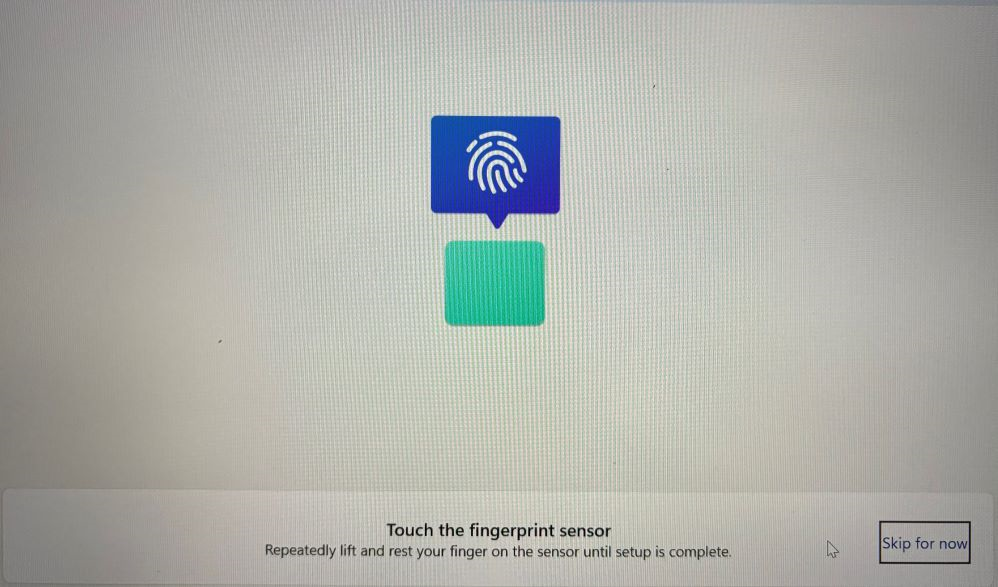
- Click Next
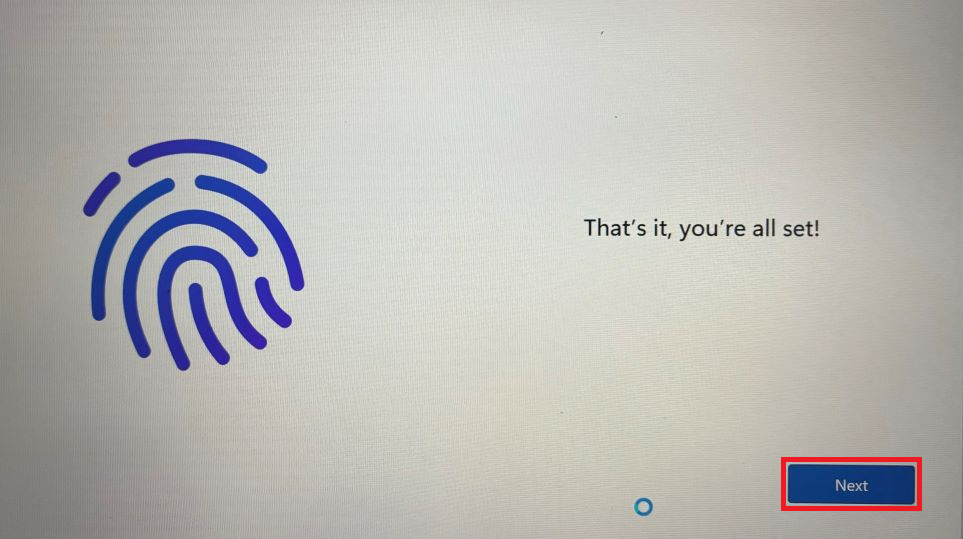
- Click Next to create a PIN
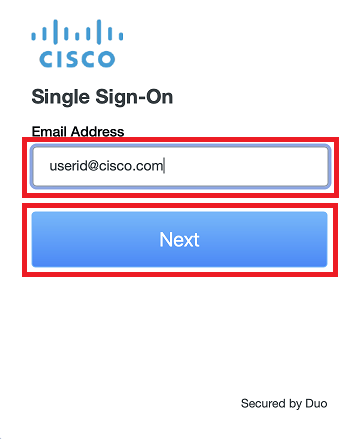
- Enter your Cisco email address, click Next, then follow the rest of the SSO sign-in and Duo authentication steps
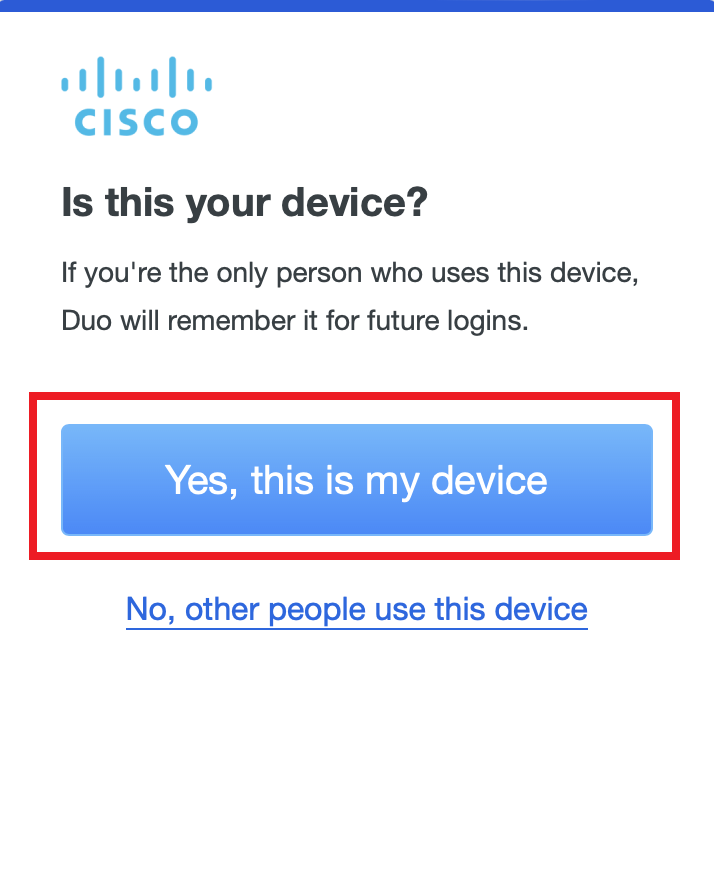
- Click Yes, this is my device
- Enter a six (6) or more digit PIN, confirm it, and click OK
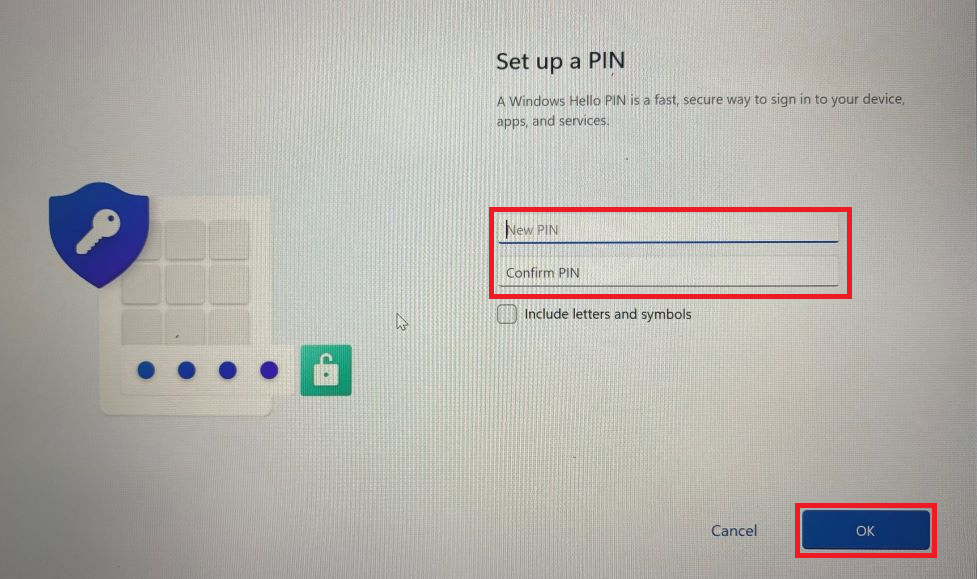
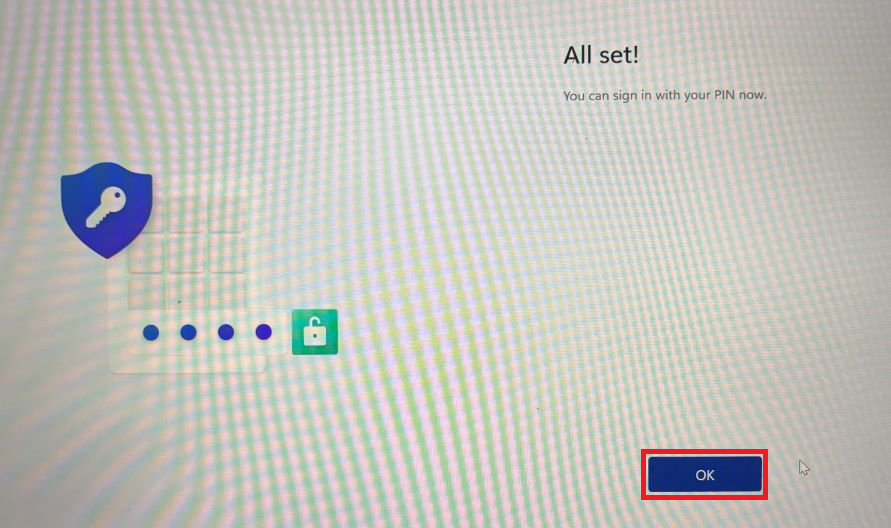
- Click OK