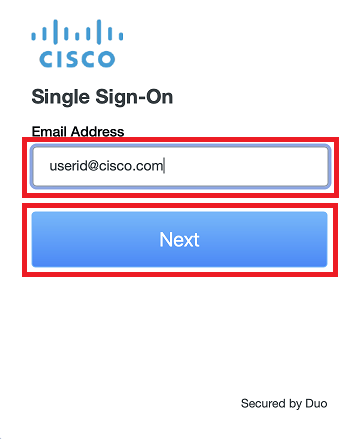
- Enter your Cisco e-mail address and click Next
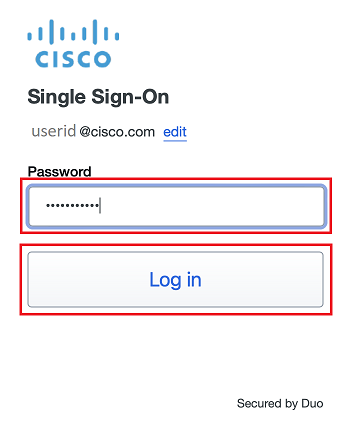
- Enter your Cisco password and click Log in
- A Duo Verified Push code will pop up on your Cisco device
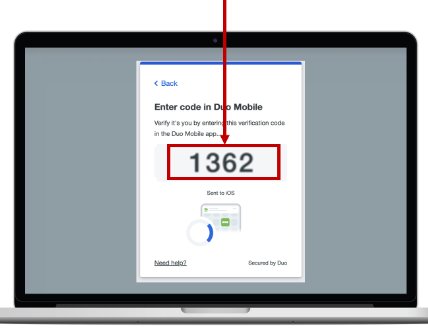
- Verify it is you logging into your Duo app. Did you initiate this push?
- Note: you might have to scroll down to see the verification code prompt
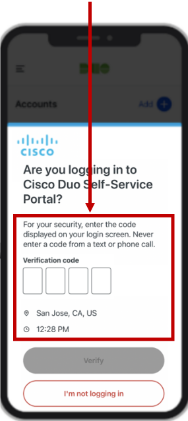
- Enter the verification code when prompted
- Only use the code provided within the Duo login prompt from your Cisco device
- NEVER enter a code provided by a third-party, including:
- The Cisco help desk
- Text message (SMS)
- A phone call or email

Reset your CEC Password
- Open https://secureit.cisco.com/password/change
- You should be able to sign in using Windows Hello. Click
Log in and follow the prompts. If it is not working properly, use your Cisco username, Cisco password, and Duo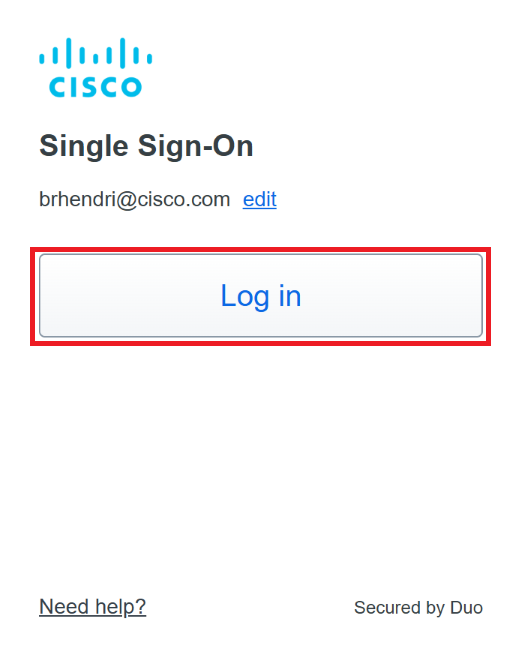
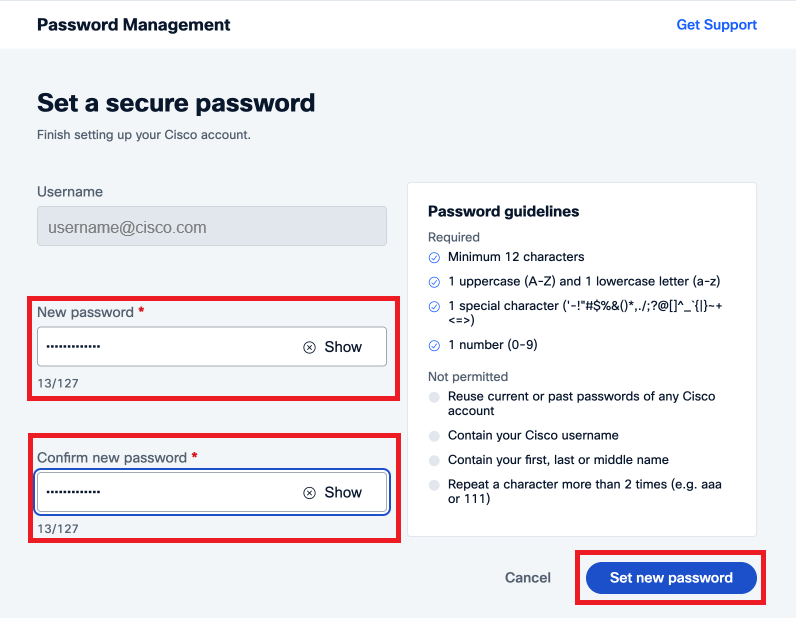
- Enter a password that meets the minimum requirements, confirm it, then click Set new password
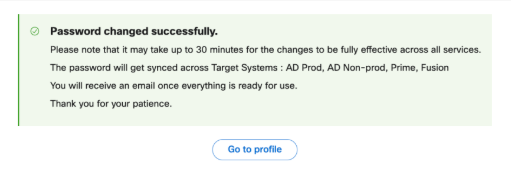
- Congratulations! You have successfully reset your Cisco Password. Even though this page says it may take up to 30 minutes for the change to
be fully effective, it usually does not take that long. Please wait about two minutes before moving on to the next step
- Cache your new password:
- Press CTRL+ALT+DEL
- Click Lock
- Press the spacebar or click the left mouse button
- Enter your new Cisco password