These steps can be completed once you receive your 1Password Welcome Email
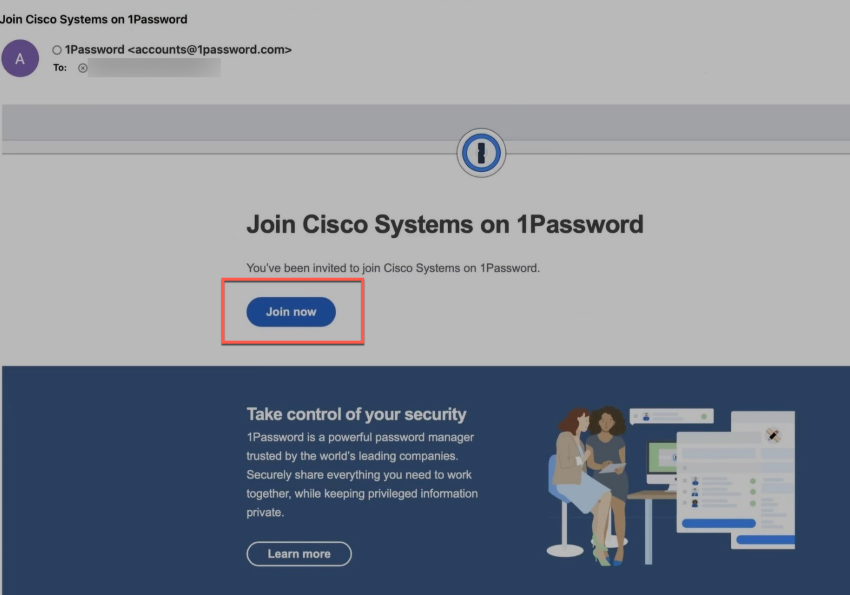
Open the email you received from 1Password and click Join now
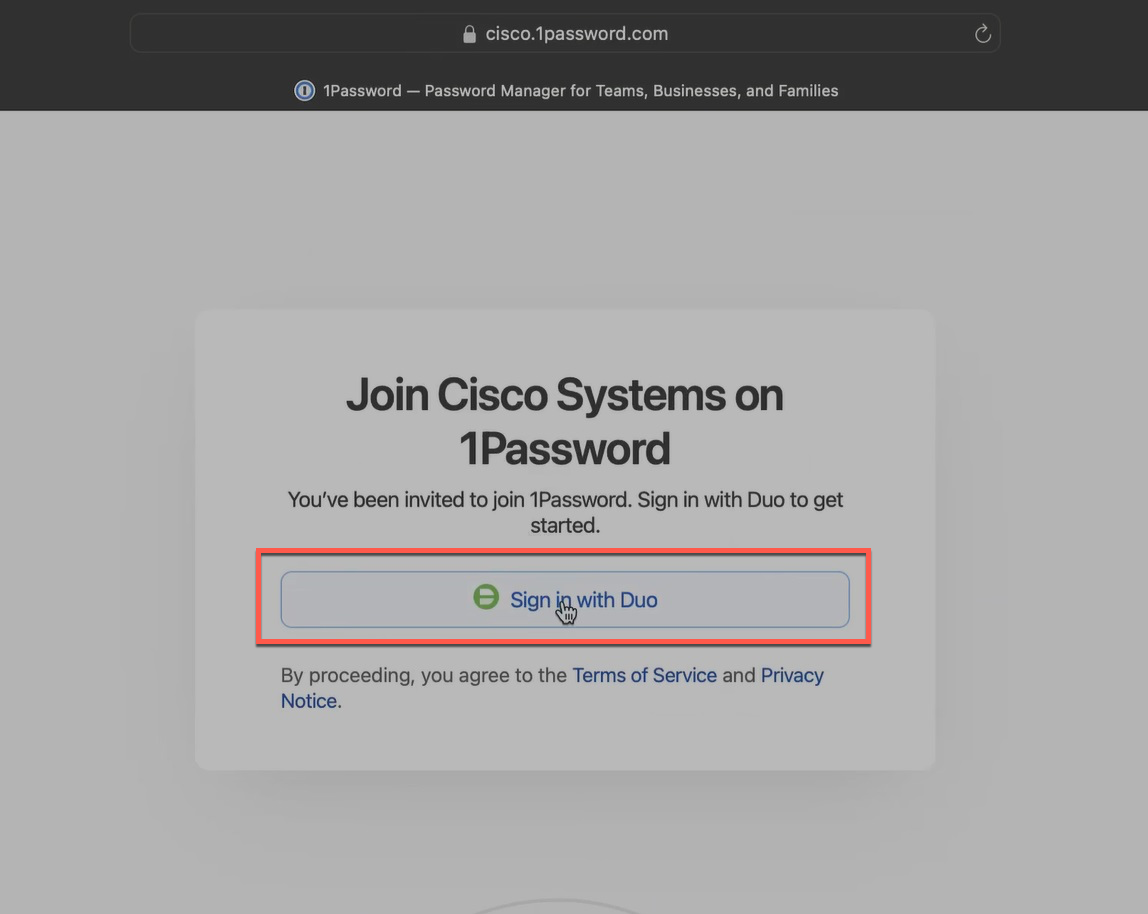
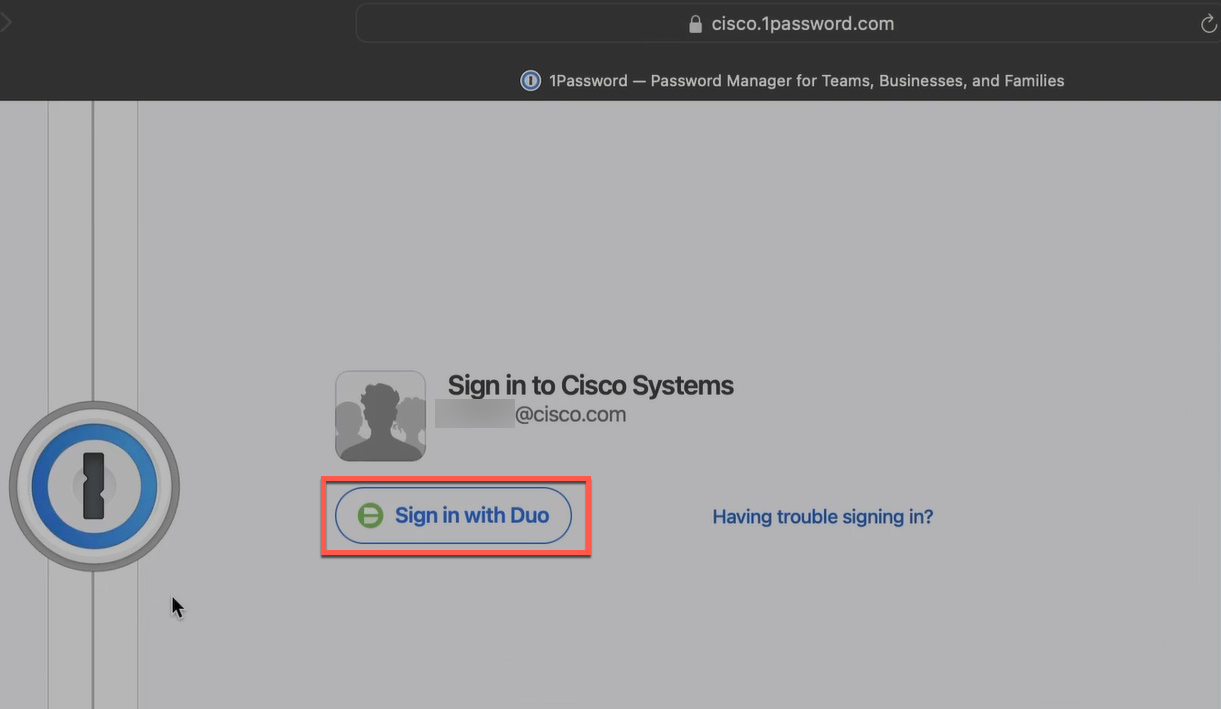
Your web browser will pop up and direct you to the 1Password website. Click Sign in with Duo
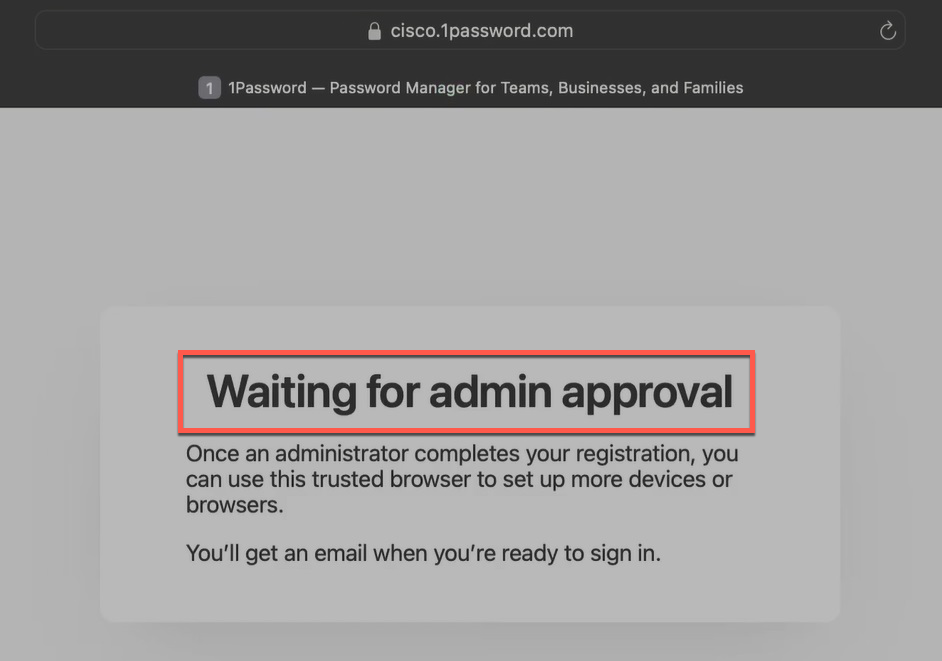
Since this a new account, you will see "Waiting for admin approval." Wait approximately two minutes for another email from 1Password,
which means your account is fully set up
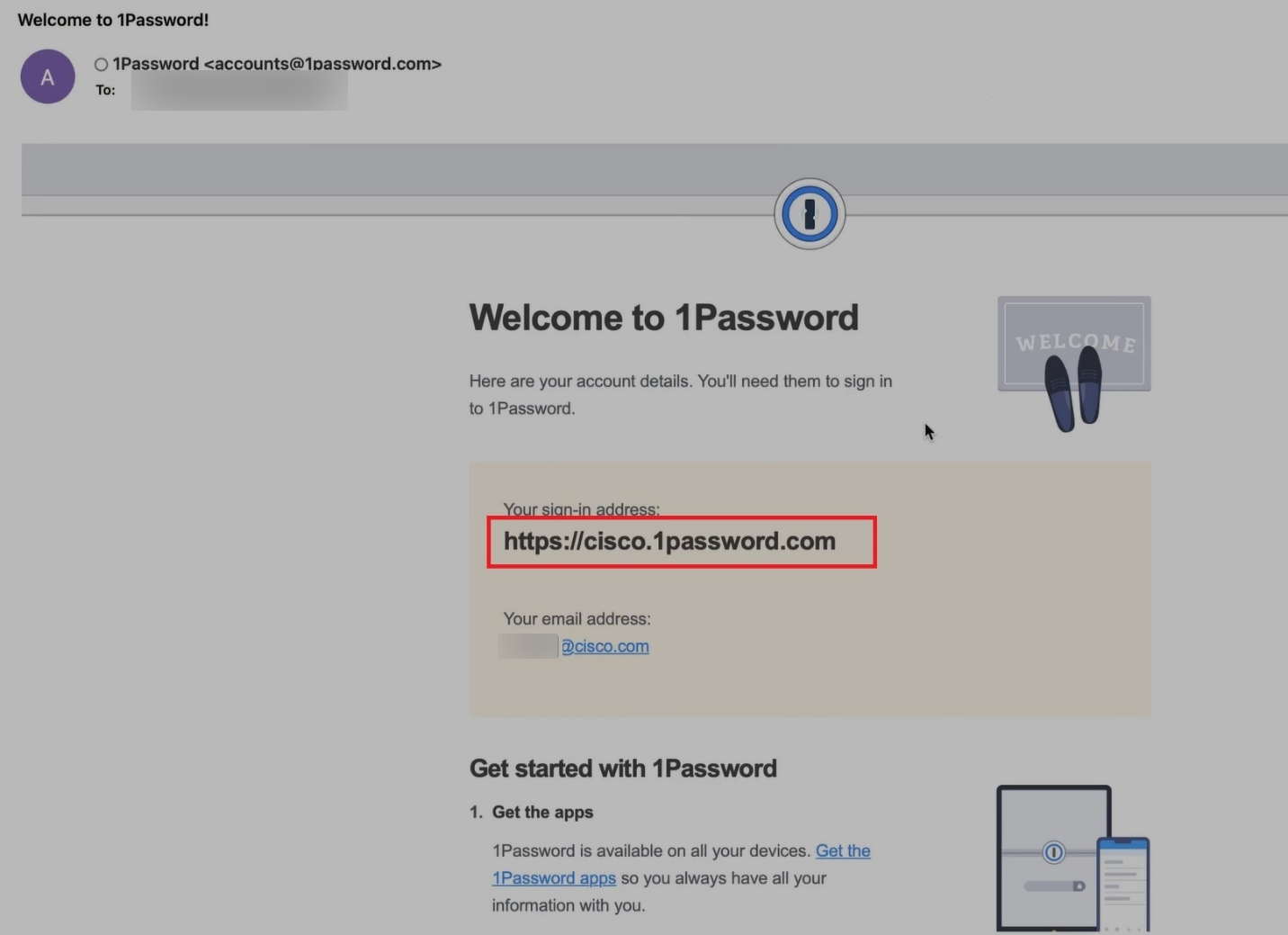
When you receive the second "Welcome to 1Password" email, select https://cisco.1password.com in the email
You will be redirected back to a web browser and the 1Password console. Click Sign in with Duo
Note: Upon logging in, 1Password will guide you on how to install the web browser extension and stand-alone application. You should have
installed these items, but if not, do so now
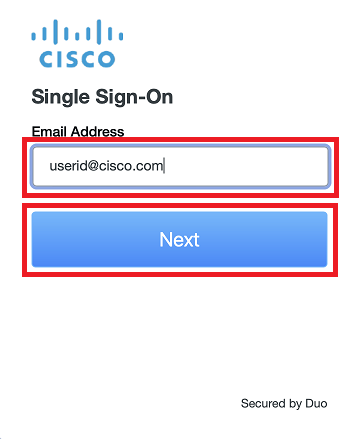
Enter your Cisco email address, click Next, then follow the rest of the SSO sign-in and Duo authentication steps
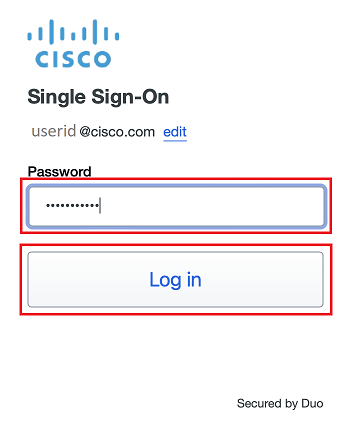
Enter your Cisco temporary password and click Log In
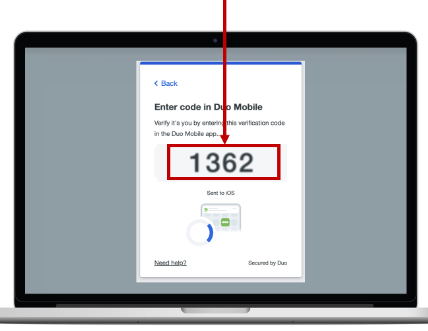
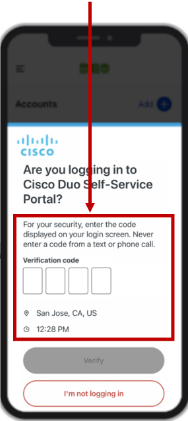
A Duo Verified Push code will pop up on your Cisco device
Verify it is you logging into your Duo app. Did you initiate this push?
Note: you might have to scroll down to see the verification code prompt
Enter the verification code when prompted
Only use the code provided within the Duo login prompt from your Cisco device
NEVER enter a code provided by a third-party, including:
The Cisco help desk
Text message (SMS)
A phone call or email
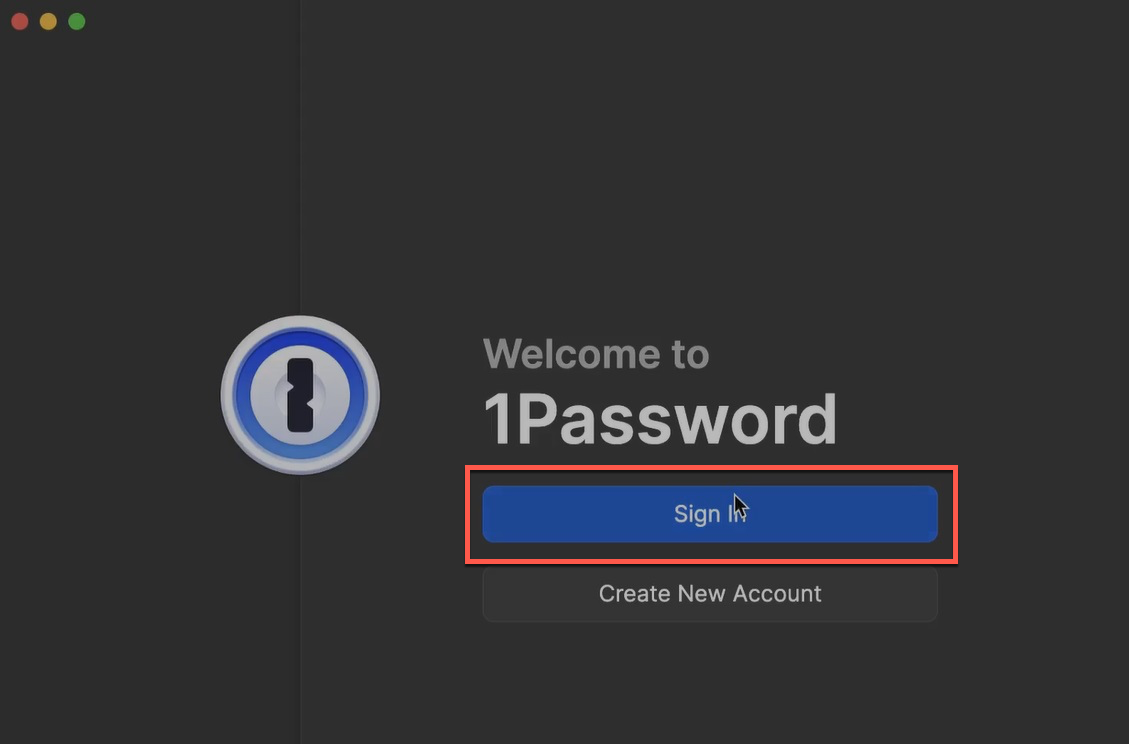
Open the 1Password application and click Sign In
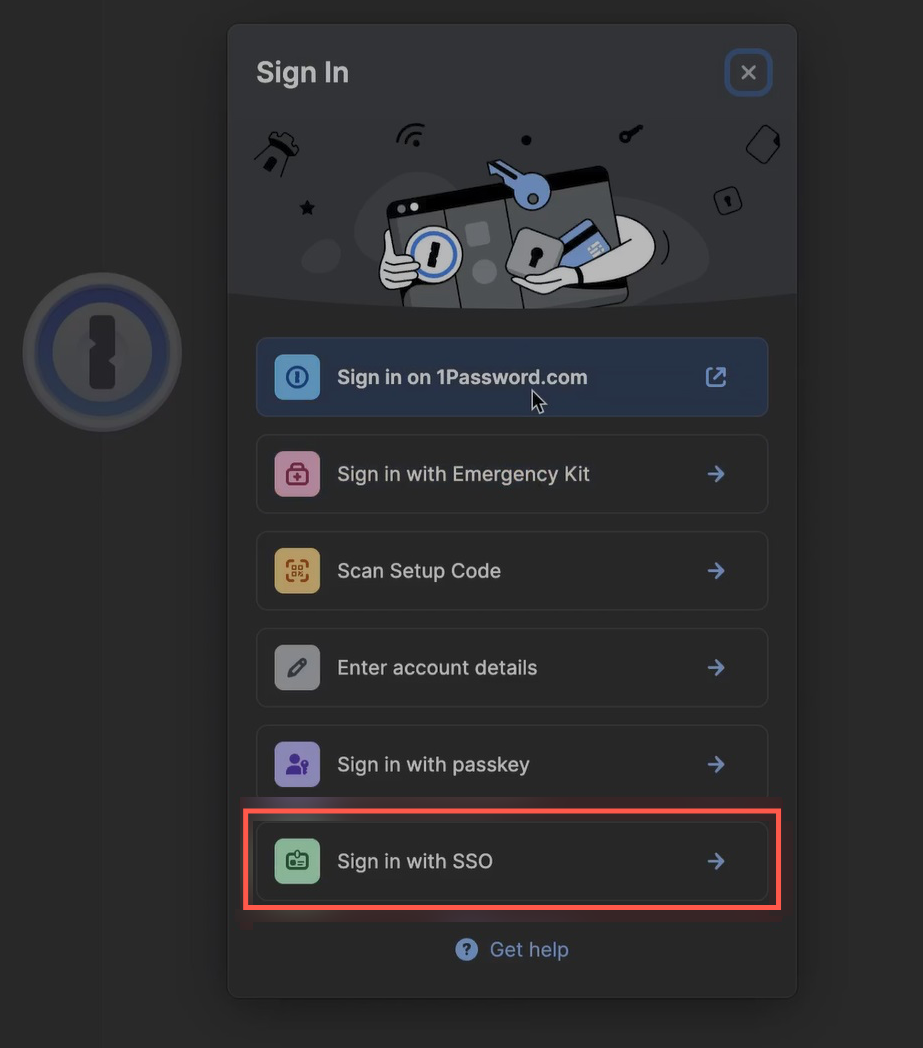
If you are prompted for the sign in method, click Sign in with SSO
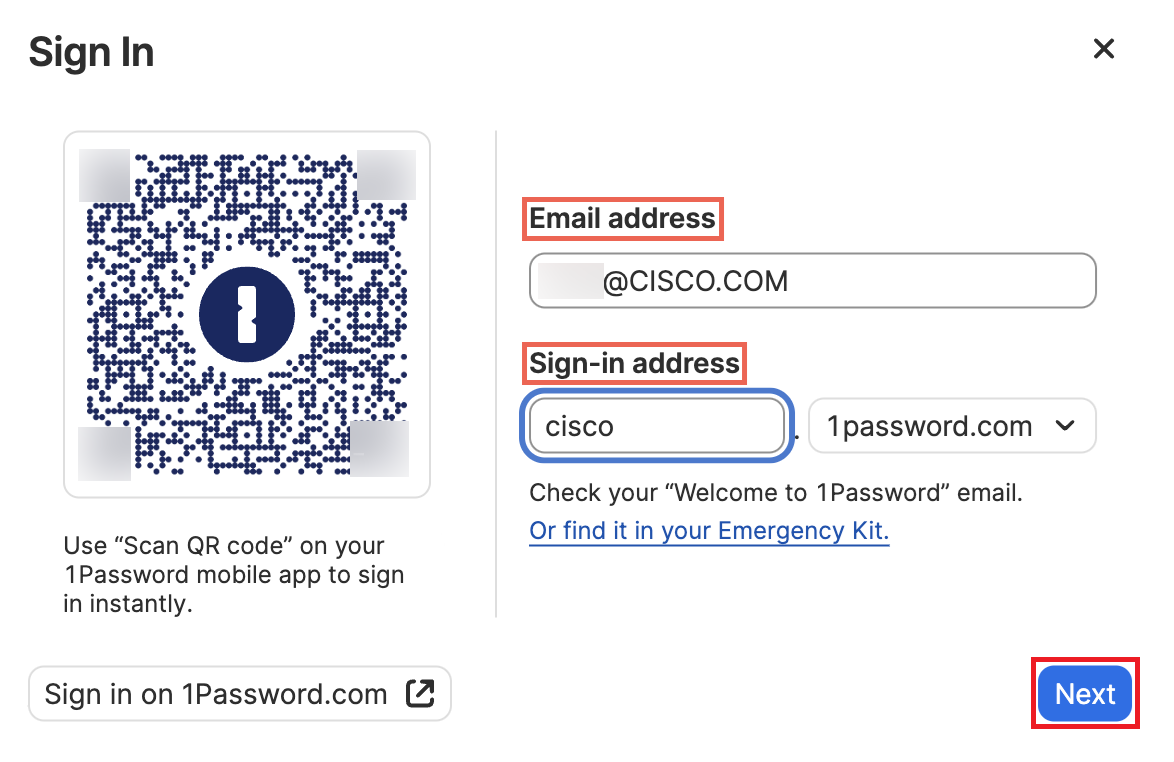
Enter your Cisco email address in the Email address field, and "Cisco" in the Sign-in address field, then click Next
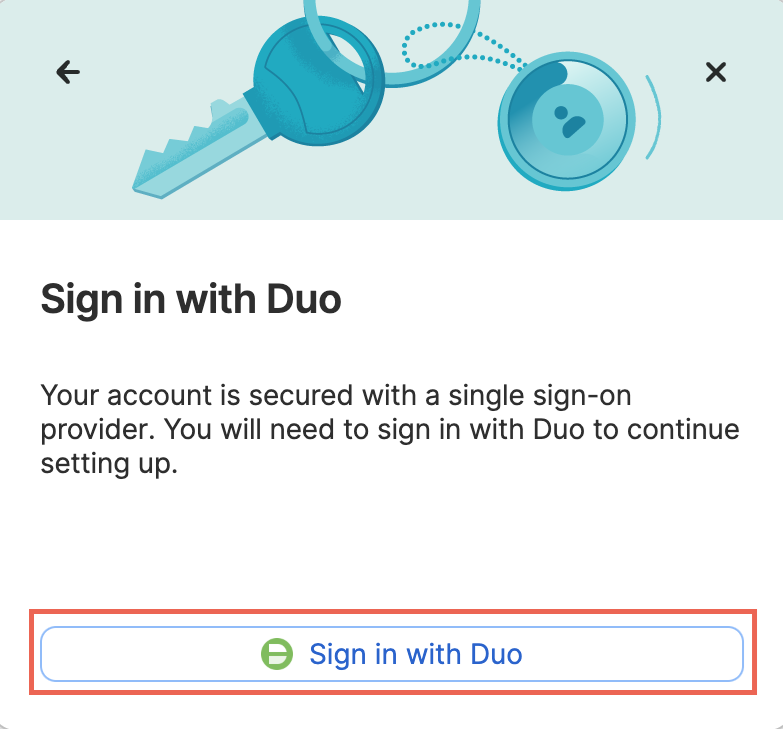
You will be prompted to "Sign in with Duo" again
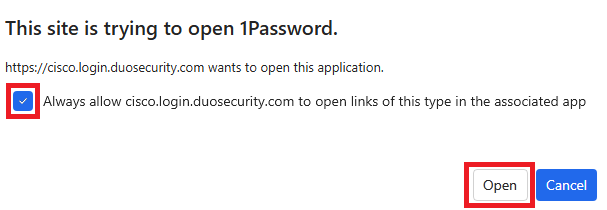
Tick "Always allow..." and click Open to allow the web browser to open the request in the 1Password application
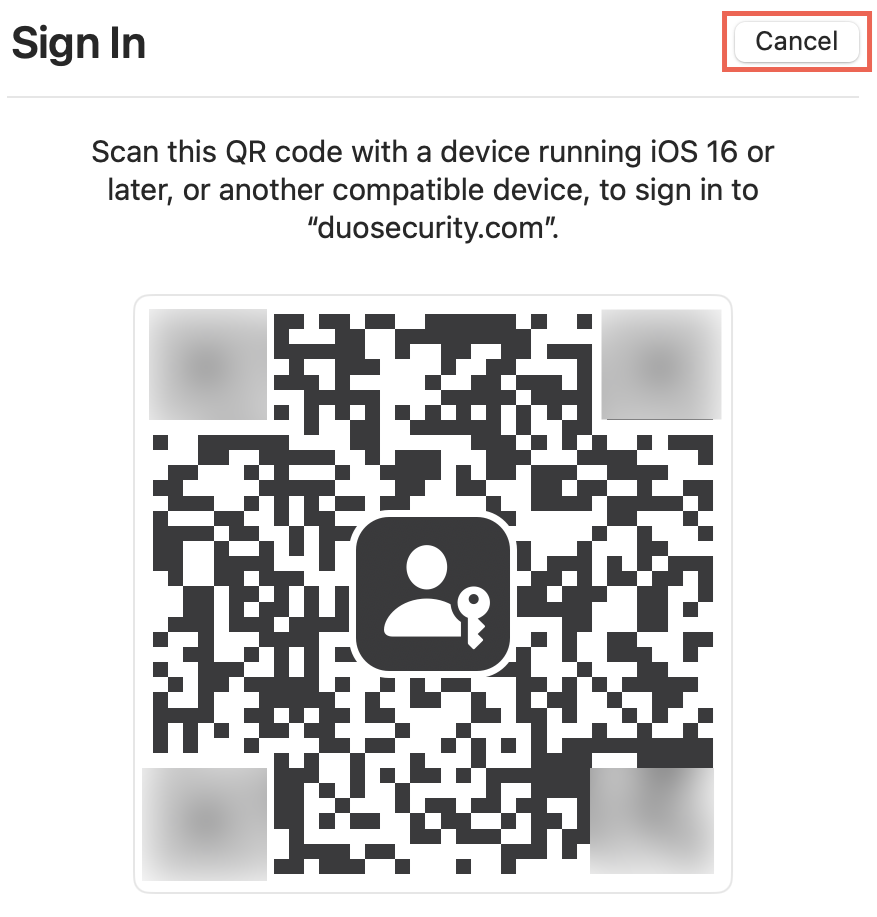
You may be prompted with a Cisco Duo Single Sign-On. If prompted with a Duo QR code, click Cancel. If you do not get this screen, scoll down
to Step xx
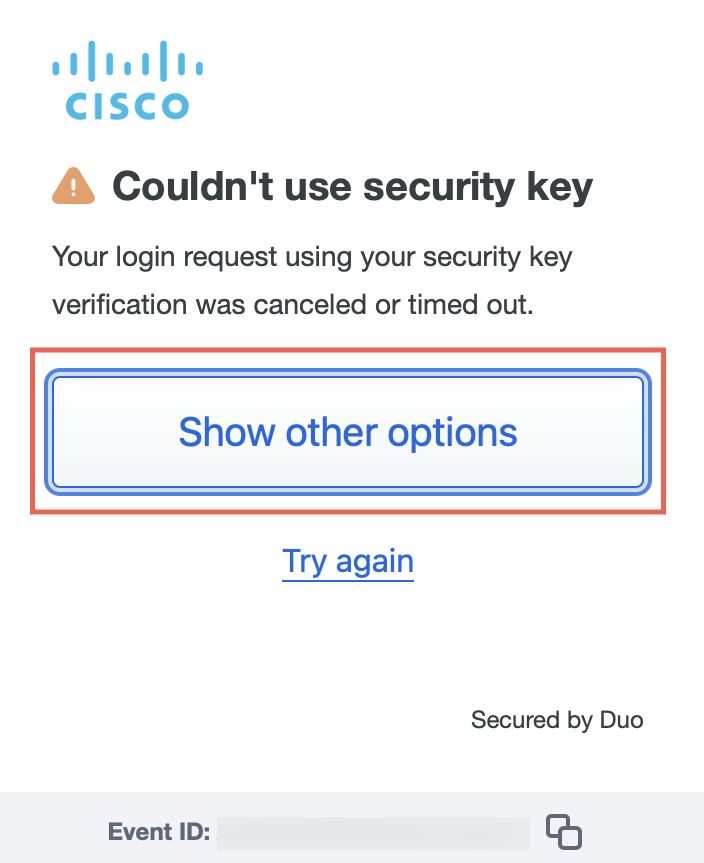
Click Show other options
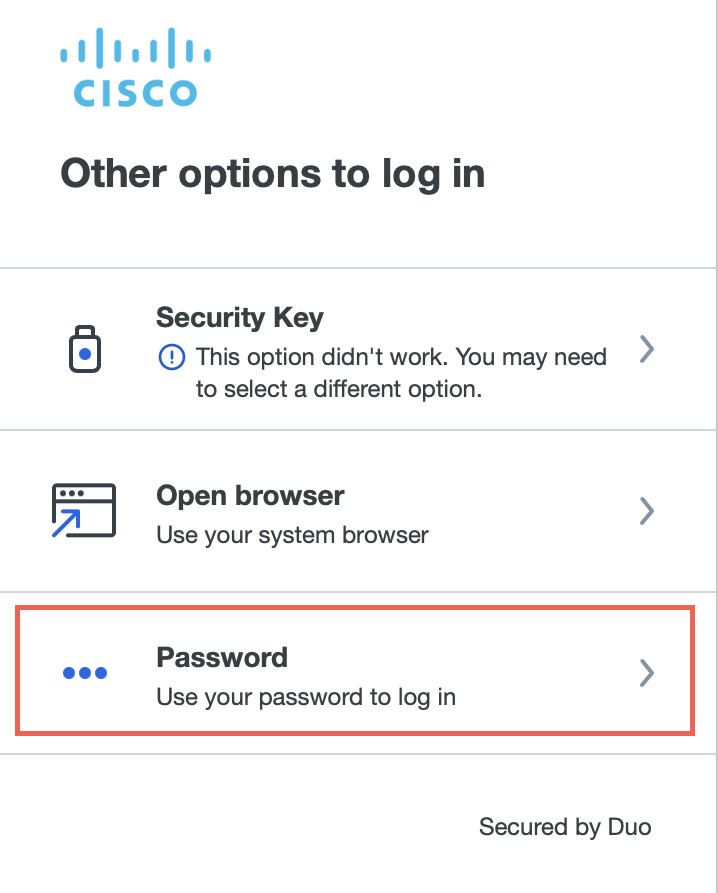
Click Password, then enter your Cisco password. You may be prompted for another Duo push
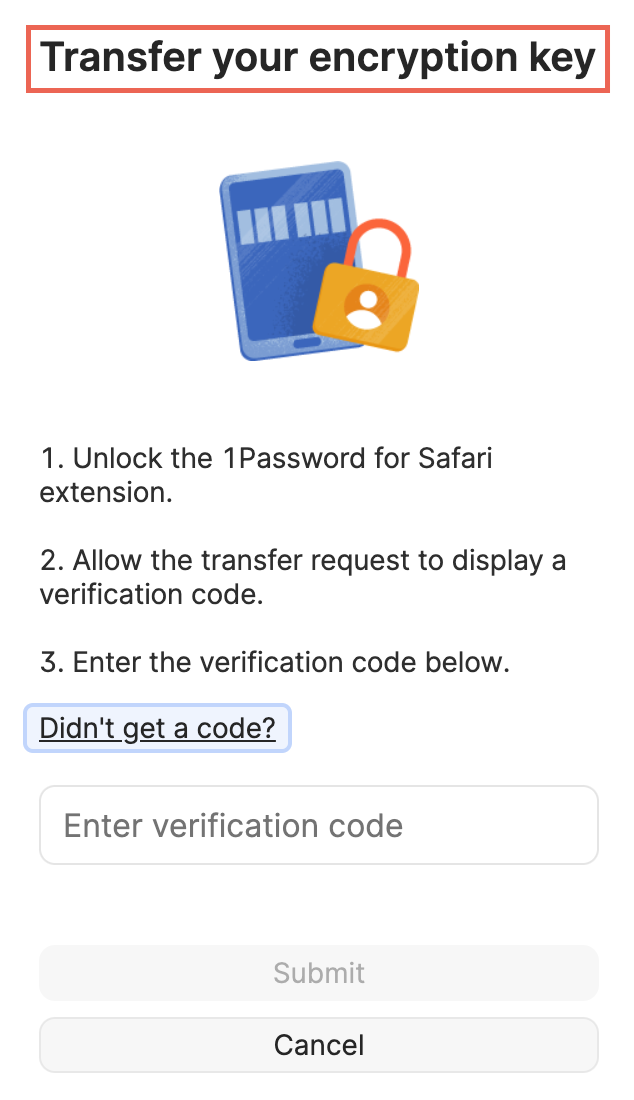
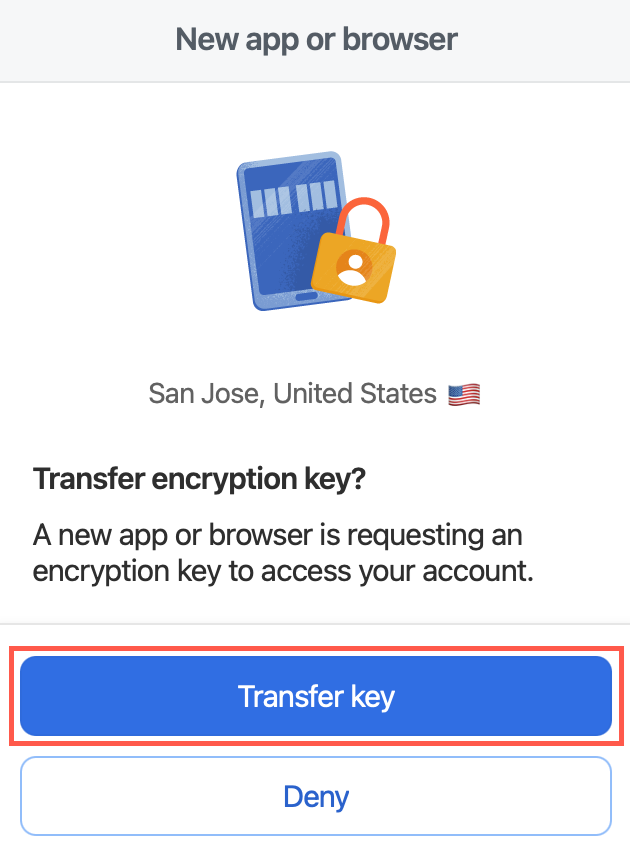
You will be prompted to "Transfer your encryption key." This is a one time safety measure 1Password requires for all new installs.
Click Transfer Key
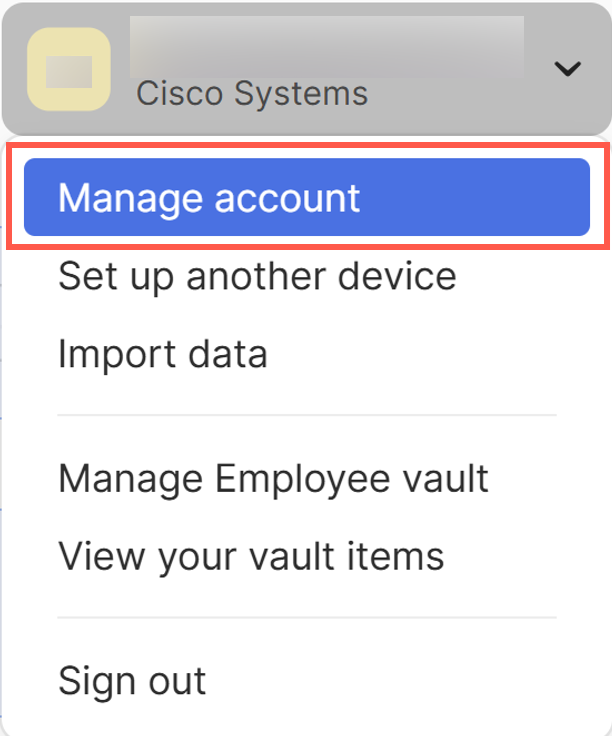
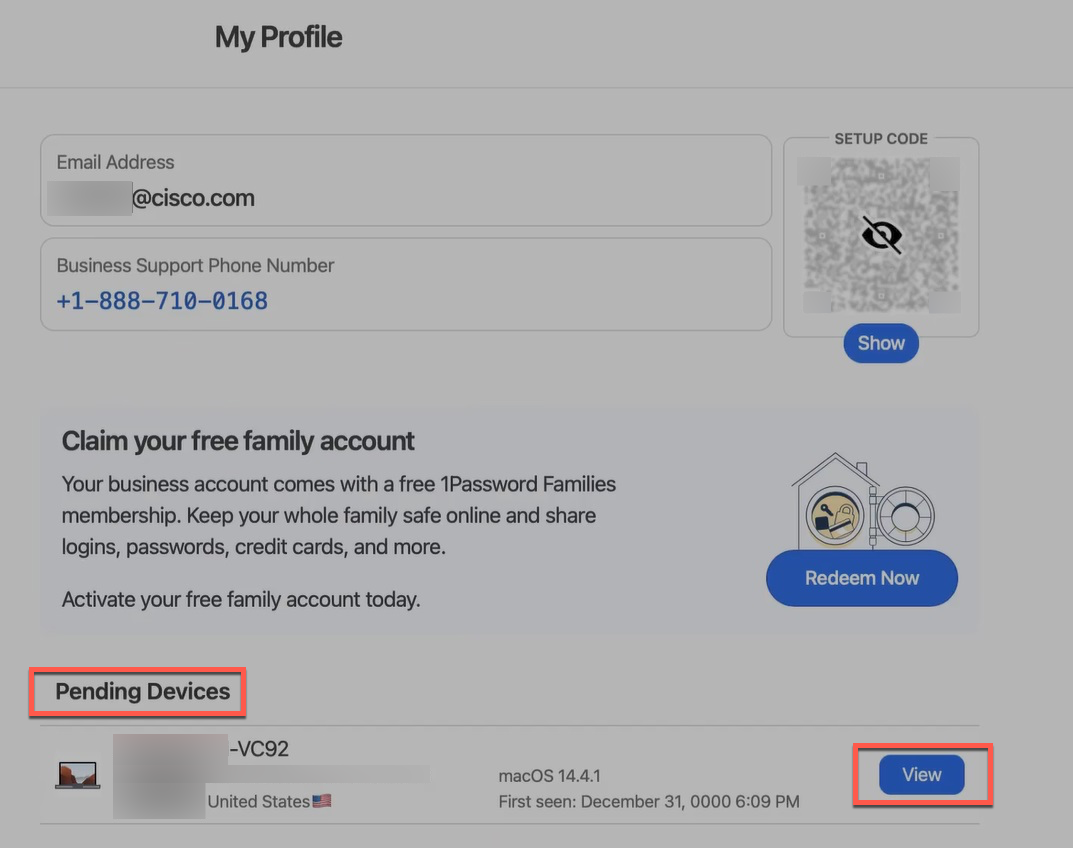
To approve your device and get your code, sign into the 1Password web console, with your Cisco email, select your name in the upper-right
hand corner, and click Manage account
Find your device under "Pending Devices," and click View
Click Transfer key
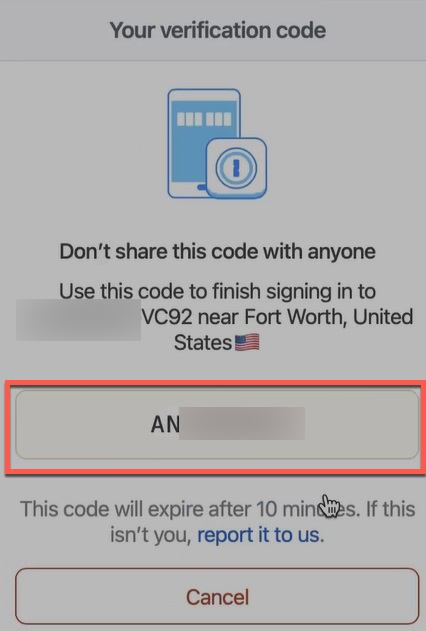
You will receive a code for the stand-alone application authentication. This is a one-time verification process. Copy this code
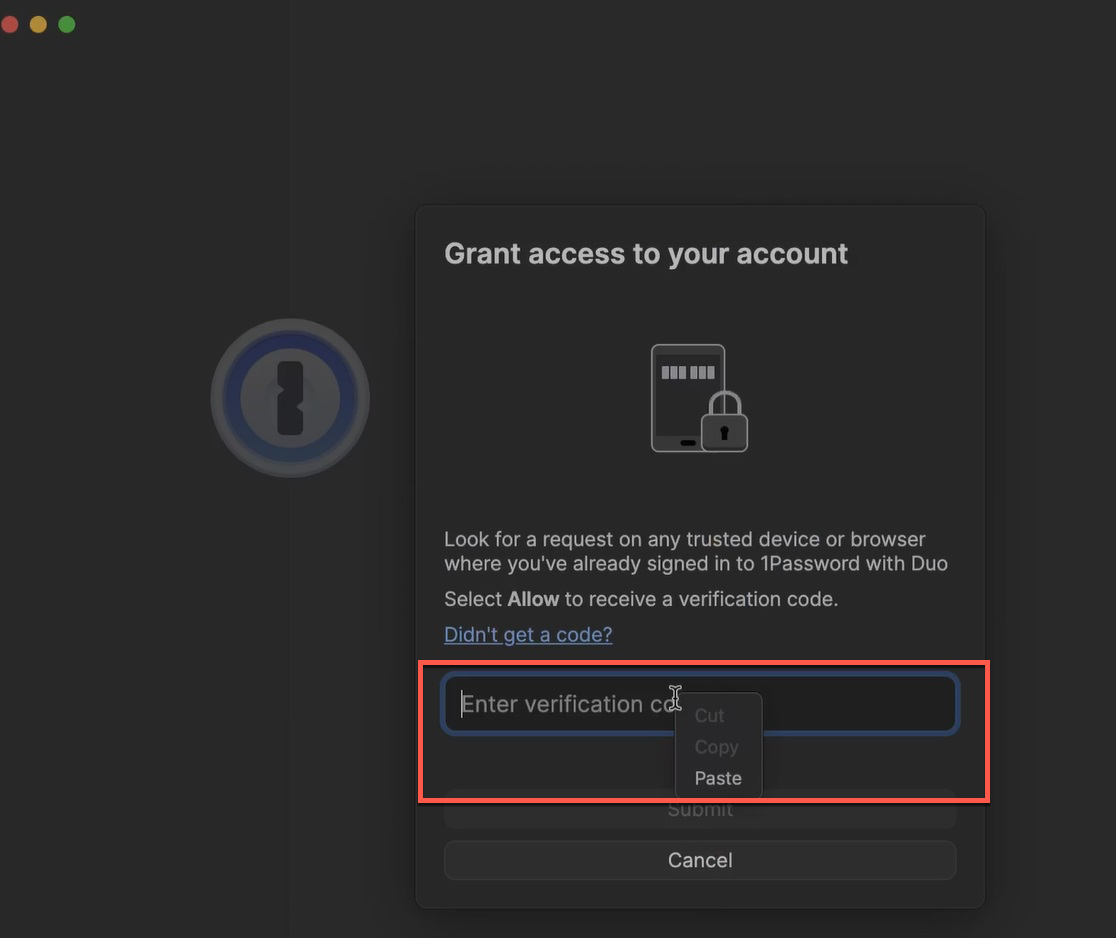
Paste the code into the 1Password application. You may need to sign in with Duo and follow additional steps. Once complete, 1Password should be ready to use
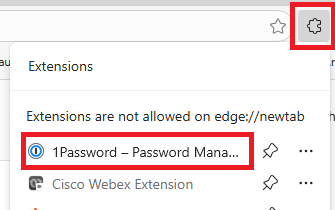
Now you need to sign into the browser extension. Click the extension icon on Edge, then click 1Password. You should already be signed in, but if promted,
enter your Cisco credentials and perform a Duo Push

 Configure 1Password and Duo Passwordless