
Request 1Password Account
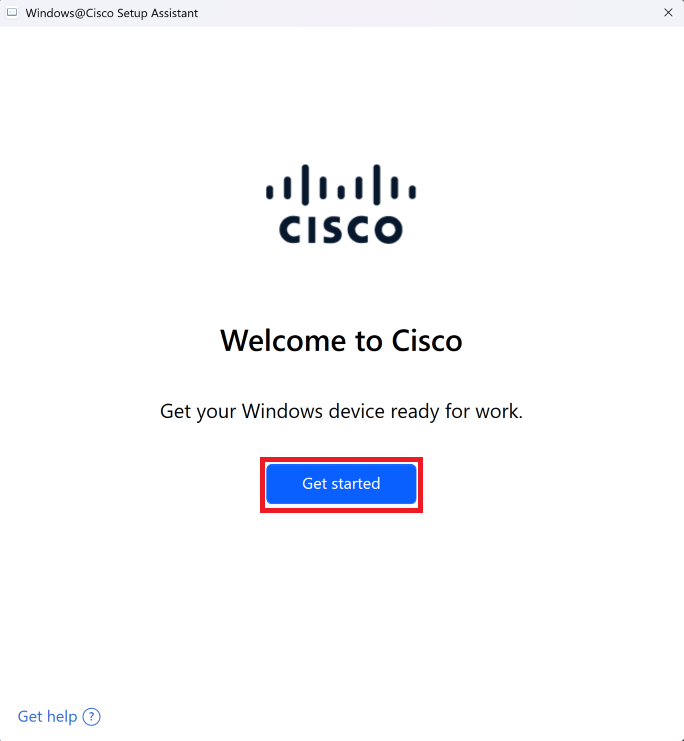
- Click Get started
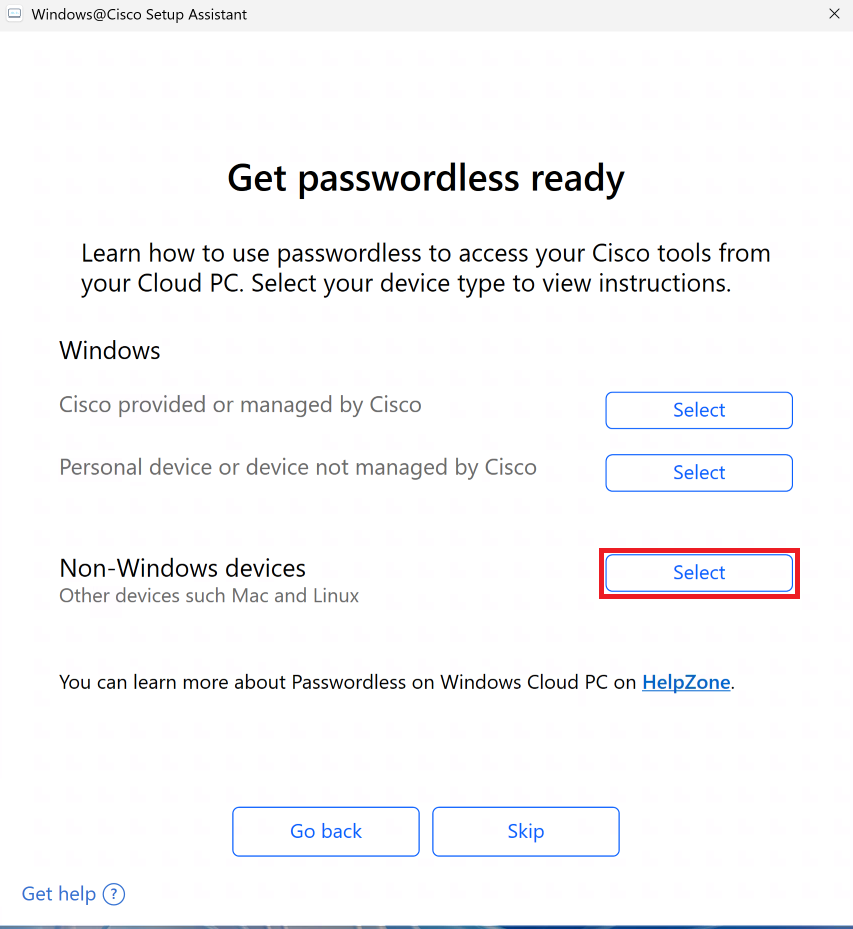
- Click Select next to "Non-Windows devices". Do this even if your host system is running Windows and have chosen not to use "Windows Hello"
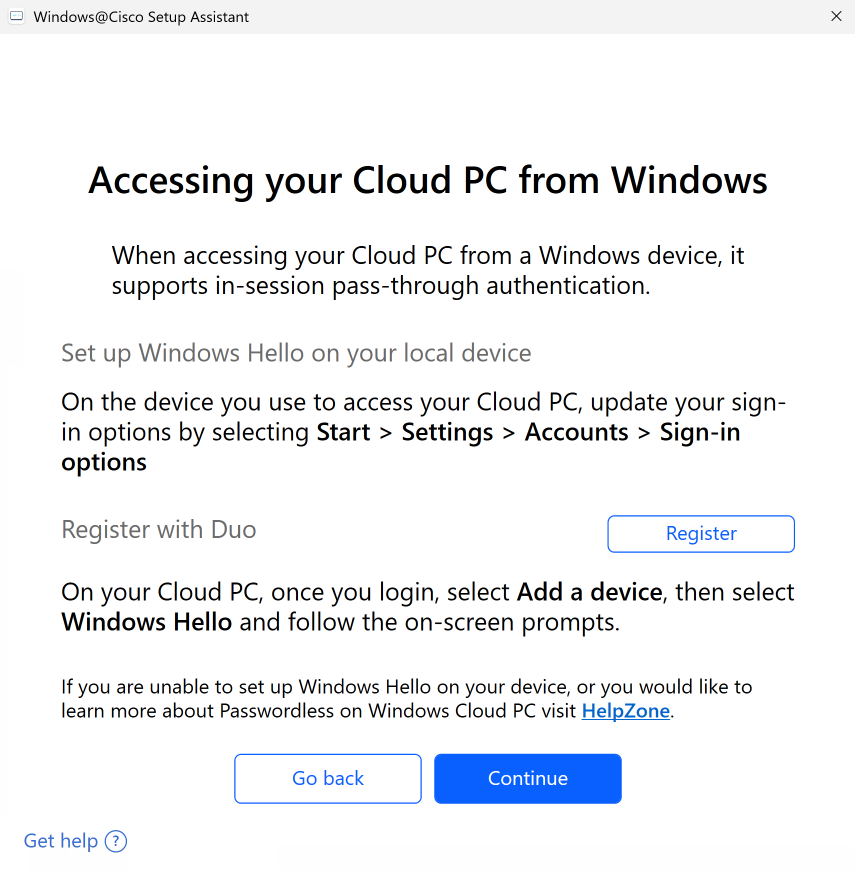
- Do not click any of the buttons on this part of the Windows@Cisco Setup Assitant yet
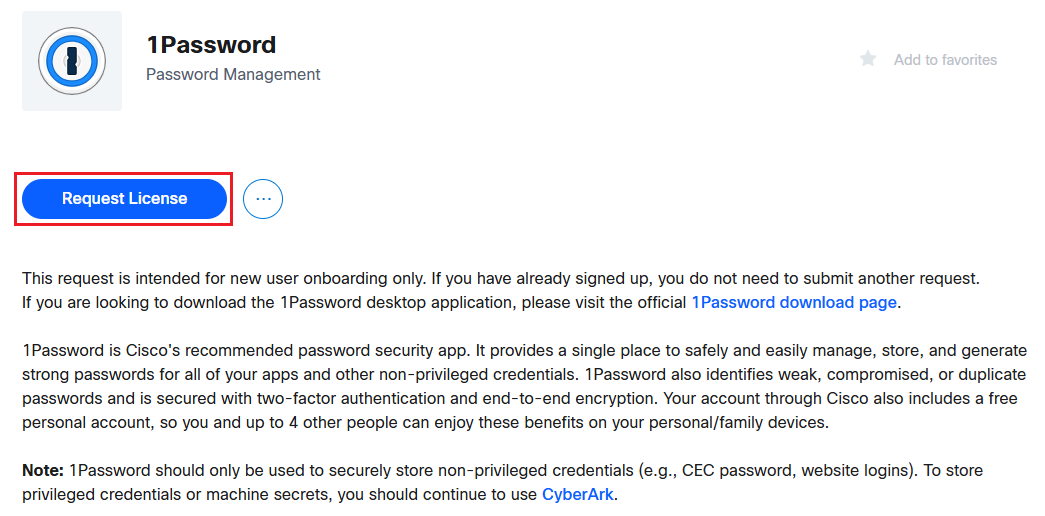
- Go to the App Store's 1Password offering and click
Request License , then follow the on screen prompts to request a Cisco 1Password account
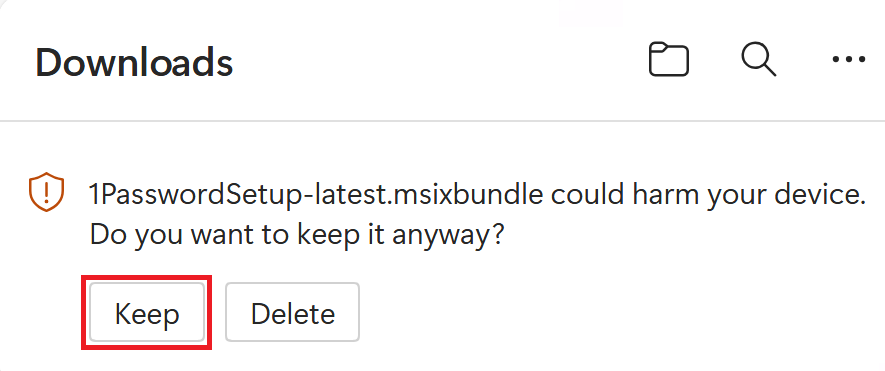
- Download 1Password for Windows. You may get a warning message about it
being harmful to your device. It is not. Click
Keep
- Open your "Downloads" folder, and double-click
1PasswordSetup-latest.msixbundle to start the install process

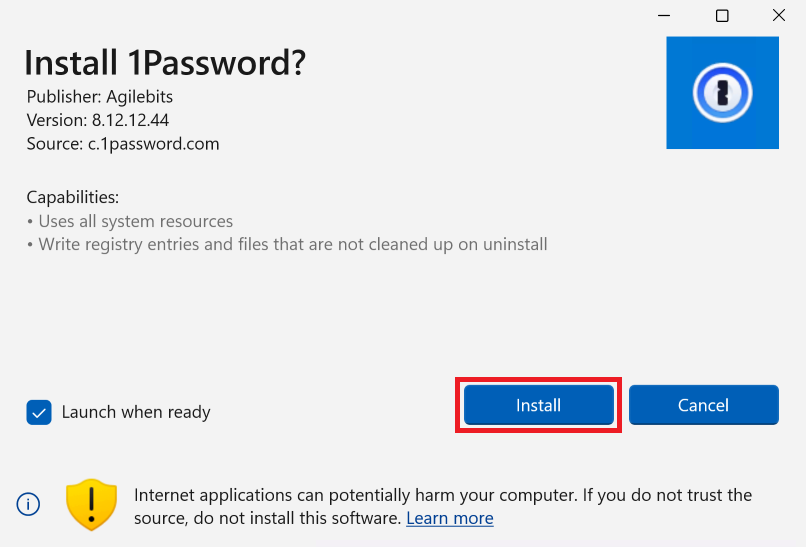
- Click
Install
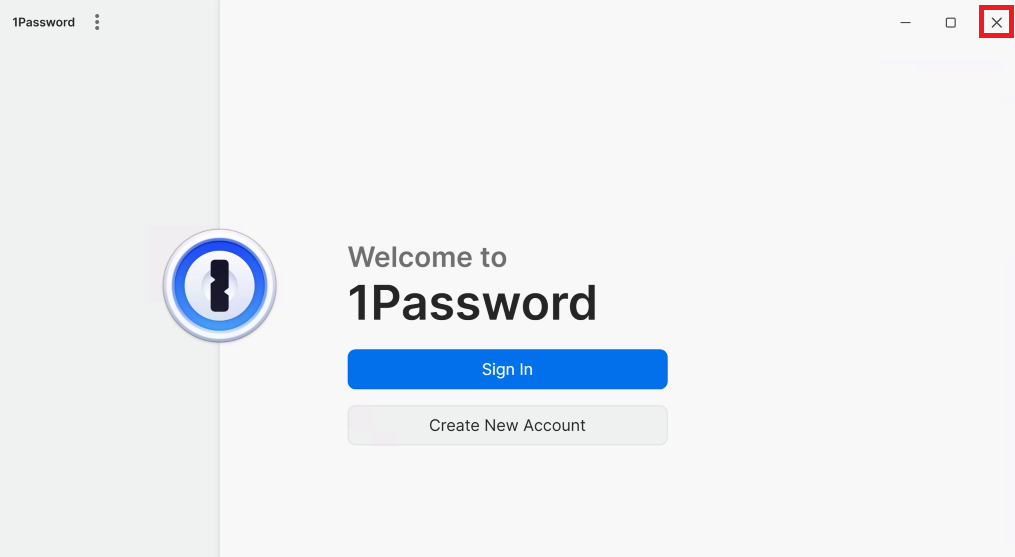
- Close this window. You will not be able to log in until your 1Password account has been provisioned
- You will also need to install the 1Password Browser Extension. Click here to open the extensions download page and download the extension for
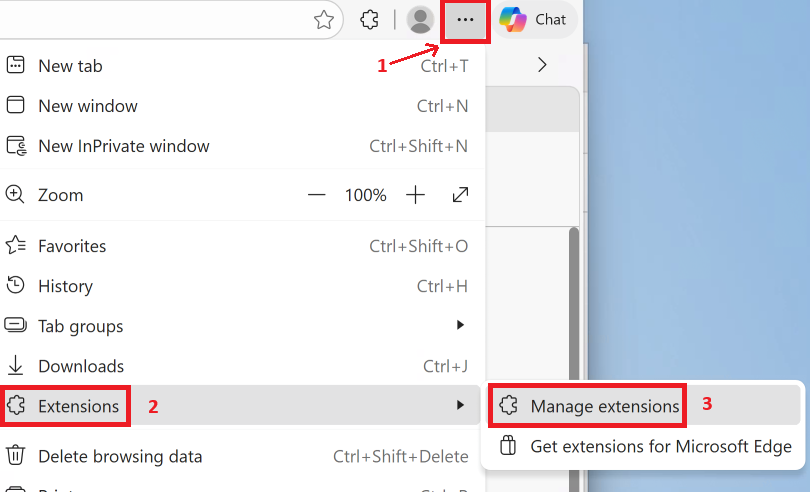
Edge . This is the only browser in your Cloud PC at the moment. If you wish to use another browser, please wait until you are done with this IT Setup session before installing it - After you install the extension, you may have to enable it. Click
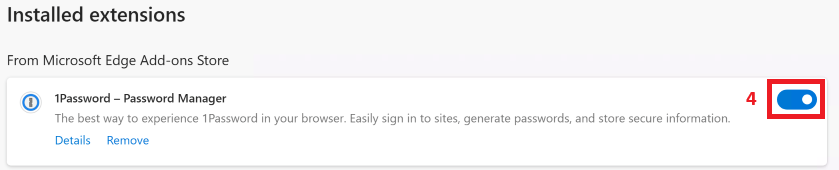
... → Extensions → Manage Extensions , then click the toggle next to "1Password - Password Manager"
After signing up for 1Password in the App Store, you will receive a welcome email from 1Password. It can take up to two hours to sync before you get your welcome email. Continue with the rest of the setup process, which includes setting up your Cisco email. You will get back to the rest of the 1Password configuration later