Launch Cisco Secure Client from your start menu. It will be under the Cisco folder
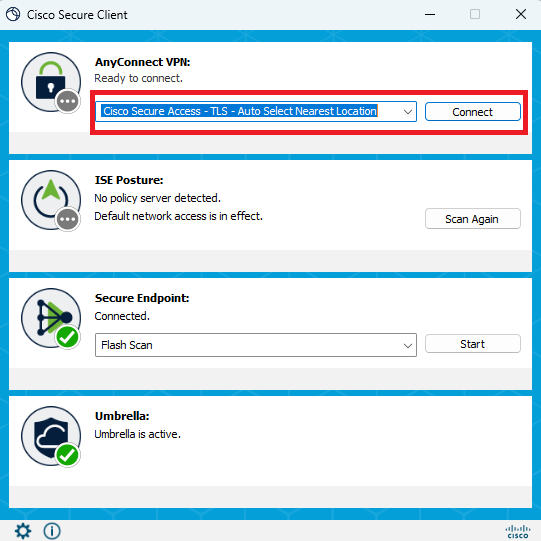
From the Cisco Secure Client screen, select Cisco Secure Access - TLS - Auto Select Nearest Location or Cloud PC SSL connection that is closest
to your location and click Connect if necessary
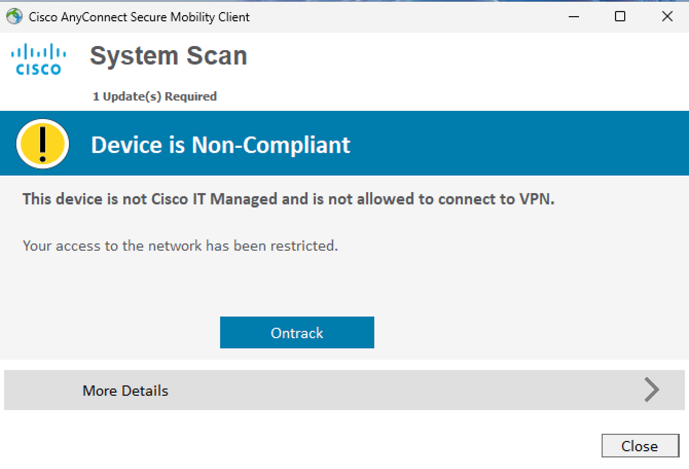
Note: If you get a non-compliant error, disconnect from the VPN (Open Cisco Secure Client and click Disconnect), wait 10 minutes,
then try again. Repeat until you are able to successfully connect
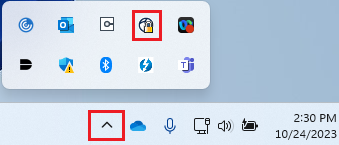
Cisco Secure Client will minimize to the system tray. If you want to verify your connection, you can check for the lock on the
Cisco Secure Client icon. You will need to click the ^ to see it
Test VPN by going to youprotect.cisco.com. If your VPN is working correctly, you should be able to access this page. Once you've confirmed you can connect,
then close the Cisco Security & Trust window
VPN is only required for some internal resources such as some training courses in Cisco's Learning and Development Portal.
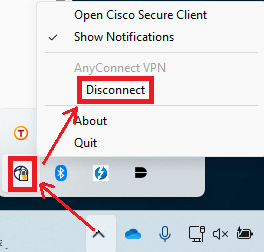
Once you have tested the VPN, disconnect by clicking ^, right-clicking the Cisco Secure Client icon, then left-clicking Disconnect
 Cisco Secure Client VPN