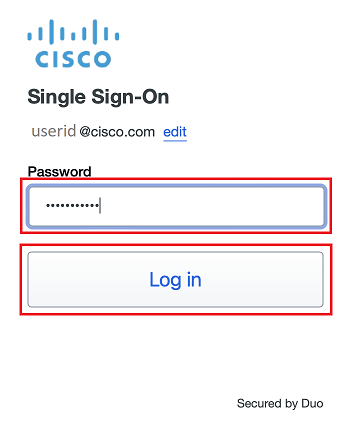
- Enter your Cisco temporary password and click Log In
- A Duo Verified Push code will pop up on your Cisco device
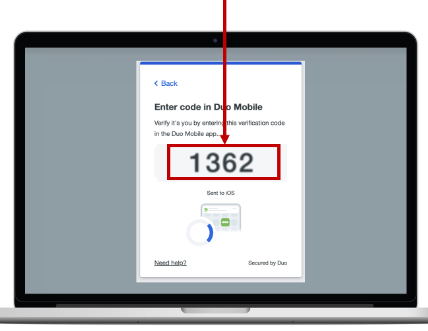
- Verify it is you logging into your Duo app. Did you initiate this push?
- Note: you might have to scroll down to see the verification code prompt
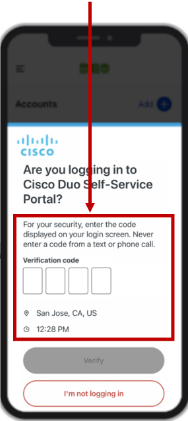
- Enter the verification code when prompted
- Only use the code provided within the Duo login prompt from your Cisco device
- NEVER enter a code provided by a third-party, including:
- The Cisco help desk
- Text message (SMS)
- A phone call or email


These instructions are for a host system that is running Windows. If your host is a Mac or Linux system, or if you do not wish to use "Windows Hello", click here
- You can use "Windows Hello" on your Windows host system to set up Duo Passwordless for the most seamless experience. If you do not already have "Windows Hello" configured, click this link to open the setup instructions
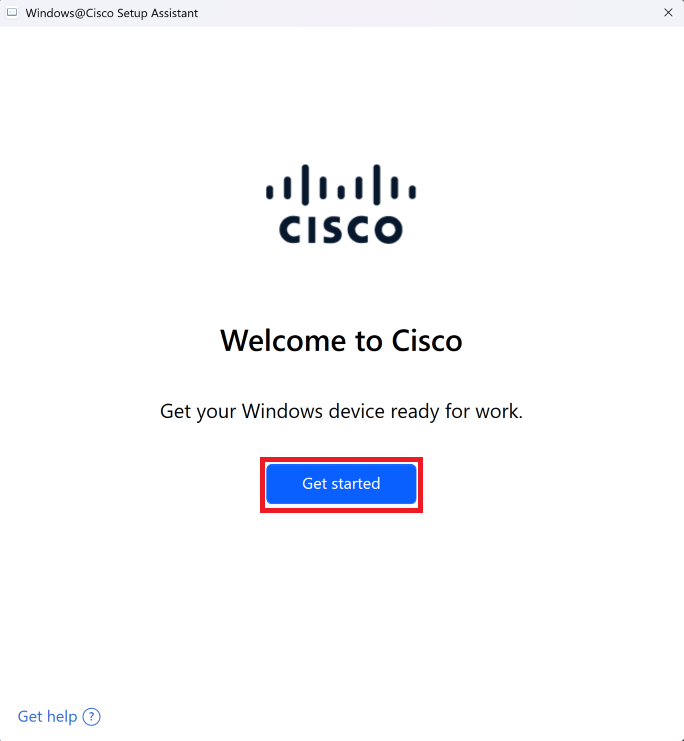
- Click Get started
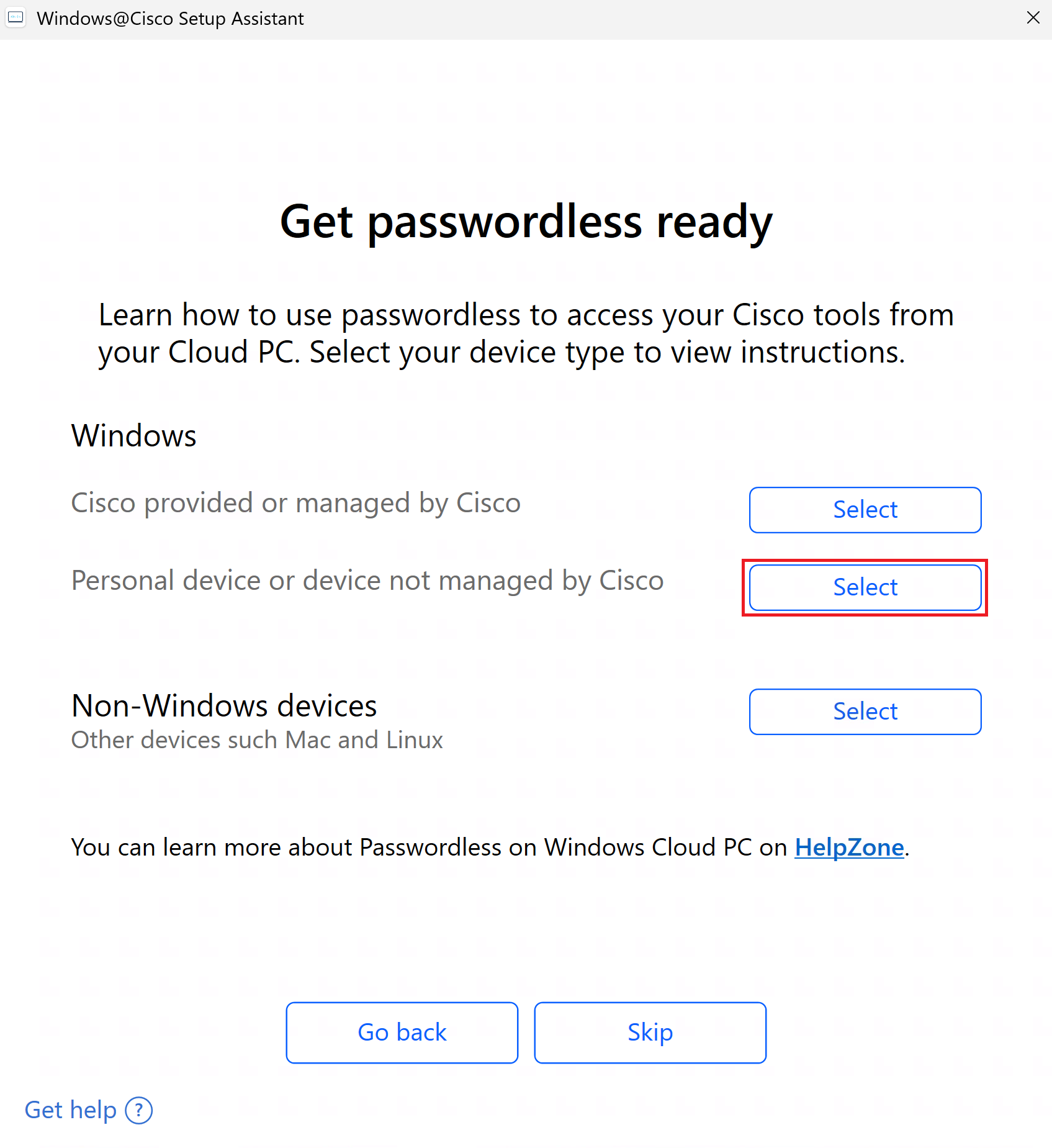
- Click Select next to "Windows - Personal device not managed by Cisco"
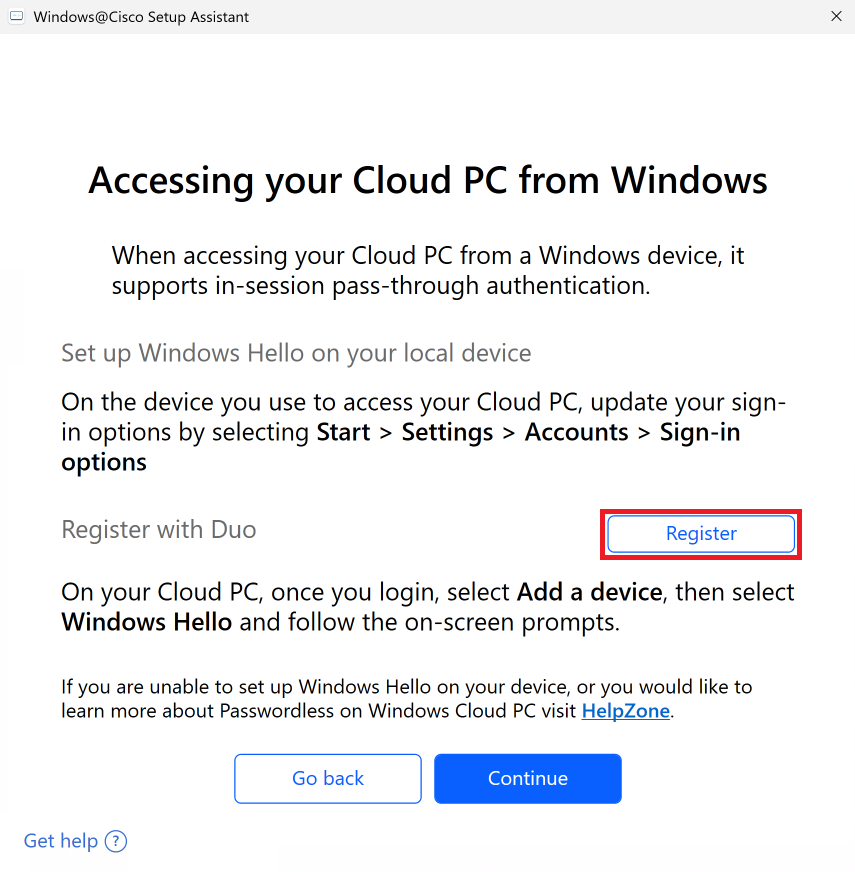
- Click
Register
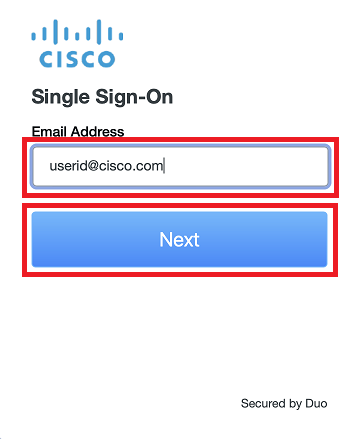
- Enter your Cisco email address, click Next, then follow the rest of the SSO sign-in and Duo authentication steps
- Click
Add a device and follow the prompts to set up Passwordless Authentication
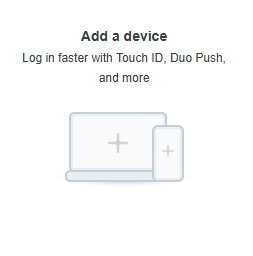
- Click
Windows Hello
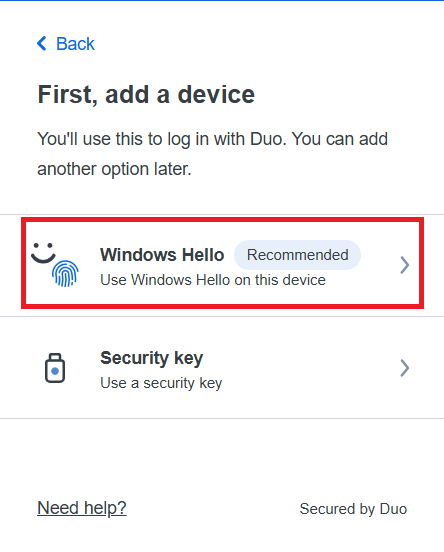
- Click
Continue
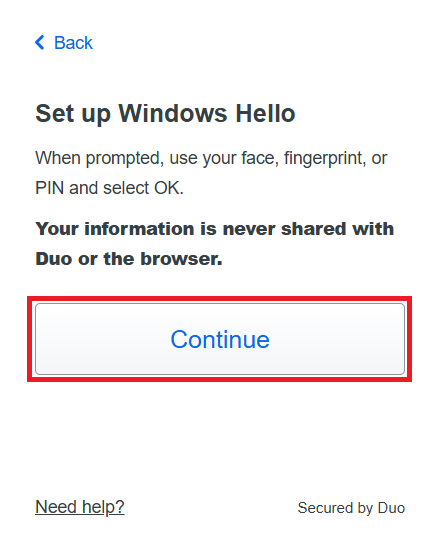
- Click
Continue
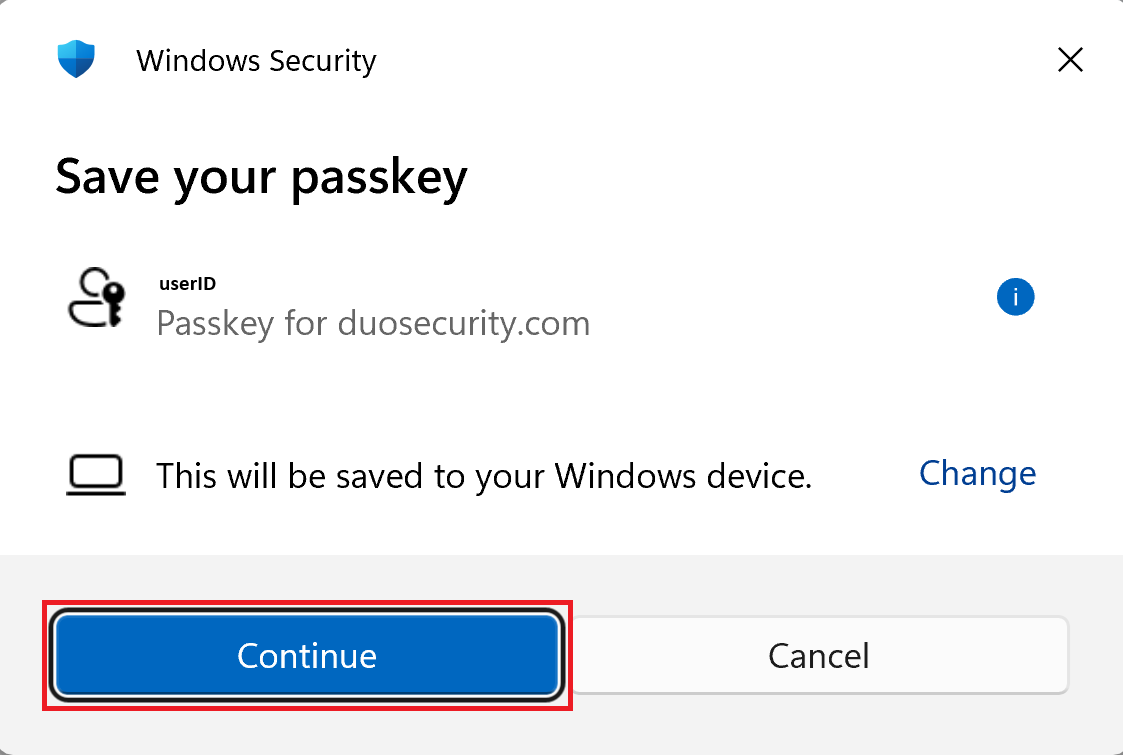
- Authenticate with Windows Hello
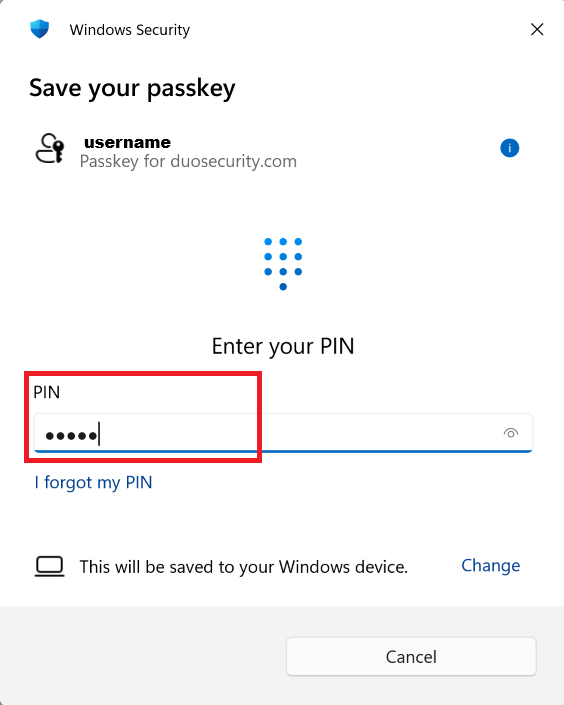
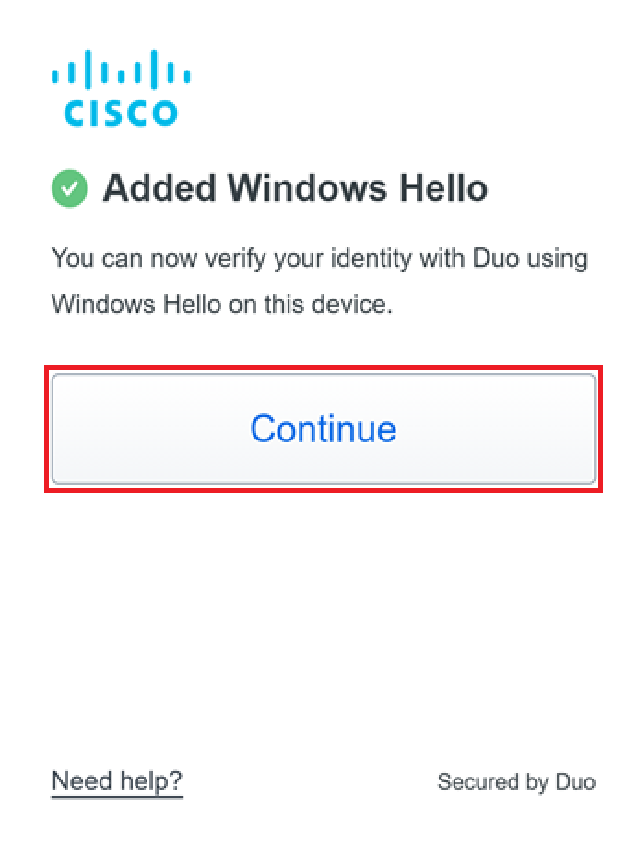
- Click
Continue , then go back to the Windows@Cisco Setup Assistant
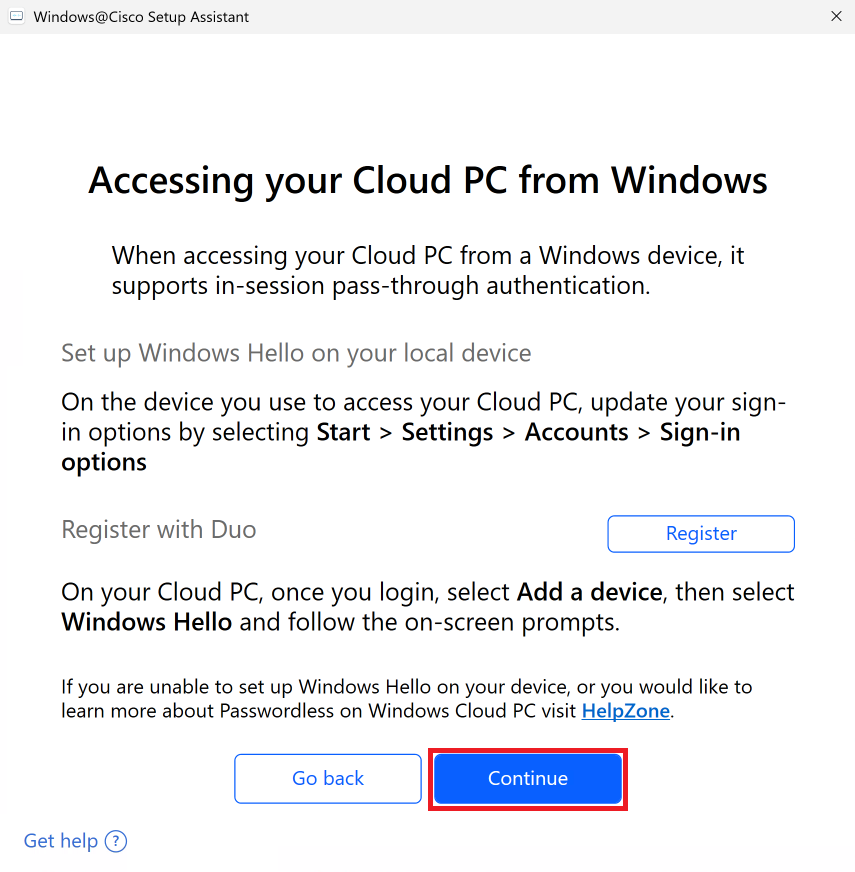
- Click
Continue
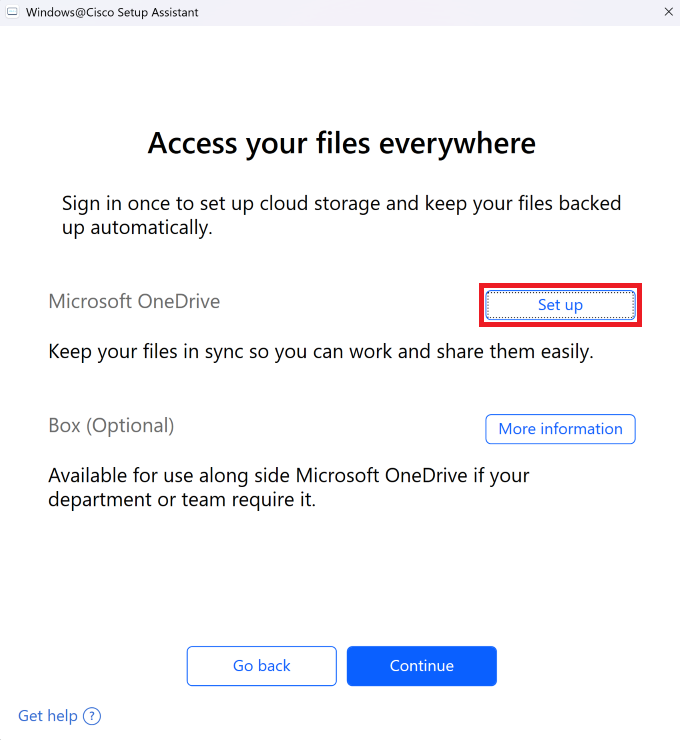
- Microsoft OneDrive - Click
Set up
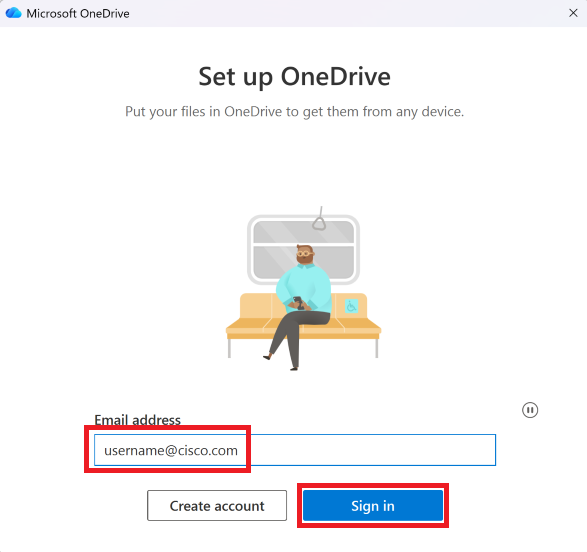
- Confirm your Email address, then click
Sign in
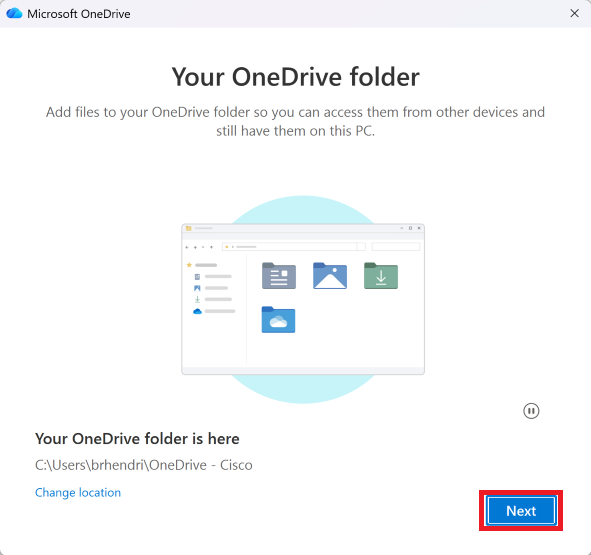
- Click
Next
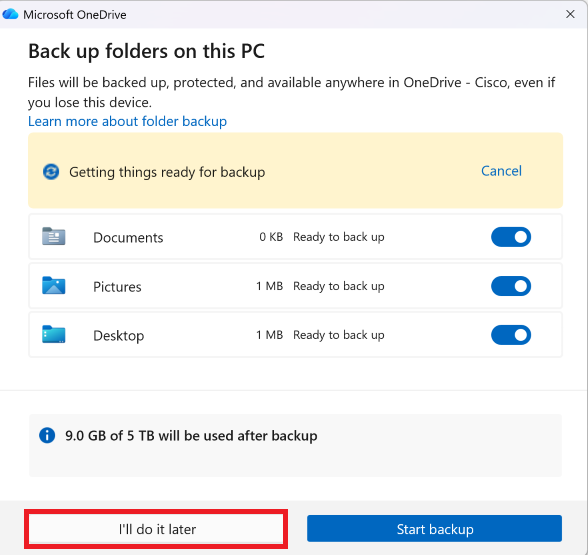
- Click
I'll do it later
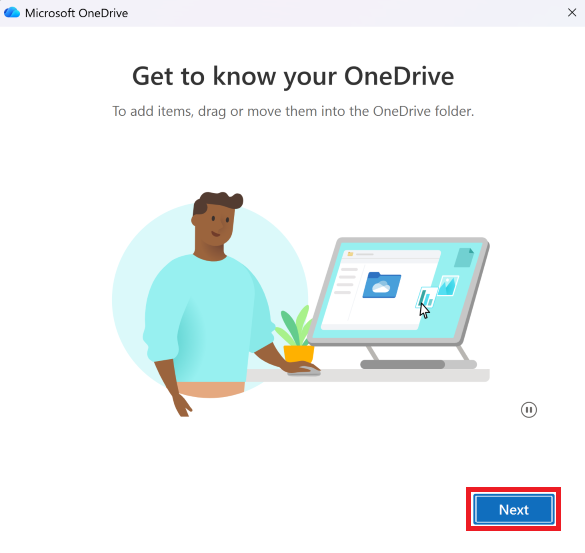
- Click
Next on the following 3 windows
- Click
Later
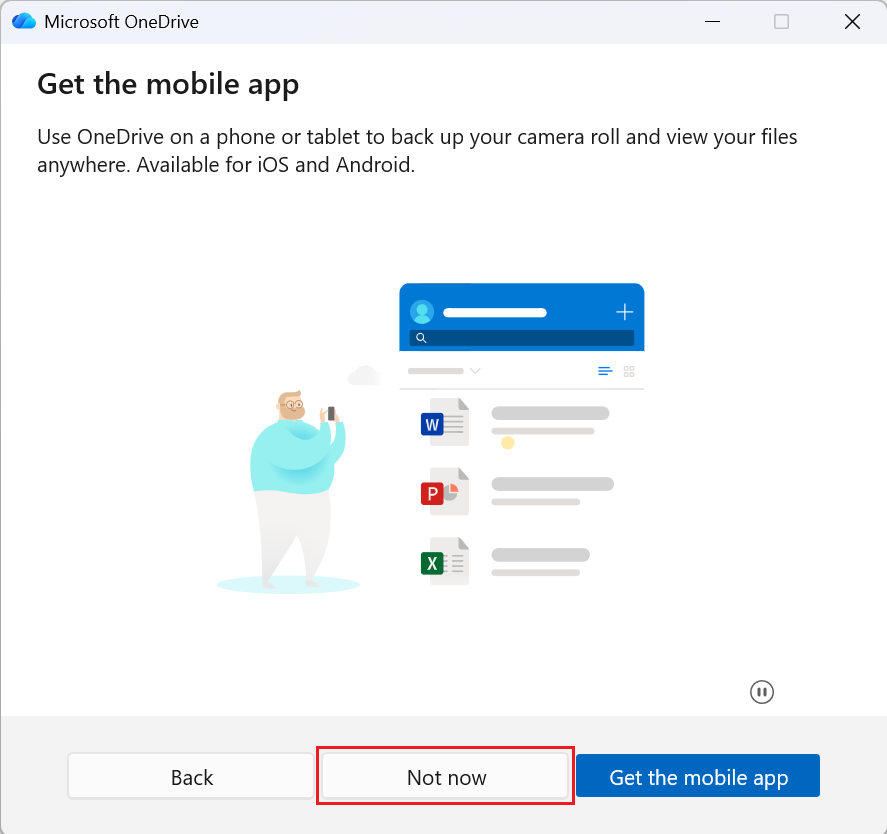
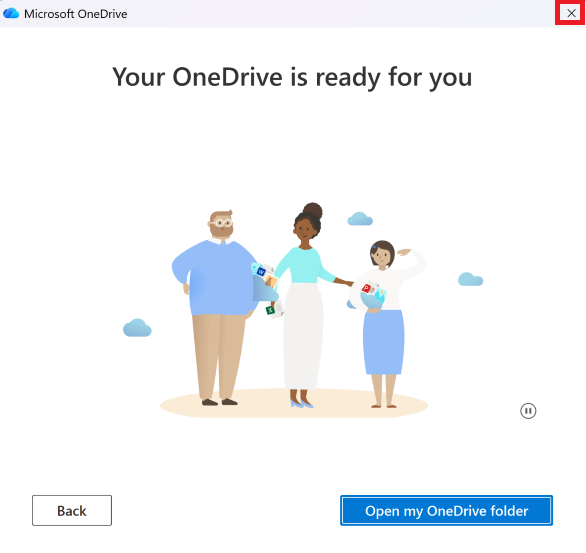
- Close the OneDrive configuration window and return to the Windows@Cisco Setup Assistant
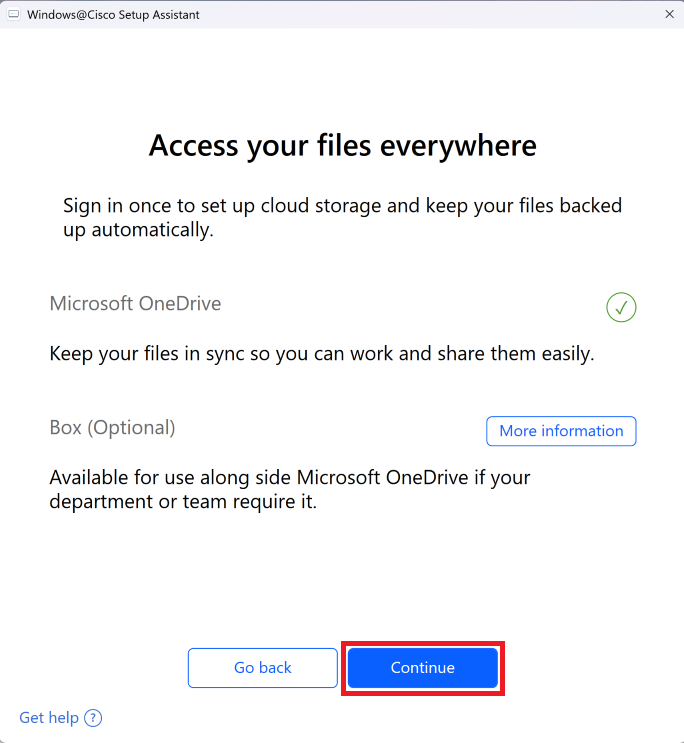
- Click
Continue
- Click
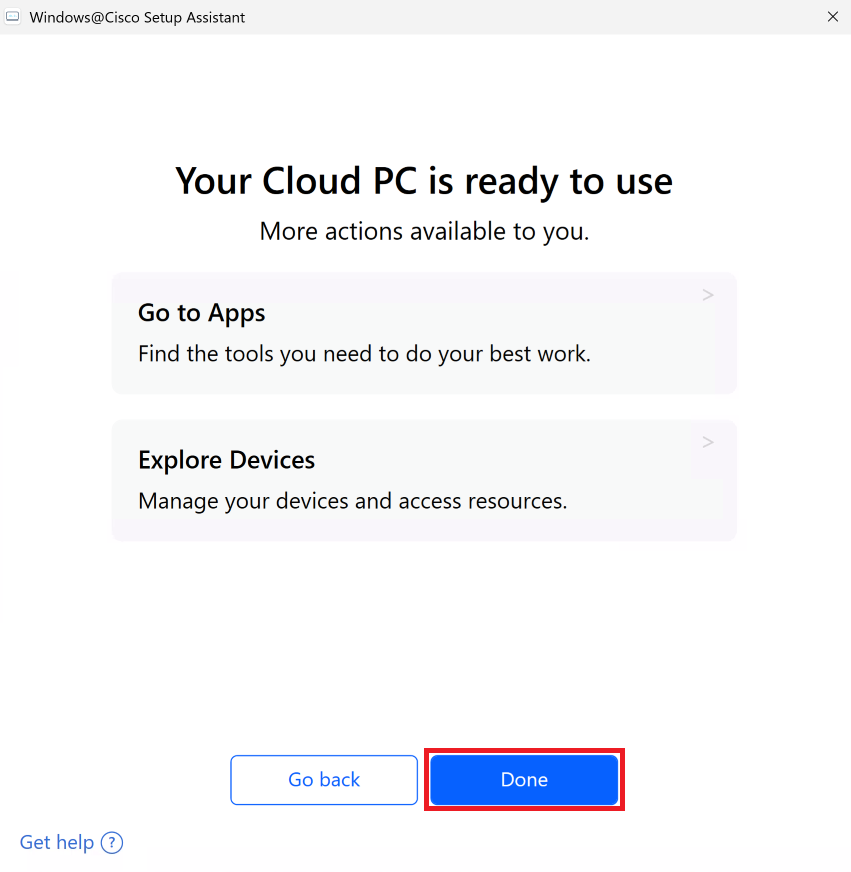
Done . You can launch the Windows@Cisco Setup Assistant to explore apps and devices after you are fully onboarded