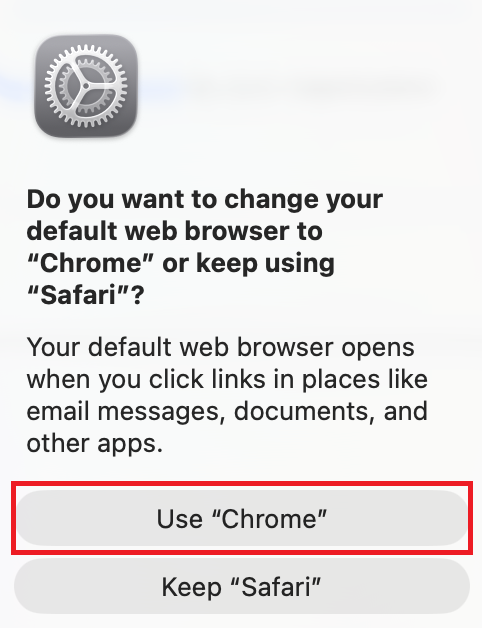
Google Chrome works the best for the initial setup process. Please install it and make it your Default Browser. If you prefer a different browser, you may install it and make it default once your system is configured
- Open Safari on your
NEW Cisco Mac, and go to www.google.com/chrome - Click
Download Chrome

- Click
Allow
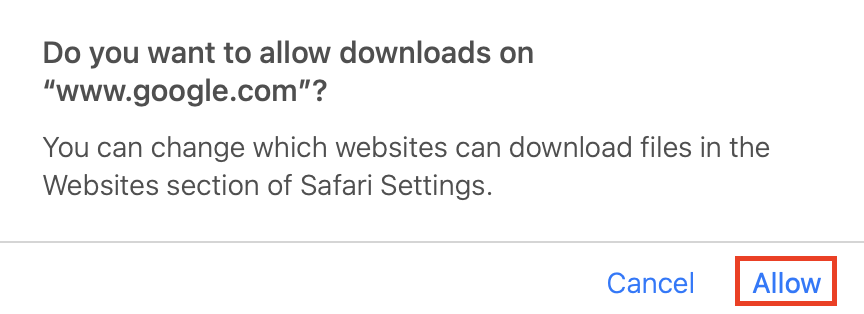
- Wait for the file to download, then quit Safari
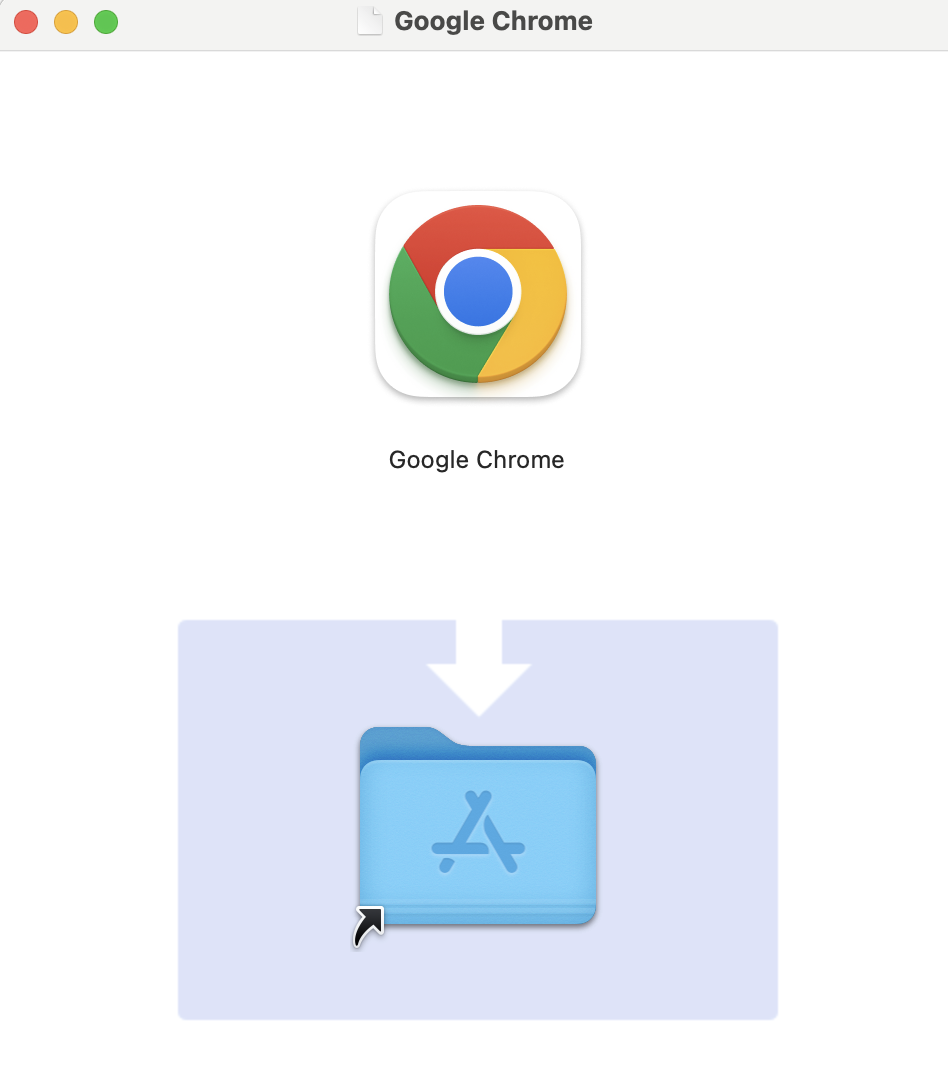
- Open the
googlechrome.dmg file. It will be in the "Downloads" folder - Follow the on-screen instructions to drag
Google Chrome to the "Applications" folder
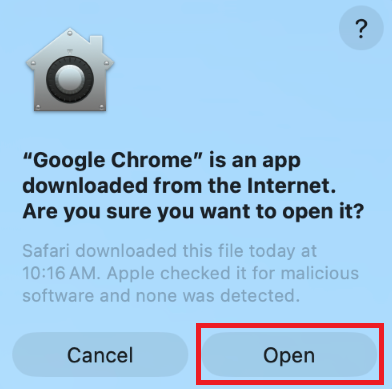
- Open the "Applications" folder and launch
Google Chrome - Click
Open
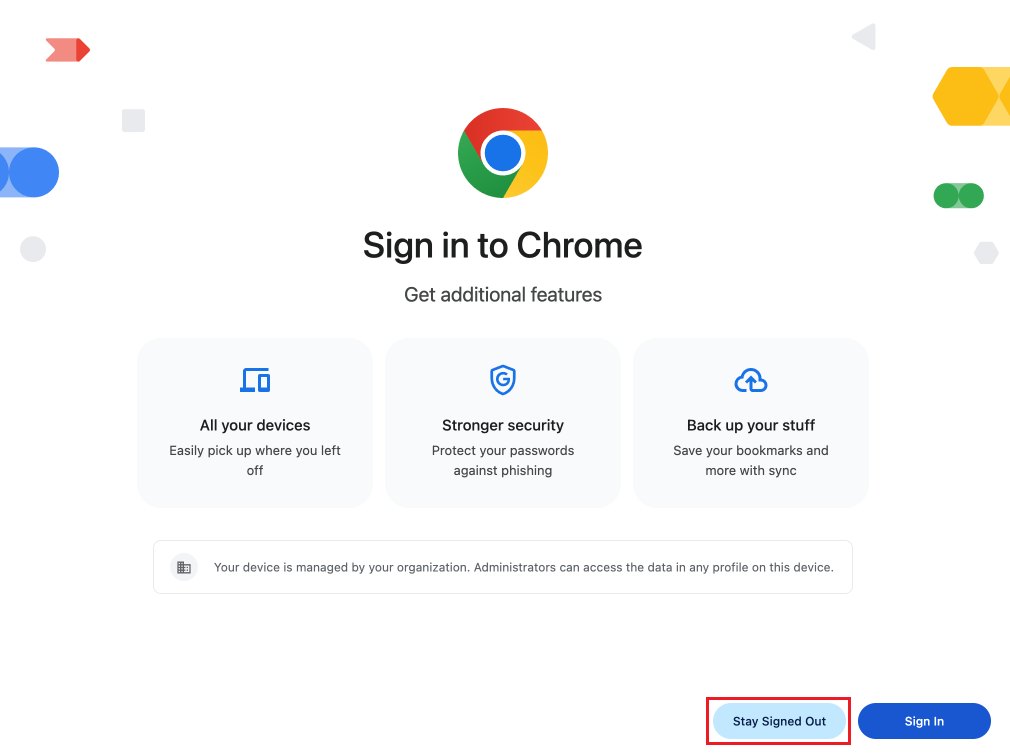
- Click
Stay Signed Out
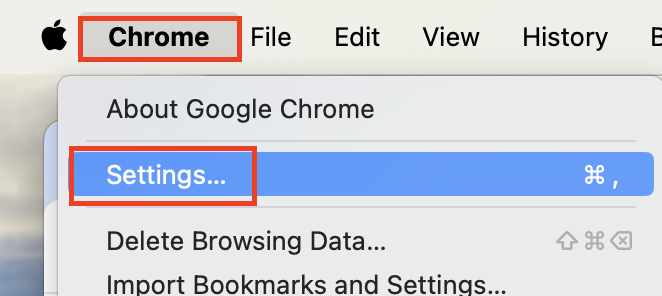
- On the top menu, click
Chrome → Settings
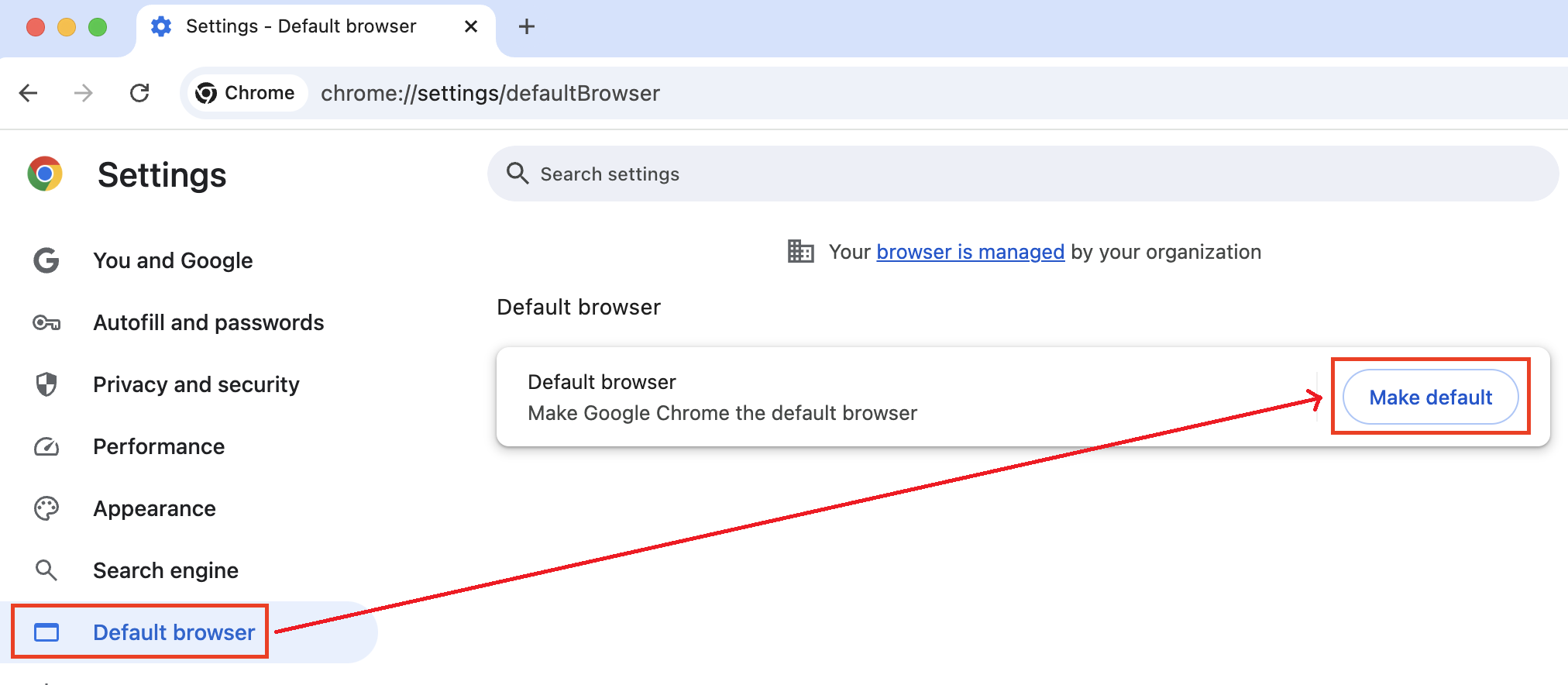
- Click
Default browser → Make default
- Click
Use "Chrome"