- A Duo Verified Push code will pop up on your Cisco device
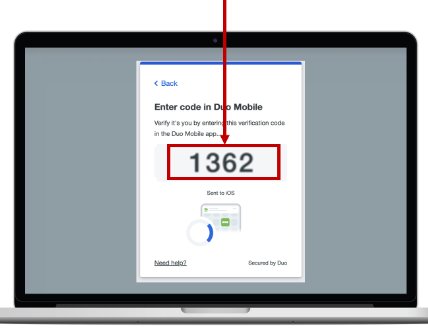
- Verify it is you logging into your Duo app. Did you initiate this push?
- Note: you might have to scroll down to see the verification code prompt
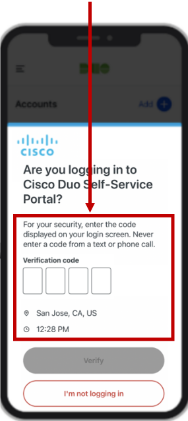
- Enter the verification code when prompted
Only use the code provided within the Duo login prompt from your Cisco deviceNEVER enter a code provided by a third-party, including:- The Cisco help desk
- Text message (SMS)
- A phone call or email

Your system is not in ABM for Cisco, so you will need to manually enroll it with Cisco Device Management. These instructions were created using Sequoia. If you are running a different version of macOS, then some of the steps will look different, but similar. Some key items are:
- Do not use any form of Migration Assistant. Set up as a "New" system
- Do not configure your AppleID yet. Wait until after your setup is complete
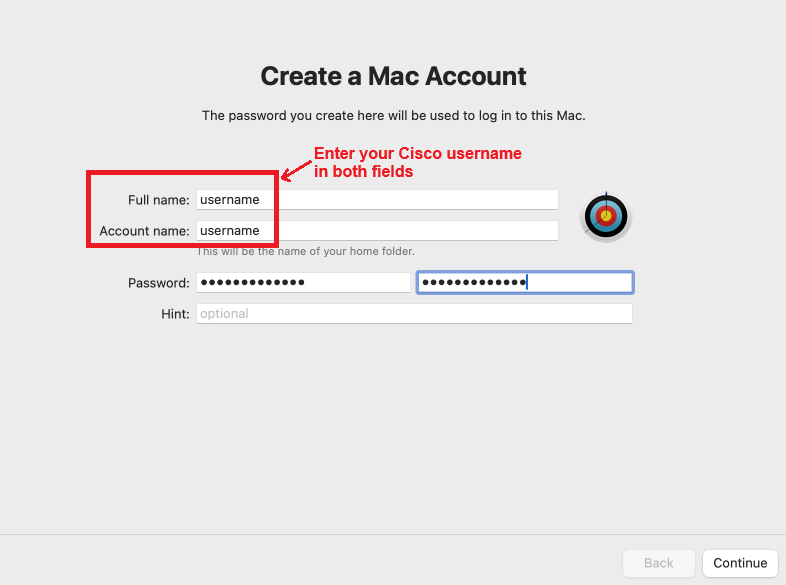
**NEVER** save any passwords in your browswer- When creating your local Mac user account, use your Cisco username in both the full name and username fields
- On the Create a Mac Account screen. Enter the following details:
- Full name: Set to your Cisco userID,
not your full name - i.e. jdoe - Account name: Set to your Cisco userID - i.e. jdoe
- Password: Use a password that meets the following criteria:
- has at least 12 characters
- has both upper and lower case characters
- has at least 1 special character
- has at least 1 digits
- not an exact dictionary word match
- not your profile ID or name
- not contain your rearranged profile ID or name
- not contain these special characters
Á ë ô Ñ ¿ ß - not contain a space
- not contain a British pound symbol
£ - not contain a double quote
" - Hint: Leave this blank
- Confirm your password is correct
- Click
Continue
**This is now your Local Mac Password. Your Cisco Temporary Password has not yet been changed. This will be done in a later step** - Full name: Set to your Cisco userID,
Agree to the Terms and Conditions- Select your Time Zone, then click
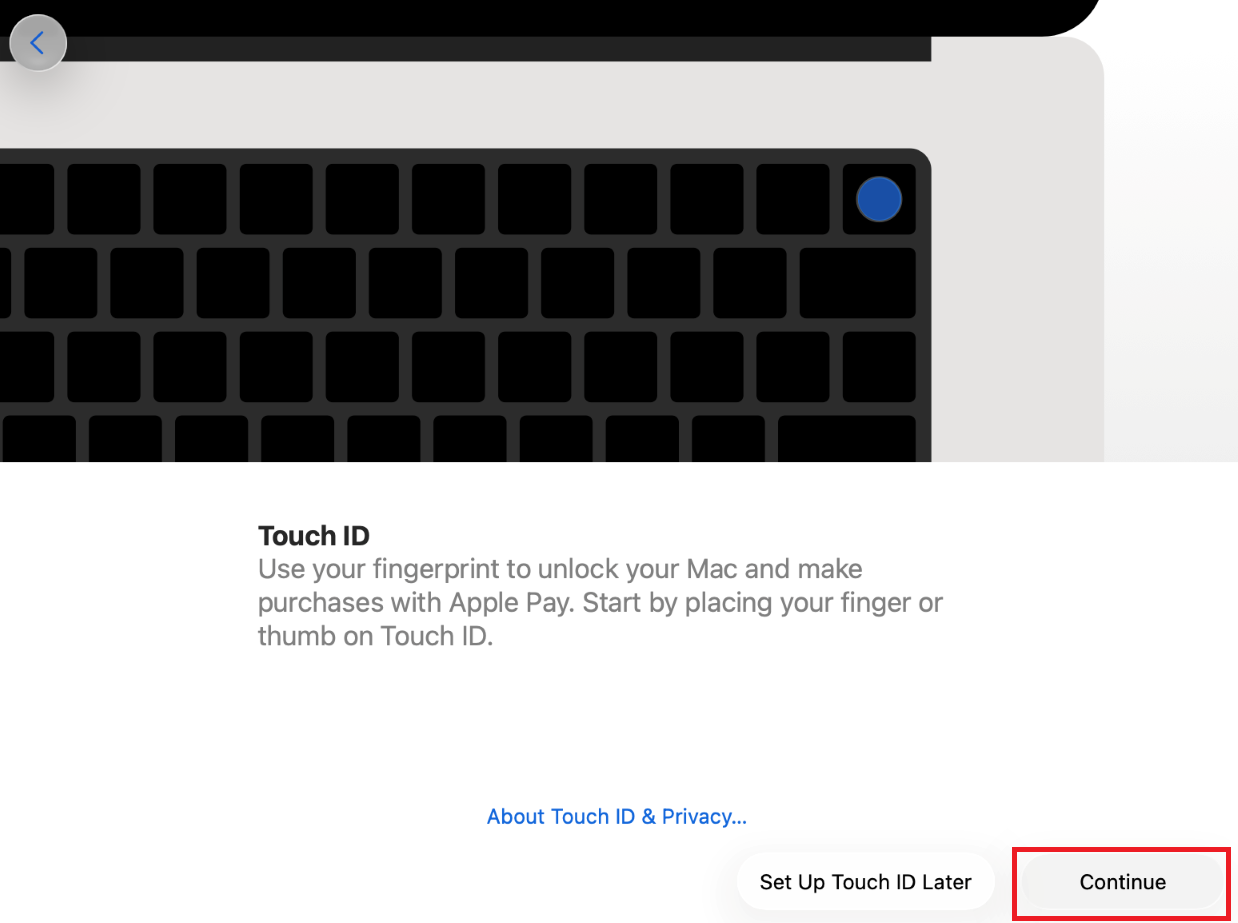
Continue - Touch ID: Set it up by clicking
Continue and following the on-screen instructions. Touch ID will be used to set up Passwordless authentication later
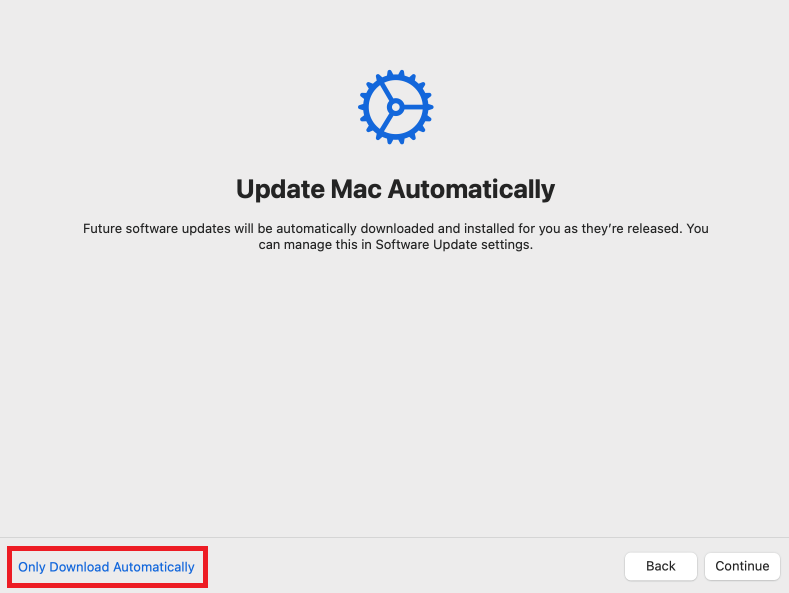
- On the Update Mac Automatically screen, click
Only Download Automatically . You can change to fully update automatically after the setup is complete if you wish
- When you get to the desktop, open Safari and enter
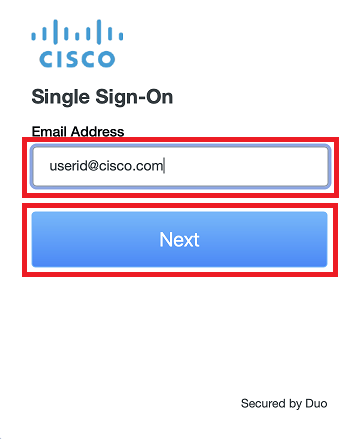
https://macenroll.cisco.com into the address field - Enter your Cisco email address click
Next
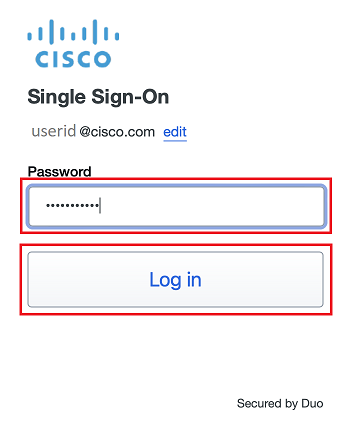
- Enter your Cisco temporary password click
Log in
- A Duo Verified Push code will pop up on your Cisco device
- Verify it is you logging into your Duo app. Did you initiate this push?
- Note: you might have to scroll down to see the verification code prompt
- Enter the verification code when prompted
Only use the code provided within the Duo login prompt from your Cisco deviceNEVER enter a code provided by a third-party, including:- The Cisco help desk
- Text message (SMS)
- A phone call or email
- Click
Yes, this is my device 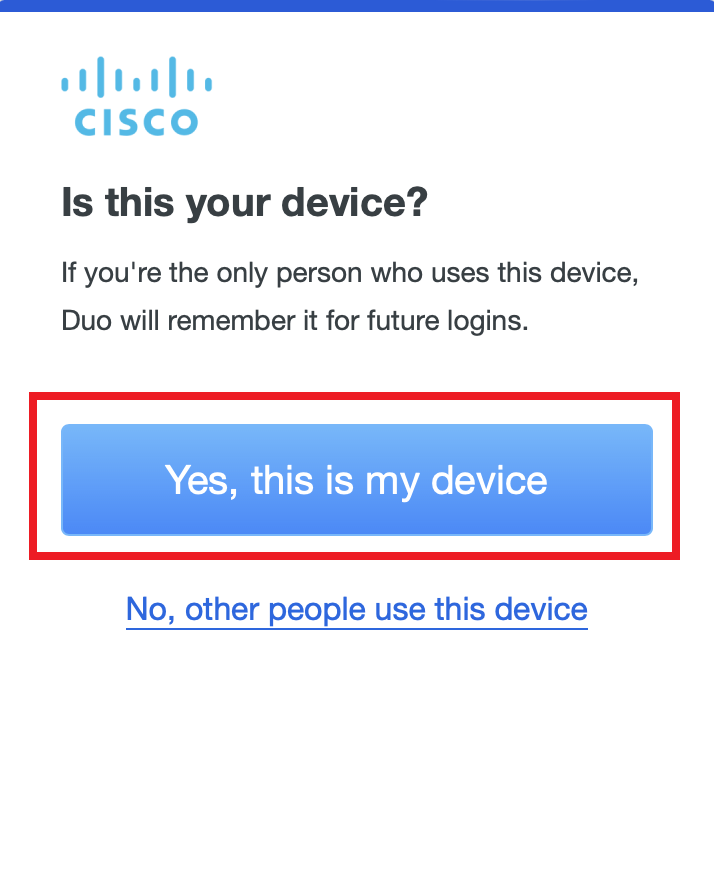
- Click
Download profile 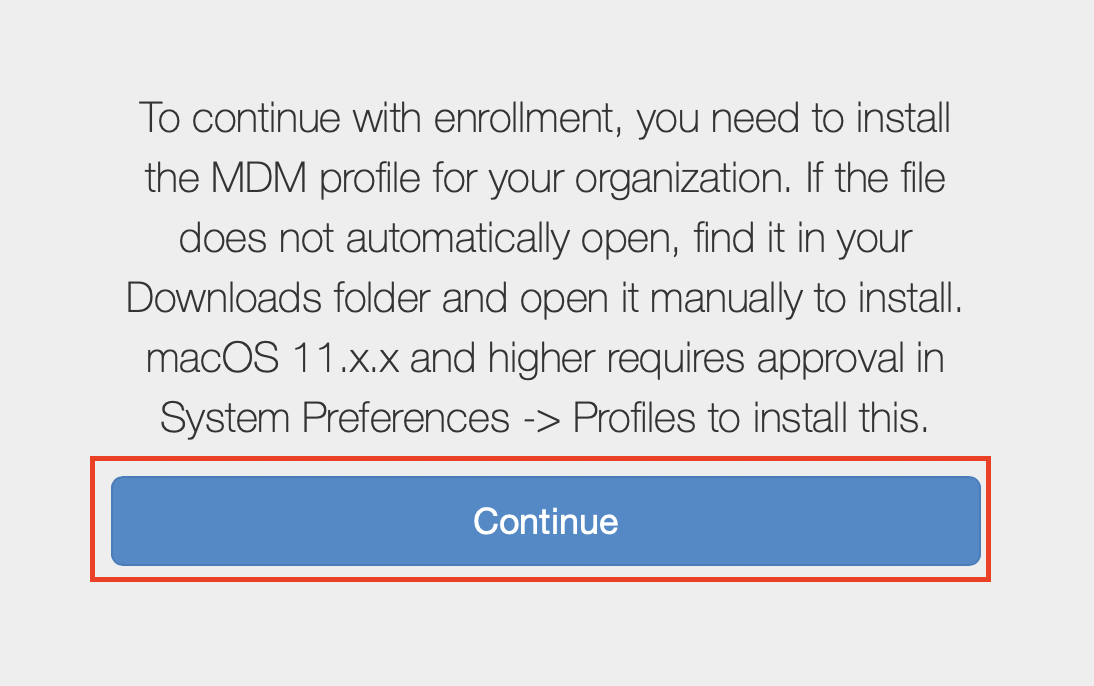
- Click
Allow 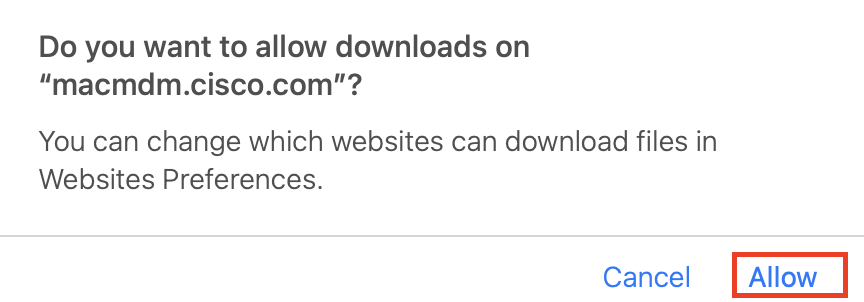
- Open System Preferences, search for Profiles, and click Data Management
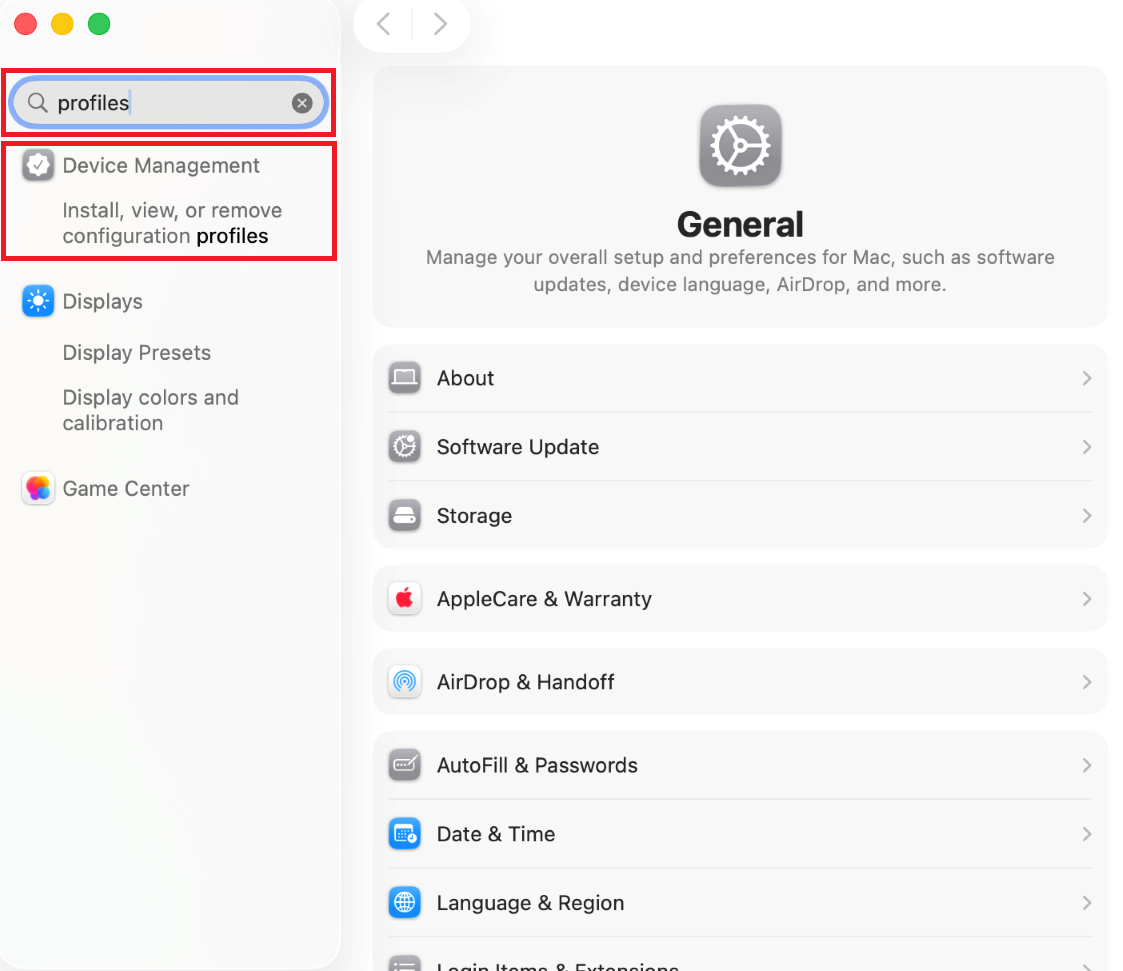
- Double-click
MDM Profile 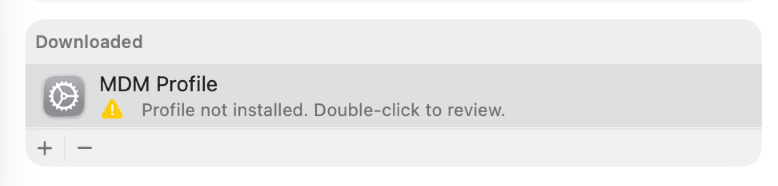
- Click
Install on the next two windows
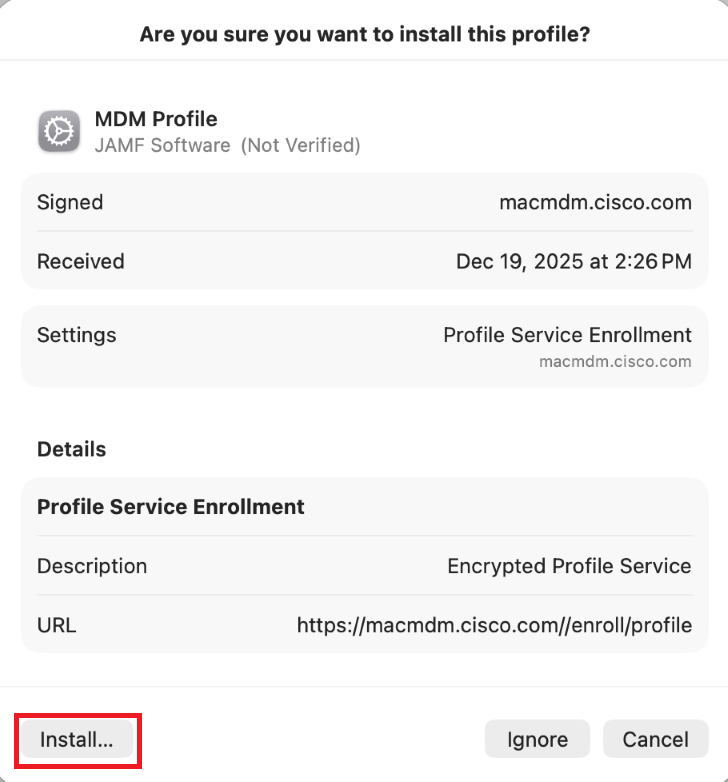
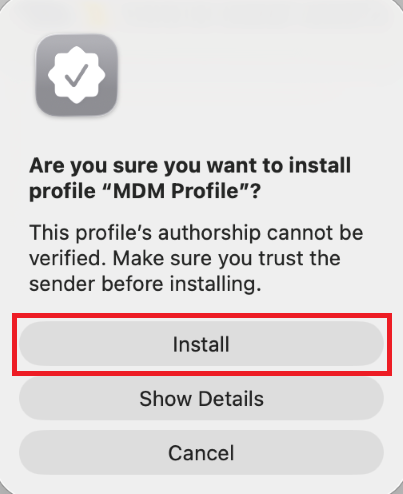
- Enter your local Mac password and click
Enroll 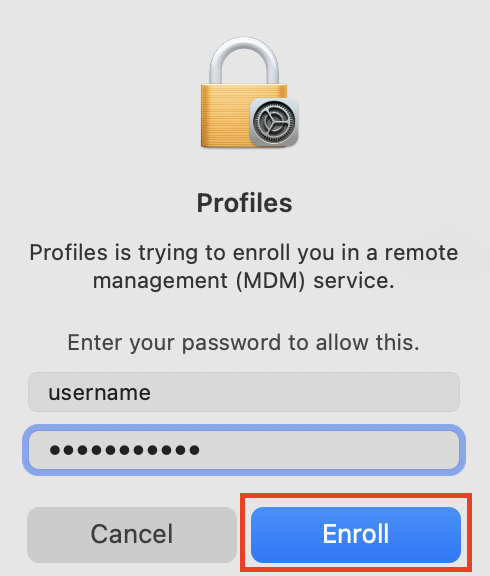
- The device management profiles are now being loaded. You will see them populate under Device Management
- In a few minutes, you will prompted to sign into Mac@Cisco Self Service
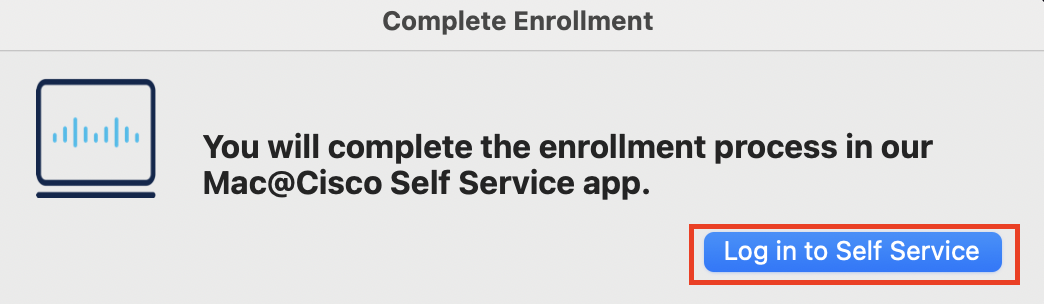
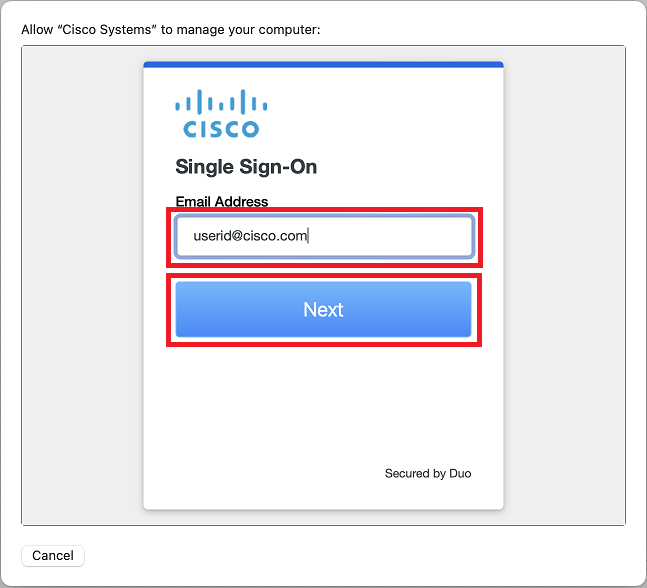
- Enter your Cisco email address click
Next
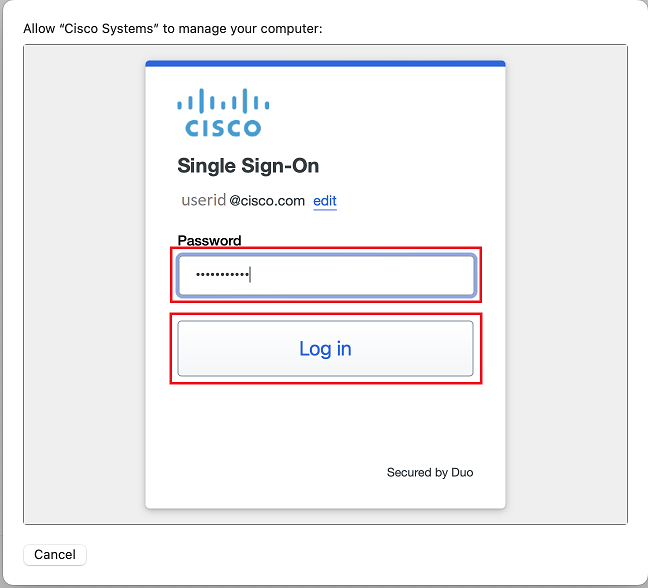
- Enter your Cisco password click
Log in
- Click
Run under Complete Enrollment, then clickRun again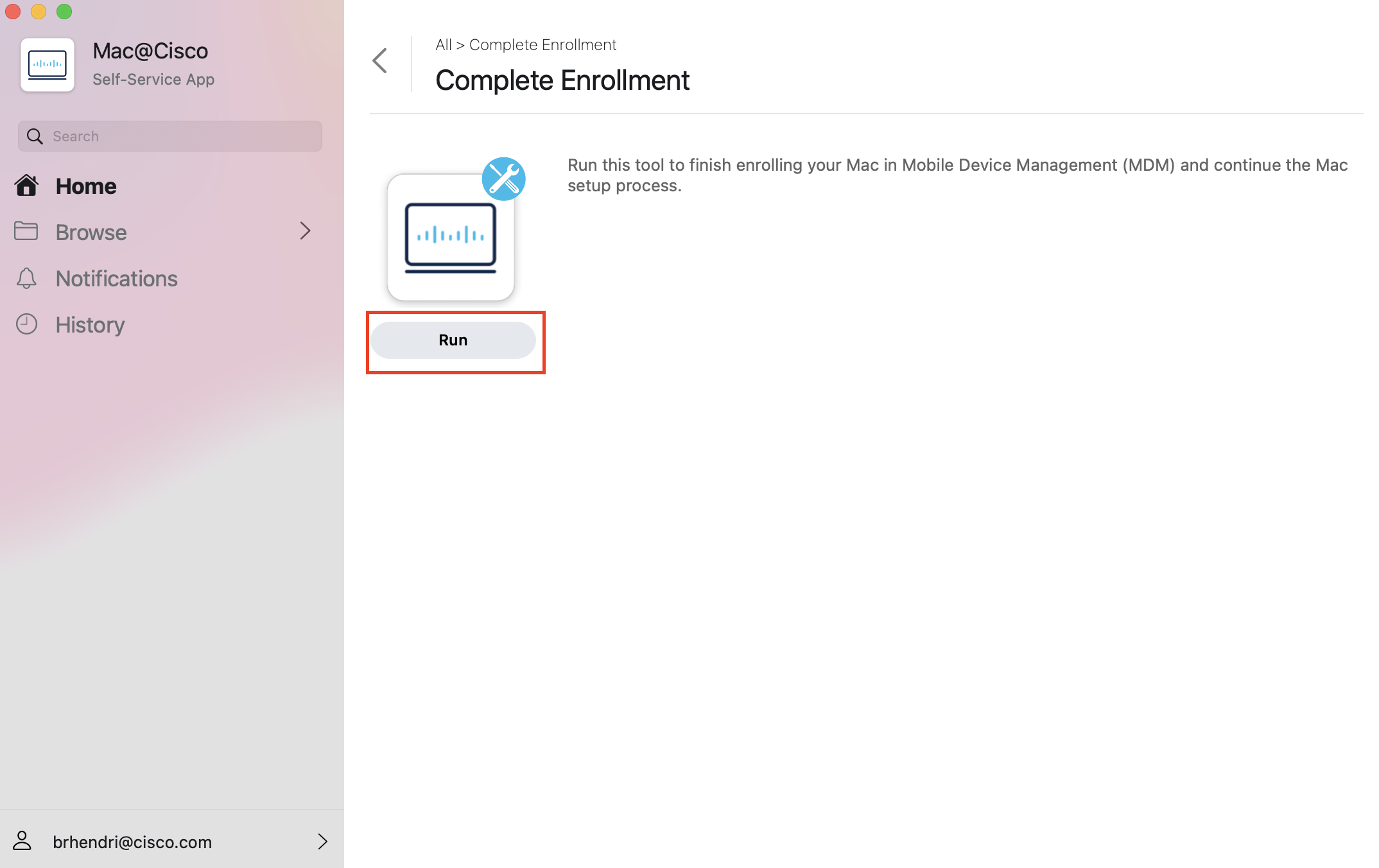
- Close Mac@Cisco Self Service