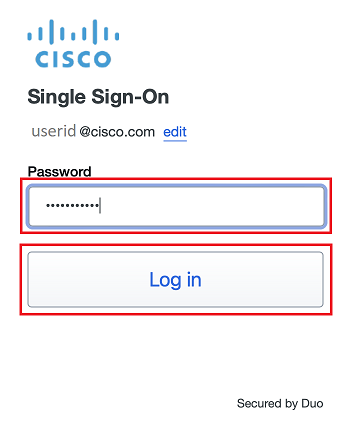
- Enter your Cisco temporary password and click Log In
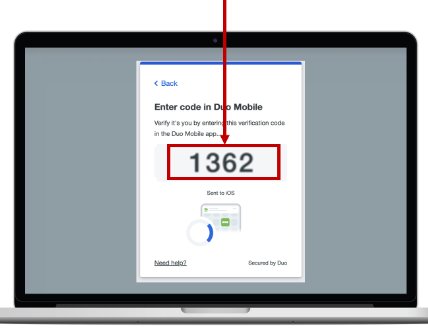
- A Duo Verified Push code will pop up on your Cisco device
- Verify it is you logging into your Duo app. Did you initiate this push?
- Note: you might have to scroll down to see the verification code prompt
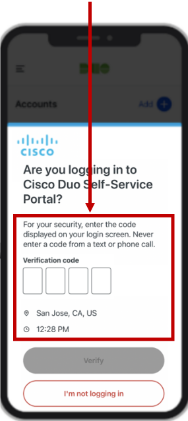
- Enter the verification code when prompted
- Only use the code provided within the Duo login prompt from your Cisco device
- NEVER enter a code provided by a third-party, including:
- The Cisco help desk
- Text message (SMS)
- A phone call or email

Cisco Webex
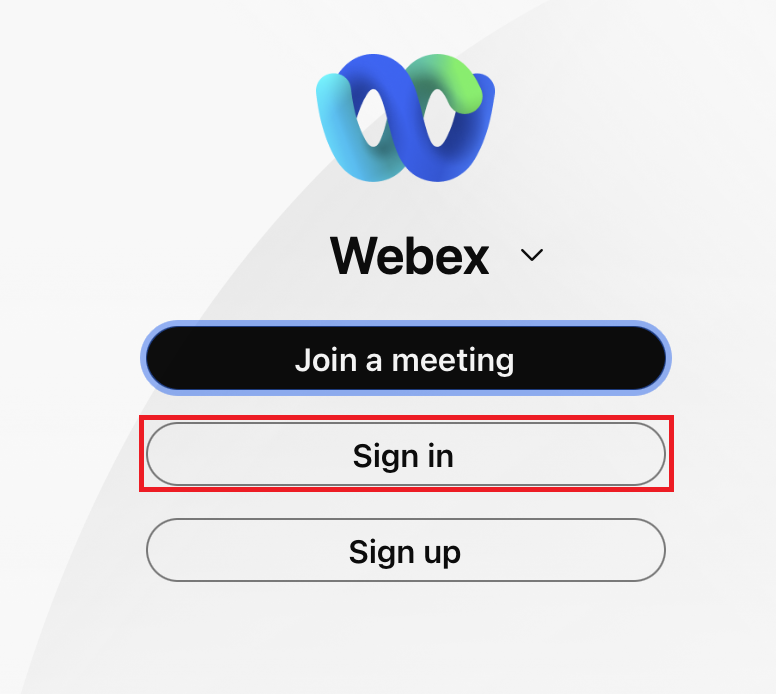
- Open Webex

- Click Sign in
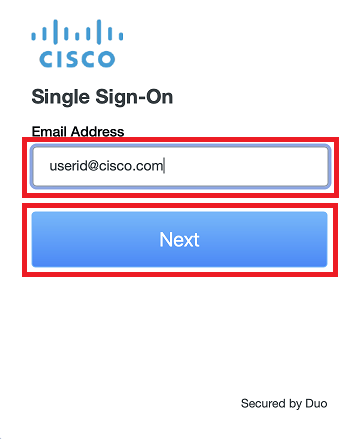
- Enter your Cisco email address click Next
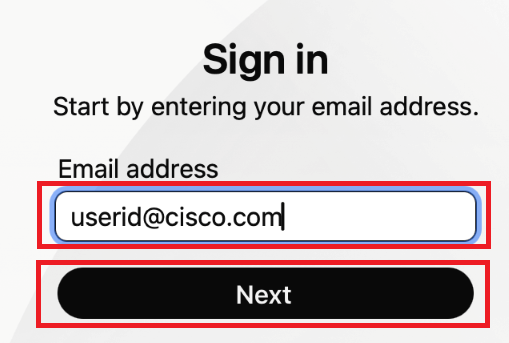
- Enter your Cisco email address, click Next, then follow the rest of the SSO sign-in and Duo authentication steps
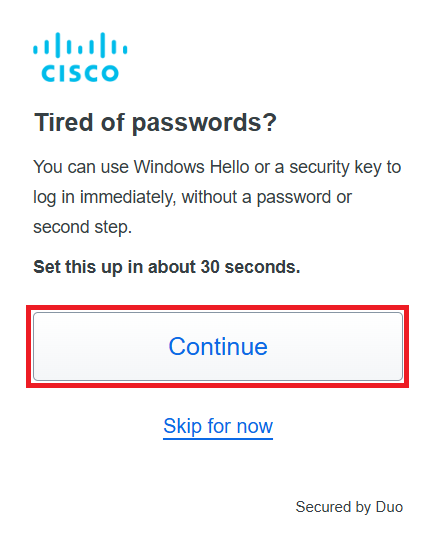
- On the Tired of passwords window, click
Continue and follow the prompts to set up Passwordless Authentication
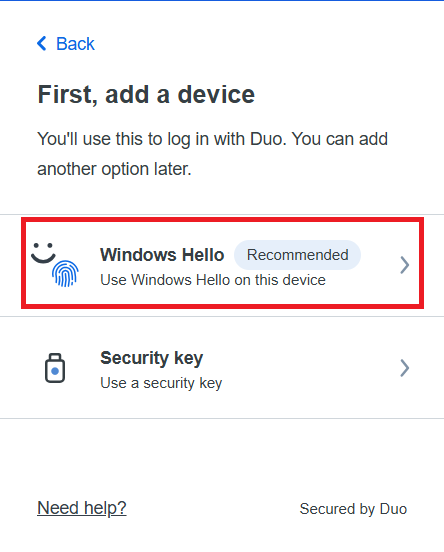
- Verify your identity with Duo
- Click
Windows Hello
- Click
Continue
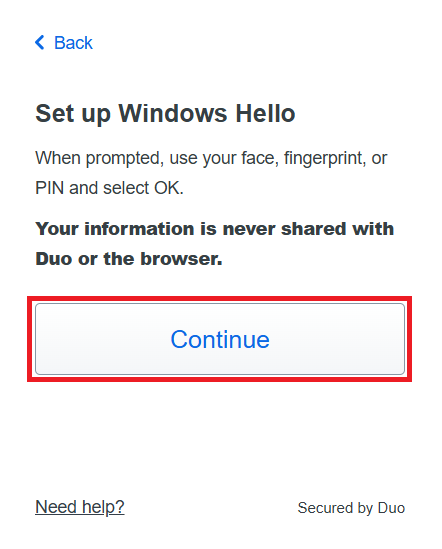
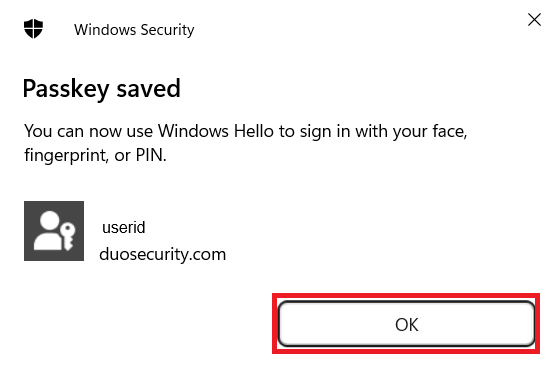
- Authenticate with your preferred Windows Hello method
- Click
OK
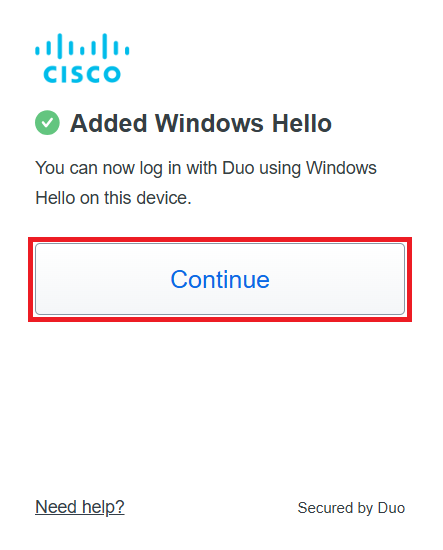
- Click
Continue
- Read through the information about Emergency Calling Notification and click
OK