- Ensure "Secure Boot" is
Enabled in the BIOS, and "Allow Microsoft 3rd Party UEFI CA" is set toOn - Download Ubuntu 24.04 LTS
- Create a bootable USB installer from the ISO you downloaded using balenaEtcher
- Download balenaEtcher if you don't have already have it
- Insert the USB key into your Cisco laptop and boot from it
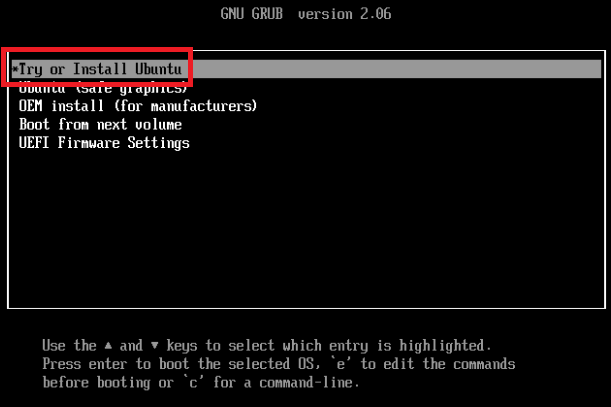
- On the GNU GRUB screen, select
Try or Install Ubuntu
- Follow the Setup Assistant screens to choose your keyboard layout and connect to your WiFi network
- If you are on a
Cisco site, click here for instructions to connect to"internet"
- If you are on a
- On the "Type of installation" window, select
Interactive Installation and clickNext
- On the "Applications" window, select
Default Selection and clickNext
- On the "Optimise your computer" window, tick the options for
Install third-party software for graphics and WiFi hardware andDownload and install support for additional media formats , then clickNext - On the "Disk setup" window, select
Erase disk and install Ubuntu - Click the
Advanced Features button- Select
Use LVM and encryption - Click
OK - Once you are back in the "Disk setup" window, click,
Next
- Select
- On the "Disk passphrase" window, enter a strong passphrase two times as requested. Then click
Next
Note: You will need to use this passphrase to unlock your device before the OS boots.** DO NOT FORGET IT ** , as Cisco IT will not be able to reset it if the device is locked
- On the "Create your account" window, enter the following:
- Enter your full name under "Your name"
- Use the auto generated hostname under Your computer's name. This will be reset when you run the Cisco-Trusted Device script
- Enter your Cisco user ID (not full name) under "Your username"
- Create a password that meets the following requirements:
- has at least 12 characters
- has both upper and lower case characters
- has at least 1 special character
- has at least 1 digits
- not an exact dictionary word match
- not your profile ID or name
- not contain your rearranged profile ID or name
- not contain these special characters: Á ë ô Ñ ¿ ß £
- not contain a space
- not contain a double quote
"
- Tick "Require my password to log in", leave "Use Active Directory" unticked, then click
Next - Select your timezone
- On the "Ready to install" window, review your choices and click
Install - When installation is complete, select
Restart Now . When prompted, remove the USB fash drive and pressENTER