- Connect your new laptop to the AC adapter and power it on
- Select your Language, Region, then click Continue
- Select "Set up as new" and click Continue

- If you need to use accessibility features, make your choice here. Otherwise select Not Now
- Select your WiFi connection, enter the login credentials, and click Continue

- If you are on a Cisco site, click here for instructions to connect to "internet"
- On the Device Management prompt, click Enroll
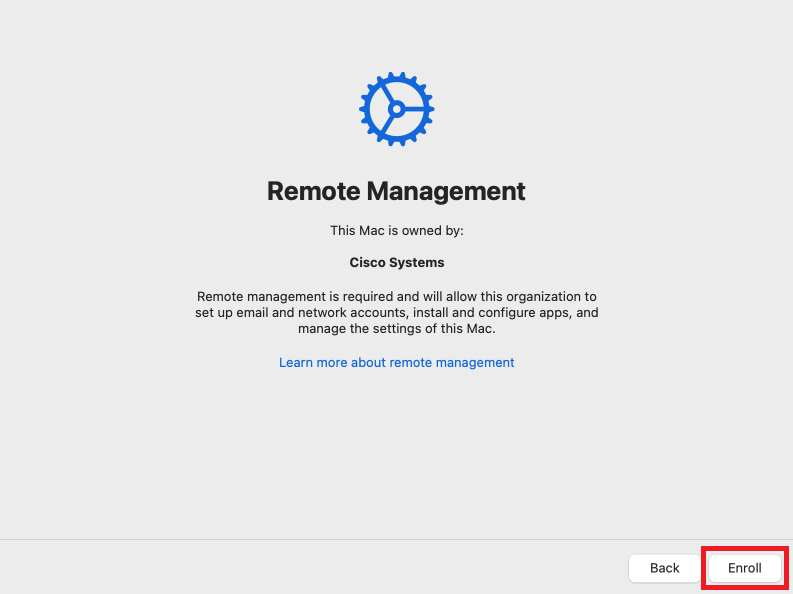
- Note: If you do not see this screen immediately after you have connected to the WiFi please click Back
to get back to the Network Select page, wait 5 seconds, then click Continue. If you still don't see the
Device Management page, click here
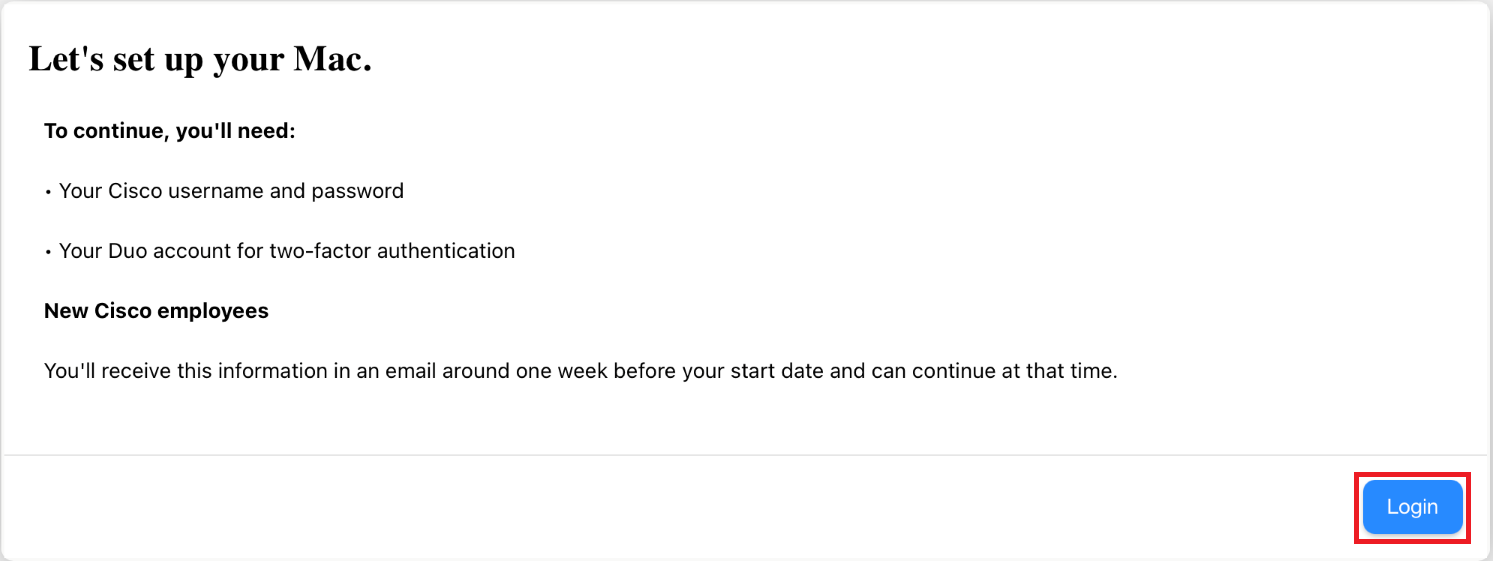
- Click Login to allow Cisco Systems to manage your computer
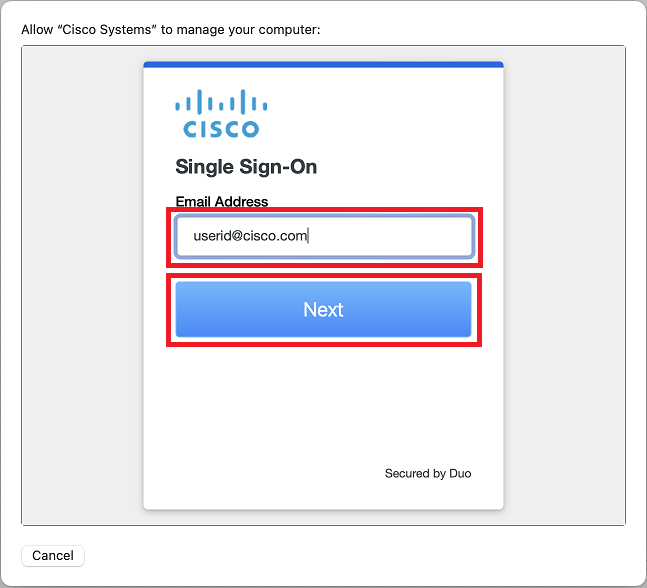
- Enter your Cisco email address click Next
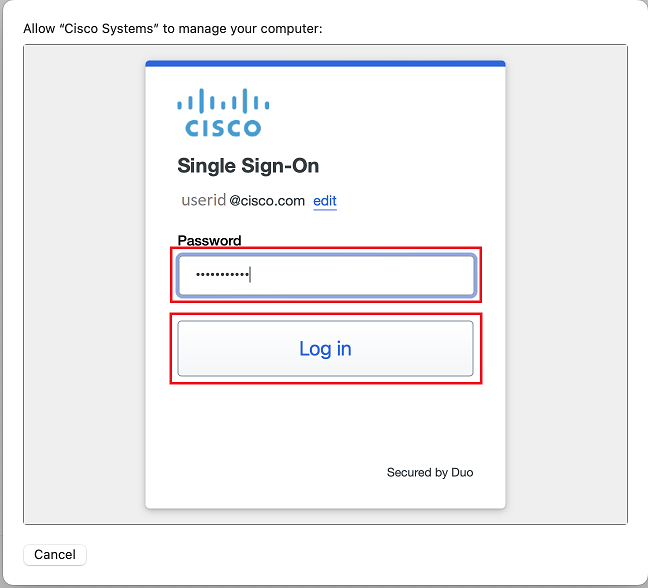
- Enter your Cisco temporary password click Log in
- A Duo Verified Push code will pop up on your Cisco device
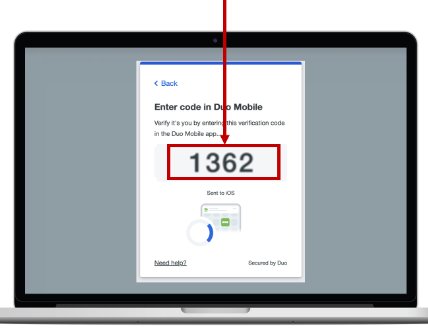
- Verify it is you logging into your Duo app. Did you initiate this push?
- Note: you might have to scroll down to see the verification code prompt
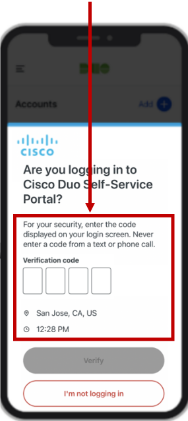
- Enter the verification code when prompted
- Only use the code provided within the Duo login prompt from your Cisco device
- NEVER enter a code provided by a third-party, including:
- The Cisco help desk
- Text message (SMS)
- A phone call or email

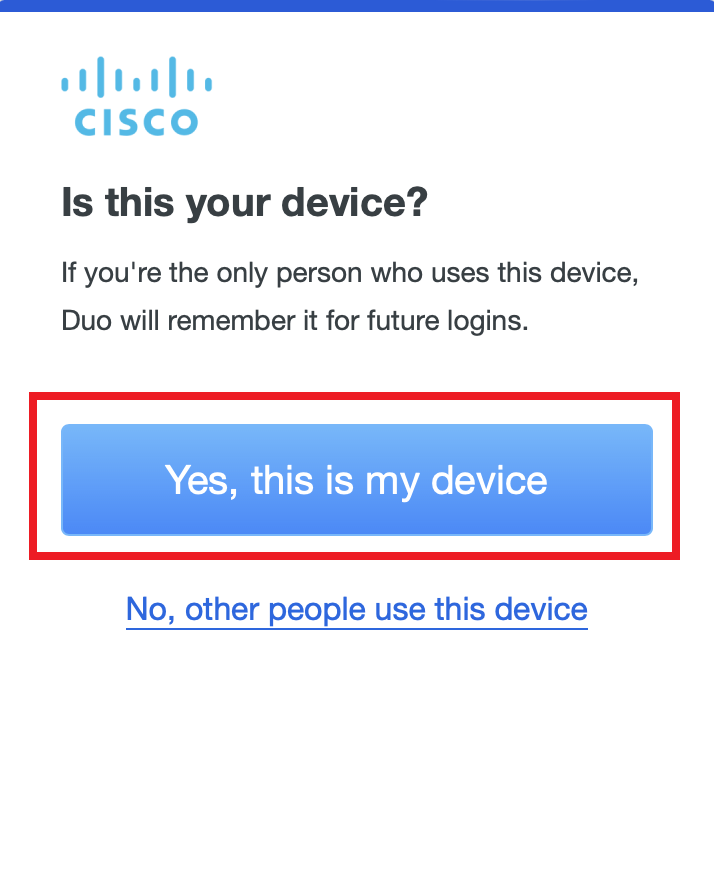
- If you see the following prompt, click Yes, this is my device
- In a few moments, you will see the Create a Mac Account screen. Enter the following details:
- Full name and Account name: Both are set to your Cisco userID by default.
**Do not change them**
- Password: Use a password that meets the following criteria:
- has at least 12 characters
- has both upper and lower case characters
- has at least 1 special character
- has at least 1 digits
- not an exact dictionary word match
- not your profile ID or name
- not contain your rearranged profile ID or name
- not contain these special characters Á ë ô Ñ ¿ ß
- not contain a space
- not contain a British pound symbol £
- not contain a double quote "
- Hint: Leave this blank
- Confirm your password is correct
- Click Continue

**This is now your Local Mac Password. Your Cisco Temporary Password has not yet been changed. This
will be done in a later step**
- Agree to the Terms and Conditions
- Select your Time Zone, then click Continue
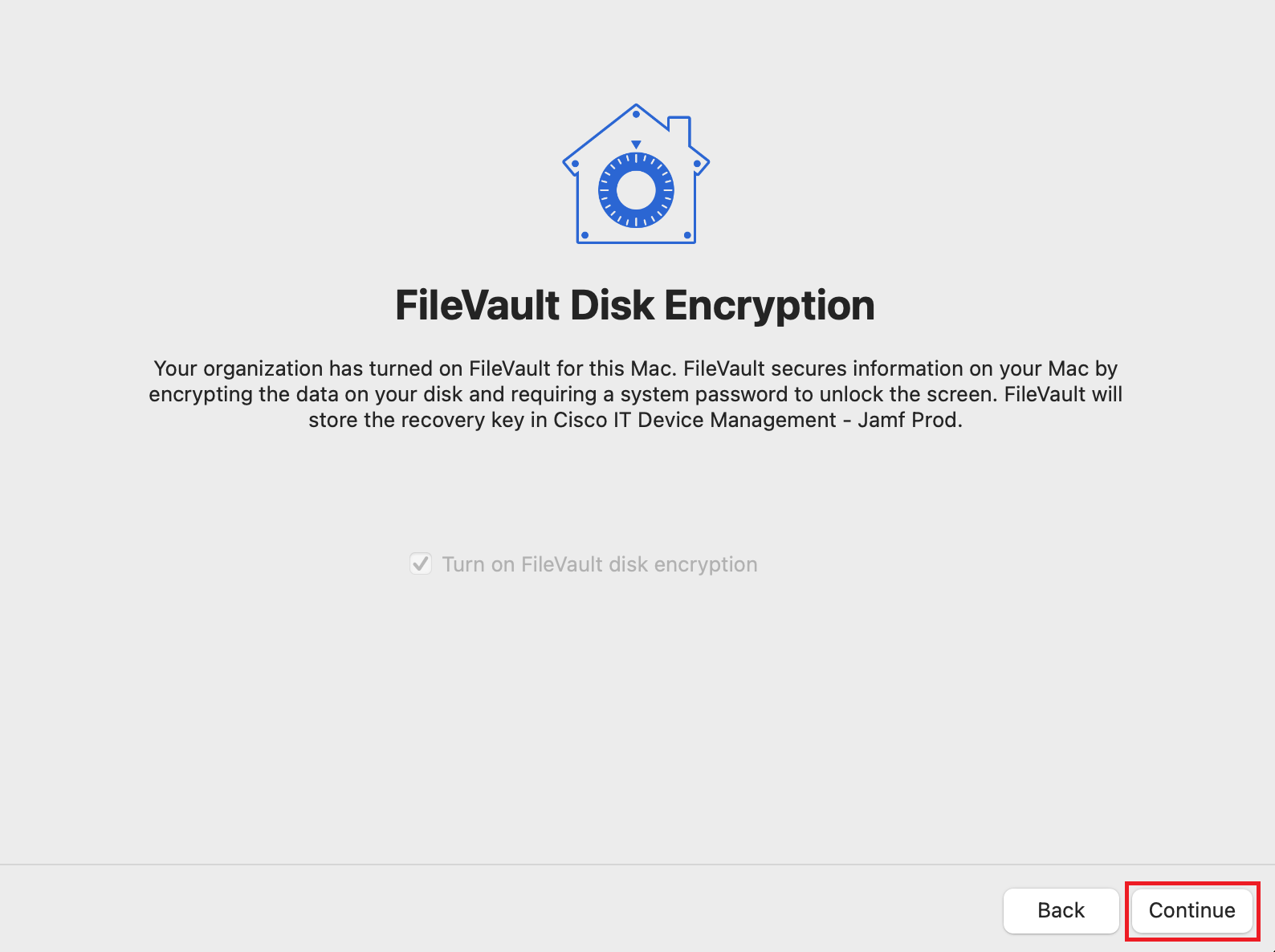
- On the FileVault Disk Encryption screen, click Continue
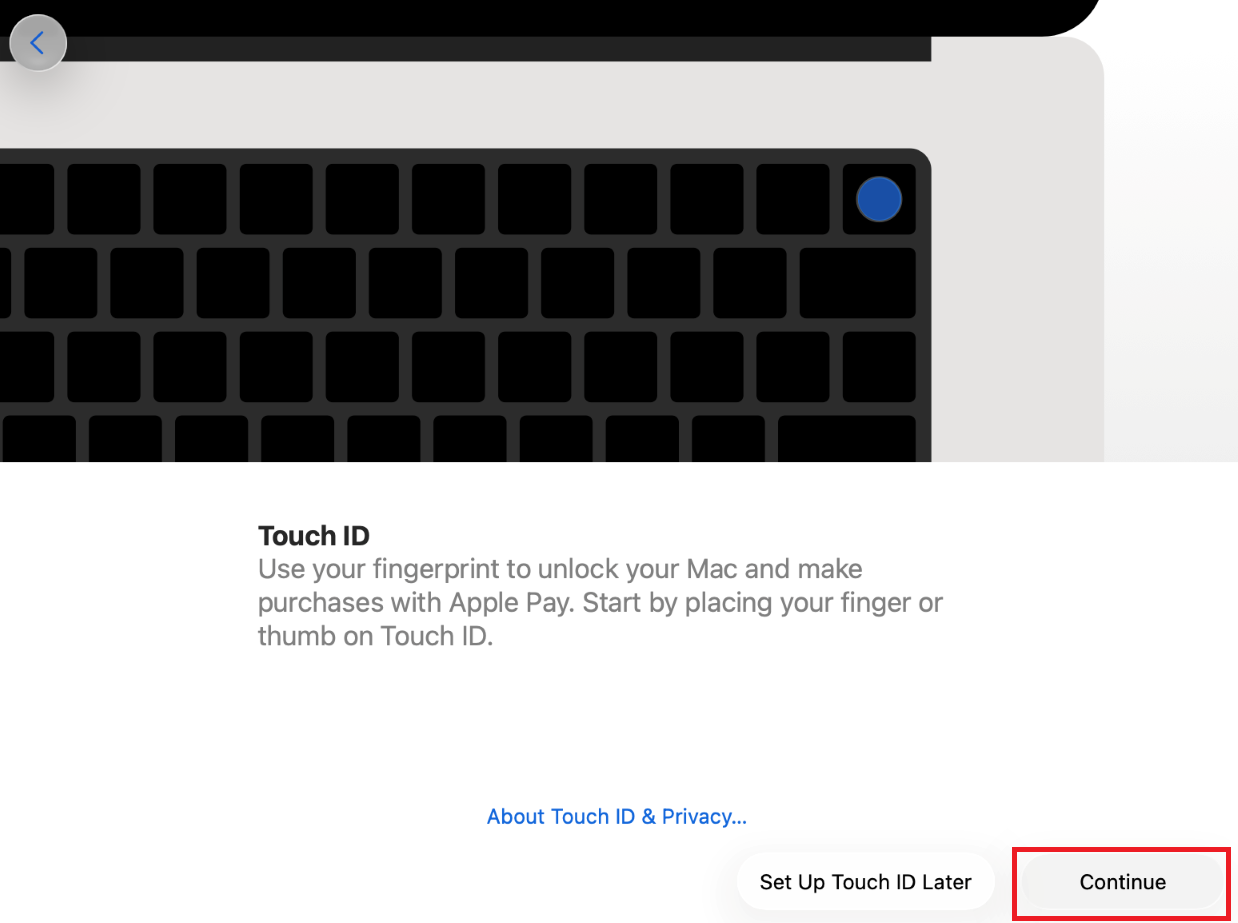
- Touch ID: Set it up by clicking Continue and following the on-screen instructions. Touch ID will be used to set up Passwordless authentication later
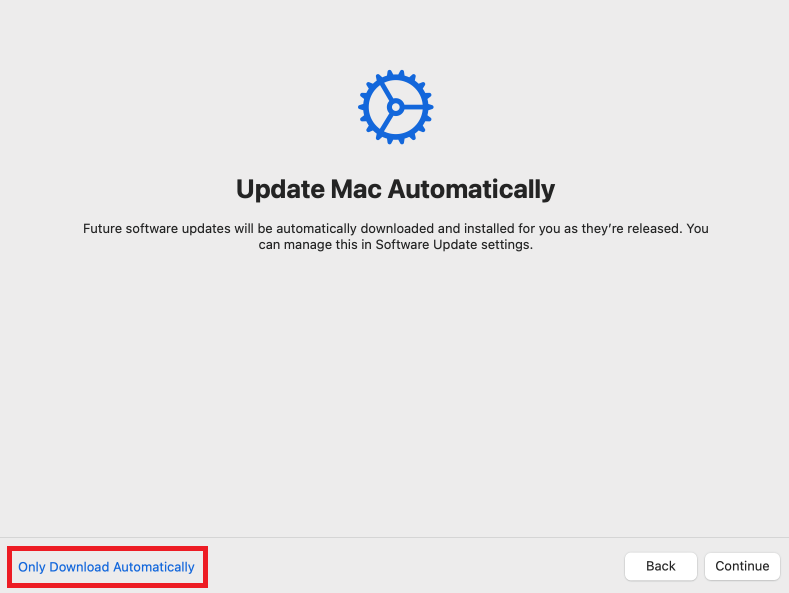
- On the Update Mac Automatically screen, click Only Download Automatically. You can change to fully update automatically after the setup
is complete if you wish
- Don't click any options on the Webex End User License Agreement window for now. You will get to it later
- Note: If you are prompted to run any OS updates, please do not run them at this time.
This will cause a delay in getting your laptop configured. We recommend you run updates at
the end of your workday
Next Step: Install Chrome